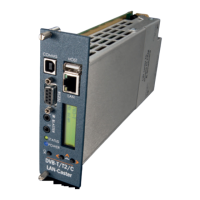
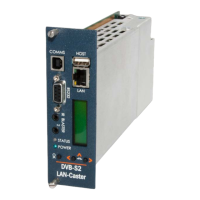
Installing a CAM module
The LAN-Caster can be enabled to work with a third party CI CAM module, so it can decrypt the stream before it is
transmitted on the network. A CI CAM module with the appropriate decryption system will be required (Irdeto, Viac-
cess etc.), together with a valid subscription card. It is the responsibility of the user to ensure that they are entitled by
the broadcaster to decrypt the stream and distribute it unprotected across an IP network to multiple viewing devices.
Cabletime takes no responsibility whatsoever for any unauthorised or illegal use of this equipment.
To install the CAM module, do the following:
1. Ensure the LAN-Caster is enabled to use a CAM module. Check the unit’s part number (shown on the LCD and
on the browser Status page) contains a ‘-CAM’ extension. If it doesn’t, it can be upgraded ‘in-situ’ with a software
enablement code. Contact Cabletime with the LAN-Caster’s serial number for more details.
2. Disconnect the front and rear cables from the LAN-Caster module, and carefully remove it from the rack.
Note: If the RF input signal is daisy-chained between modules, downstream LAN-Casters will lose their RF feed
and will stop outputting TV streams.
3. Open the CAM module access lid by gently squeezing the retaining ‘bumps’ in the sides of the lid while lifting
the rear edge.
4. Take care not to touch any of the electronics inside the module – a static electric ‘zap’ could damage the
components and they may be hot!
5. Insert the subscriber viewing card (smart-card) into the CAM module, ensuring it is the right way up.
6. Take the CAM module and insert it (connector rst) into the plastic card guides near the top of the module.
As you press it home, you will notice the ejector button move outwards.
7. Close the access lid, ensuring that the metal tab on the rear edge of the lid is INSIDE the metal wall.
8. Ensure nothing is loose within the module and then carefully re-insert it back into the rack. Ensure the front
panel xing screws are secure then re-connect the cables.
9. Use the front panel buttons and LCD to check that the CAM module and subscriber card has been properly
recognised by the LAN-Caster module.
10. Use a web browser to access the LAN-Caster’s Status page, and check the CAM module is working OK.
Go to the Channel Setup page and select the appropriate RF multiplex.
11. Enable an appropriate encrypted channel with an IP stream address etc., and press Apply. The video, audio
and data within that stream will then be decrypted by the CAM module before it is launched onto the network.
Any un-encrypted channels enabled will stream out normally.
12. If you have enabled more encrypted channels than the CAM can simultaneously decrypt, the extra channels will
automatically be disabled. This will be shown on the Channel Setup page. If this happens, then you must use a
‘Professional’ CAM with a higher channel decryption capacity, and a suitably enabled subscriber viewing card.
13. If you select channels that use a dierent encryption standard to that supported by your CAM, or if your
subscription service does not include a selected channel, the channel will be streamed onto the network,
with the TV channel still encrypted.
MediaStar 782-DS Digital Media Player
Quick Start Guide
783 DVB Lan-Caster Unit
200-2342_v2
5/12


 To Next Page
 Loading...