EasyManua.ls Logo

Medion MD 88069 - User Manual

Medion MD 88069
368 pages
Go to English
Print Icon
To Next Page IconTo Next Page
Loading...
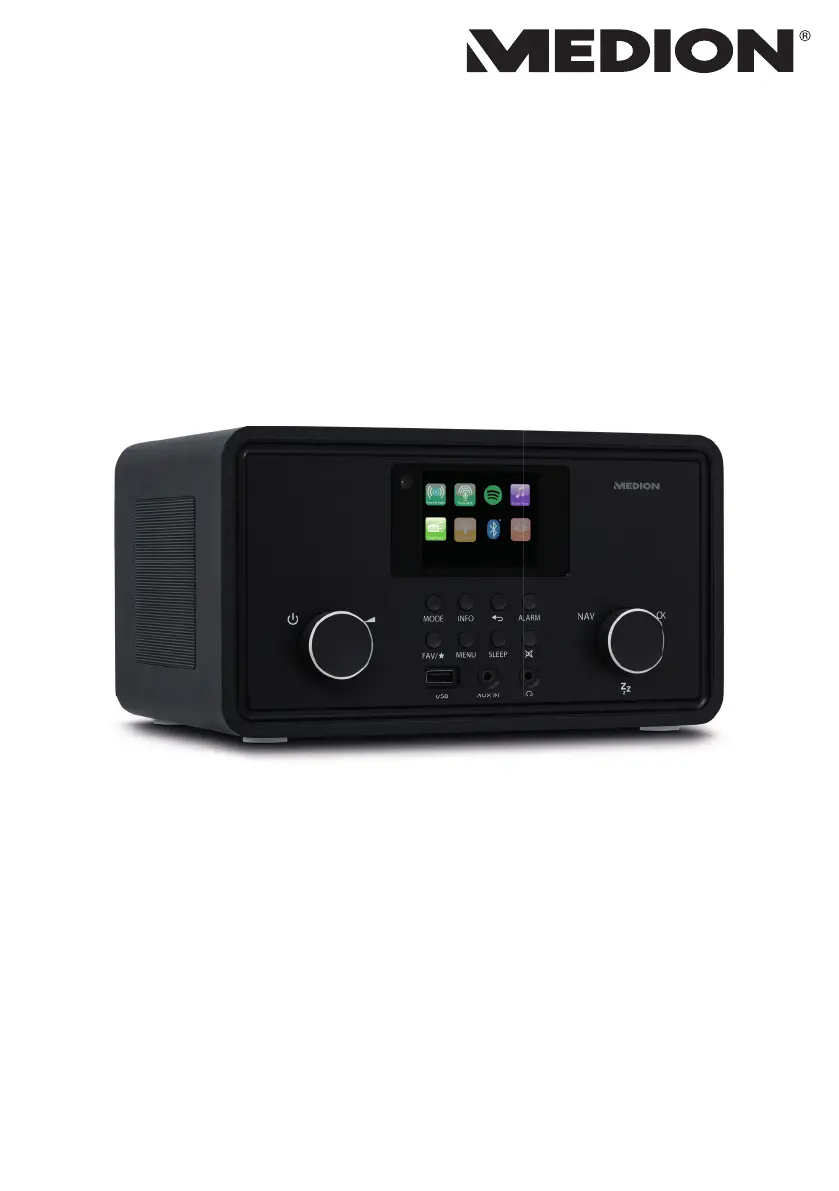
Stereo Internetradio
Radio internet stéréo
Stereo internetradio
Radio por internet estéreo
Radio internet stereo
Stereo Internet Radio
MEDION
®
P85027 (MD 88069)
Bedienungsanleitung
Notice d‘utilisation
Handleiding
Manual de instrucciones
Istruzioni per l‘uso
User manual

Table of Contents

Questions and Answers

  • C
    Chelsea SmallAug 16, 2025
    Why is my Medion Radio remote control not working?
    • M
      Michael MartinezAug 16, 2025
      The remote control might not work for several reasons: * The batteries may be inserted incorrectly; ensure they are properly aligned. * You might be too far from the radio; try reducing the distance to less than 7 meters. * There could be an obstacle blocking the signal; remove any obstructions between the remote and the radio. * The remote control may not be aligned with the sensor; make sure it's pointed correctly.
  • J
    jessicacarterAug 18, 2025
    What to do if my Medion Radio is not playing the selected station?
    • T
      Tyler ReedAug 19, 2025
      If you cannot listen to the selected station on your Medion Radio, here are a few things to check: * Ensure that mute is switched off. * Verify that the volume level is not too low. * If headphones are connected, disconnect them as the speaker may be muted. * Check the network settings if there is no reception.
  • K
    Kevin MartinezAug 22, 2025
    Why is the display on my Medion Radio black?
    • B
      Brian SmithAug 22, 2025
      If the display on your Medion Radio is black, make sure both ends of the mains adapter are properly connected. Connect the power supply plug on the supplied mains adapter to the DC IN socket on the device and plug the mains plug into an AC 100–240 V ~ 50/60 Hz socket.
  • A
    Adam MasonAug 25, 2025
    What to do if my Medion Radio has a problem with the router connection?
    • S
      sararichardsonAug 26, 2025
      If your Medion Radio has router connection problems: * Ensure that a DHCP server is activated in the router settings. * Re-enter the correct encryption algorithm for the network.
  • J
    Jeffrey PetersonAug 27, 2025
    How to fix distorted FM radio on Medion Radio?
    • J
      jesus99Aug 28, 2025
      If the FM radio on your Medion Radio is distorted, adjust the antenna.
  • S
    stephenkellyAug 30, 2025
    Why does my Medion Radio say no IP address found?
    • C
      Cindy LoveAug 31, 2025
      If your Medion Radio cannot find an IP address: * Check the DNS settings on your router as there may be no response from the DNS (Domain Name Server). * Try using a different DNS server if the current DNS does not recognize the name of V-Tuner.com.
  • M
    Molly SellersSep 2, 2025
    Why can't my PC access Medion Radio as AP (media server)?
    • C
      Catherine BrownSep 3, 2025
      If your PC cannot access the Medion Radio as an AP (media server), enter the code for radio encryption and check the sharing settings on your PC.
  • D
    davispamelaSep 5, 2025
    What to do if my Medion Radio has no connection to the vTuner server?
    • W
      William RodriguezSep 6, 2025
      If your Medion Radio has no connection to the vTuner server: * Ensure that internet access has not been blocked and try again. * Check the vTuner server. * Repeat the login process. * Try again if the radio station streaming service is not available or is overloaded. * Increase the bandwidth if there are problems with the internet buffer.
  • L
    Linda HolmesSep 8, 2025
    Why is the alarm not working on my Medion Radio?
    • S
      Shawn KellerSep 8, 2025
      If the alarm on your Medion Radio is not working, check the alarm settings.
  • G
    Gina MoyerSep 12, 2025
    Why Medion Radio cannot receive IP addresses?
    • A
      Adrian HoodSep 12, 2025
      If your Medion Radio has booted normally but cannot receive IP addresses: * Check the router settings to ensure that a DHCP server is activated. * Re-enter the WiFi encryption algorithm. * Check the interfaces.

Summary

Information About This User Manual

Explanation of Symbols

Details the meaning of warning and information symbols used throughout the manual.

Proper Use

Safety Instructions

Handling Batteries

Guides on the safe insertion, use, and disposal of batteries.

Using a Smartphone or Tablet with the App

Explains how to use mobile devices with the companion app.

System Requirements

Getting Started

Connections

Describes how to connect various cables and devices to the radio.

Operation in Menus

Operating with Remote Control

Describes how to operate the device using the provided remote control.

Menu Navigation

Guides on how to move through the device's menu structure.

Configuration for the Internet Radio

Network Requirements

Lists the prerequisites for connecting the device to a network.

Network Configuration

WLAN Connection via WPS

Instructions for connecting to a Wi-Fi network using WPS.

Entering a Network Key

How to enter the Wi-Fi password manually.

Connecting to a Power Supply

First-Time Device Setup

Setting Time and Date

How to set the device's internal clock and date.

Establishing Network Connection

Steps to connect the device to a wireless network.

Listening to Internet Radio

Selecting Radio Services

Various methods for finding and selecting internet radio stations.

Storing Internet Radio Stations

How to save favourite internet radio stations.

Listening to Podcasts

Selecting Podcasts

Methods for finding and selecting podcasts.

Connecting to an Internet Radio Station;Podcast

Listening to DAB Radio

Listening to FM Radio

Bluetooth Mode

Listening to Audio Files via USB

Using the App as the Control

Using the App Interface

How to navigate and use the features of the control app.

Streaming Services

Playback via the AUX IN Connection

Setting the Switch-Off Time

Setting the Alarm

System Settings

Internet Settings

Configuring network and internet connection parameters.

Factory Reset

Restoring the device to its original default configuration.

Main Menu Settings

Troubleshooting

Technical Specifications

Service Information

Medion MD 88069 Specifications

General IconGeneral
BrandMedion
ModelMD 88069
CategoryRadio
TypeInternet Radio
Internet RadioYes
WLANYes
USB PortYes
Headphone JackYes
Display TypeLCD
Headphone Jack Size3.5mm

Related product manuals