EasyManua.ls Logo

Medion P85027 - User Manual

Medion P85027
368 pages
Go to English
Print Icon
To Next Page IconTo Next Page
Loading...
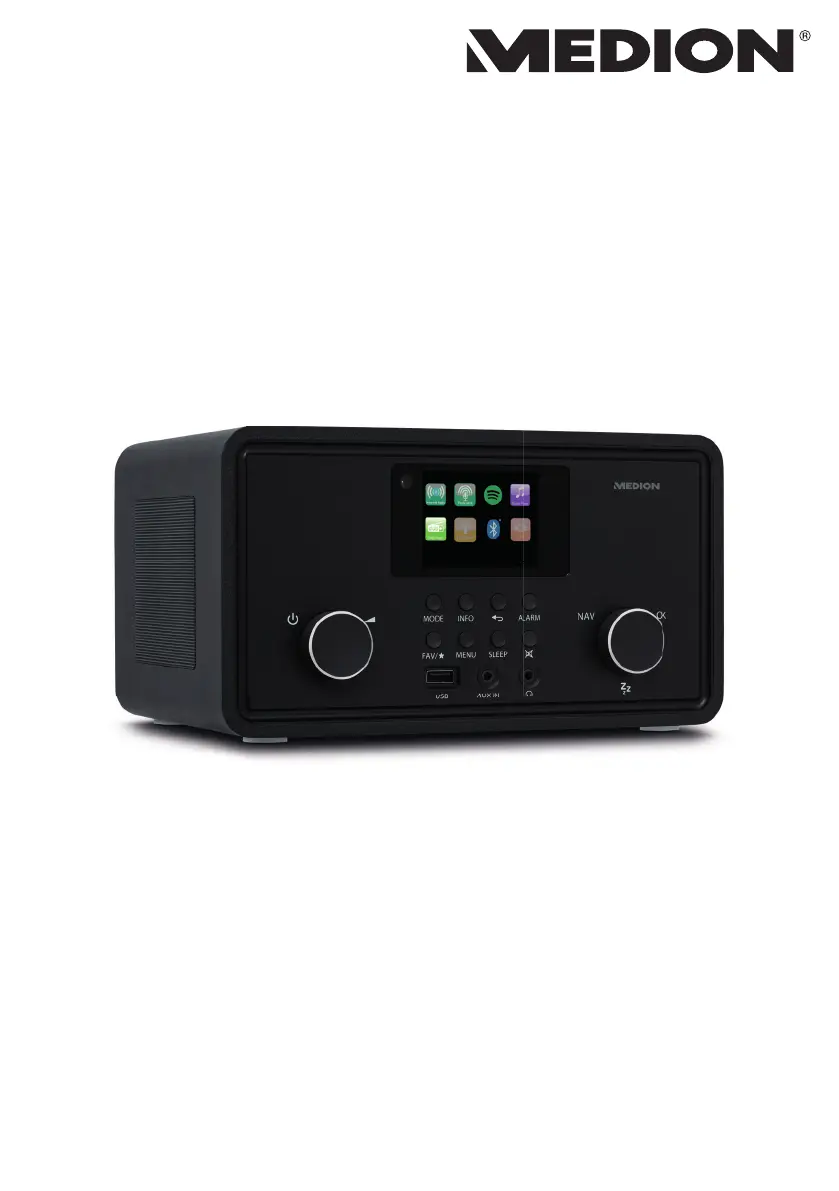
Stereo Internetradio
Radio internet stéréo
Stereo internetradio
Radio por internet estéreo
Radio internet stereo
Stereo Internet Radio
MEDION
®
P85027 (MD 88069)
Bedienungsanleitung
Notice d‘utilisation
Handleiding
Manual de instrucciones
Istruzioni per l‘uso
User manual

Table of Contents

Questions and Answers

  • J
    Jennifer WhiteheadAug 15, 2025
    Why is my Medion Radio remote control not working?
    • J
      Joseph HernandezAug 15, 2025
      The remote control might not work for several reasons: * The batteries may be inserted incorrectly; ensure they are properly aligned. * You might be too far from the radio; try reducing the distance to less than 7 meters. * There could be an obstacle blocking the signal; remove any obstructions between the remote and the radio. * The remote control may not be aligned with the sensor; make sure it's pointed correctly.
  • S
    sanchezglendaAug 18, 2025
    What to do if my Medion Radio is not playing the selected station?
    • P
      patelcindyAug 18, 2025
      If you cannot listen to the selected station on your Medion Radio, here are a few things to check: * Ensure that mute is switched off. * Verify that the volume level is not too low. * If headphones are connected, disconnect them as the speaker may be muted. * Check the network settings if there is no reception.
  • L
    Lori PetersonAug 21, 2025
    Why is the display on my Medion Radio black?
    • D
      Dorothy RiosAug 21, 2025
      If the display on your Medion Radio is black, make sure both ends of the mains adapter are properly connected. Connect the power supply plug on the supplied mains adapter to the DC IN socket on the device and plug the mains plug into an AC 100–240 V ~ 50/60 Hz socket.
  • S
    susancookAug 25, 2025
    What to do if my Medion Radio has a problem with the router connection?
    • P
      parkerryanAug 25, 2025
      If your Medion Radio has router connection problems: * Ensure that a DHCP server is activated in the router settings. * Re-enter the correct encryption algorithm for the network.
  • A
    Anna HahnAug 27, 2025
    How to fix distorted FM radio on Medion Radio?
    • J
      Jeremy HerreraAug 27, 2025
      If the FM radio on your Medion Radio is distorted, adjust the antenna.
  • S
    Sarah PhillipsAug 30, 2025
    Why does my Medion Radio say no IP address found?
    • Z
      zperezAug 30, 2025
      If your Medion Radio cannot find an IP address: * Check the DNS settings on your router as there may be no response from the DNS (Domain Name Server). * Try using a different DNS server if the current DNS does not recognize the name of V-Tuner.com.
  • N
    Nicole BrownSep 2, 2025
    Why can't my PC access Medion Radio as AP (media server)?
    • A
      Andrew LawsonSep 2, 2025
      If your PC cannot access the Medion Radio as an AP (media server), enter the code for radio encryption and check the sharing settings on your PC.
  • R
    Ronald JenkinsSep 5, 2025
    What to do if my Medion Radio has no connection to the vTuner server?
    • I
      iariasSep 5, 2025
      If your Medion Radio has no connection to the vTuner server: * Ensure that internet access has not been blocked and try again. * Check the vTuner server. * Repeat the login process. * Try again if the radio station streaming service is not available or is overloaded. * Increase the bandwidth if there are problems with the internet buffer.
  • M
    Matthew FarmerSep 8, 2025
    Why is the alarm not working on my Medion Radio?
    • C
      Cynthia GarnerSep 8, 2025
      If the alarm on your Medion Radio is not working, check the alarm settings.
  • A
    Ann LeeSep 12, 2025
    Why Medion Radio cannot receive IP addresses?
    • R
      Rachel JosephSep 12, 2025
      If your Medion Radio has booted normally but cannot receive IP addresses: * Check the router settings to ensure that a DHCP server is activated. * Re-enter the WiFi encryption algorithm. * Check the interfaces.

Summary

Information about this user manual

Explanation of Symbols

Explains warning symbols used in the manual for safety and hazard communication.

Proper Use

Safety Instructions

Restricted WLAN Usage

Details situations and locations where the WLAN interface must not be used.

Operating Safety

Covers safe operation, electrical safety, and handling the mains adapter.

Malfunctions

Addresses device malfunctions and troubleshooting steps, including electrostatic discharge.

Using Headphones

Provides safety warnings and usage instructions for headphones to prevent hearing damage.

Handling Batteries

Guides on safe battery insertion, replacement, and disposal to prevent hazards.

System Requirements

Using the Mobile App

Instructions for using a smartphone or tablet with the device's companion app.

Getting Started

Checking Package Contents

Details how to verify all items are present in the product package.

Inserting Remote Batteries

Provides step-by-step instructions for correctly installing batteries in the remote control.

Device Connections

Device Overview

Front Panel Controls

Details the functions of buttons, display, and ports on the front of the device.

Rear Panel Connections

Remote Control Operation

Explains the layout and functionality of the buttons on the provided remote control.

Menu Operation

Remote Control Navigation

Details how to operate the device's functions using the buttons on the remote control.

Internet Radio Setup

Network Requirements

Specifies the prerequisites for the network to ensure proper functioning of the WLAN radio.

Network Configuration

Explains how to connect the internet radio to a wireless network, including WPS.

First-Time Device Setup

Accessing Web Interface

Provides instructions on accessing the device's web interface for configuration and information.

Power Connection

Instructs on how to properly connect the device to a power source using the mains adapter.

Setting Time and Date

Explains how to manually set or automatically update the device's time and date.

Network Connection Maintenance

Establishing Network Connection

Details the process of finding and connecting to available wireless networks.

WLAN Connection Methods

Listening to Internet Radio

Selecting Radio Services

Explains various methods to find and select internet radio stations by region, search, location, popularity, or discovery.

Storing Radio Stations

Guides on saving favorite internet radio stations to memory slots for quick access.

Listening to Podcasts

Selecting Podcasts

Explains how to search and select podcasts by region, name, location, or genre.

Connecting to Stations;Podcasts

Listening to DAB Radio

Setting DAB Radio Stations

Guides on selecting and tuning into DAB radio stations.

Storing DAB Radio Stations

Explains how to save favorite DAB radio stations to memory slots.

DAB Radio Menu Options

Covers menu options like station lists, searching, and manual tuning for DAB radio.

DAB Station List Management

Listening to FM Radio

Setting FM Radio Stations

Guides on selecting and tuning into FM radio stations.

Storing FM Radio Stations

Explains how to save favorite FM radio stations to memory slots.

FM Radio Menu Options

Covers menu options like search settings and audio adjustments for FM radio.

Bluetooth Mode

Pairing Bluetooth Devices

Guides on establishing a wireless connection between the internet radio and Bluetooth-enabled devices.

Bluetooth Remote Control

Details how to control playback of Bluetooth audio using the device's remote control.

USB Audio Playback

USB Playback and Controls

Covers navigating USB playback, repeat, shuffle, and random playback functions.

Playlist Management

Playback Display Information

Describes the information shown on the display during audio playback.

Using the Mobile App

App Installation

Guides on downloading and installing the companion app using a direct link or QR code.

Streaming Services

Spotify Connect

Details how to use Spotify Connect for remote control and playback.

Playback via AUX IN

Setting Timers and Alarms

Setting the Alarm

Covers activating, deactivating, setting time, and choosing alarm sounds.

Sleep Function

System Settings

Equaliser Settings

Guides on adjusting audio output using preset sound formats or custom EQ profiles.

Audio Streaming Quality

Allows adjustment of streaming quality for optimal playback based on internet connection speed.

Internet Settings Configuration

Covers network configuration, including wizards, WPS, and manual settings.

Setting Time and Date

Explains how to manually set or automatically update the device's time and date.

Setting Language

Guides on selecting the user interface language for the device menus.

Factory Reset

Details the process for resetting the device to its original factory settings and potential data loss.

Software Updates

Instructions for checking and installing software updates for the device.

Backlight Settings

Allows configuration of display dimming and brightness levels.

Main Menu Navigation

Troubleshooting Guide

Firmware and Security Issues

Cleaning and Care

Storage and Transport

Recommendations for storing and transporting the device to prevent damage.

Product Disposal

Technical Specifications

EU Declaration of Conformity

Licence Agreements

Trademarks and Licences

Lists registered trademarks and licensing information for software and technologies used in the device.

Service and Support

Legal Information

Privacy Statement

Medion P85027 Specifications

General IconGeneral
Radio typePersonal
Tuner typeAnalog & digital
Auto digital tuningYes
Supported radio bandsAM, DAB+, FM
RMS rated power20 W
Number of built-in speakers2
Display typeTFT
Display diagonal2.8 \
Ethernet LANNo
Bluetooth version4.2
Headphone outputs1
Headphone connectivity3.5 mm
Projection-
Antenna typeExternal
Product colorBlack
Volume controlRotary
Internet radio services supportedSpotify
Power sourceDC
DC input voltage15 V
Weight and Dimensions IconWeight and Dimensions
Depth190 mm
Width255 mm
Height144 mm
Weight2250 g

Related product manuals