10
Note: If the CD does not start automatically, it is likely
that the CD Autorun function has been deactivated.
Read the respective chapter in Windows Help on how to
activate this function. What follows is an example of a
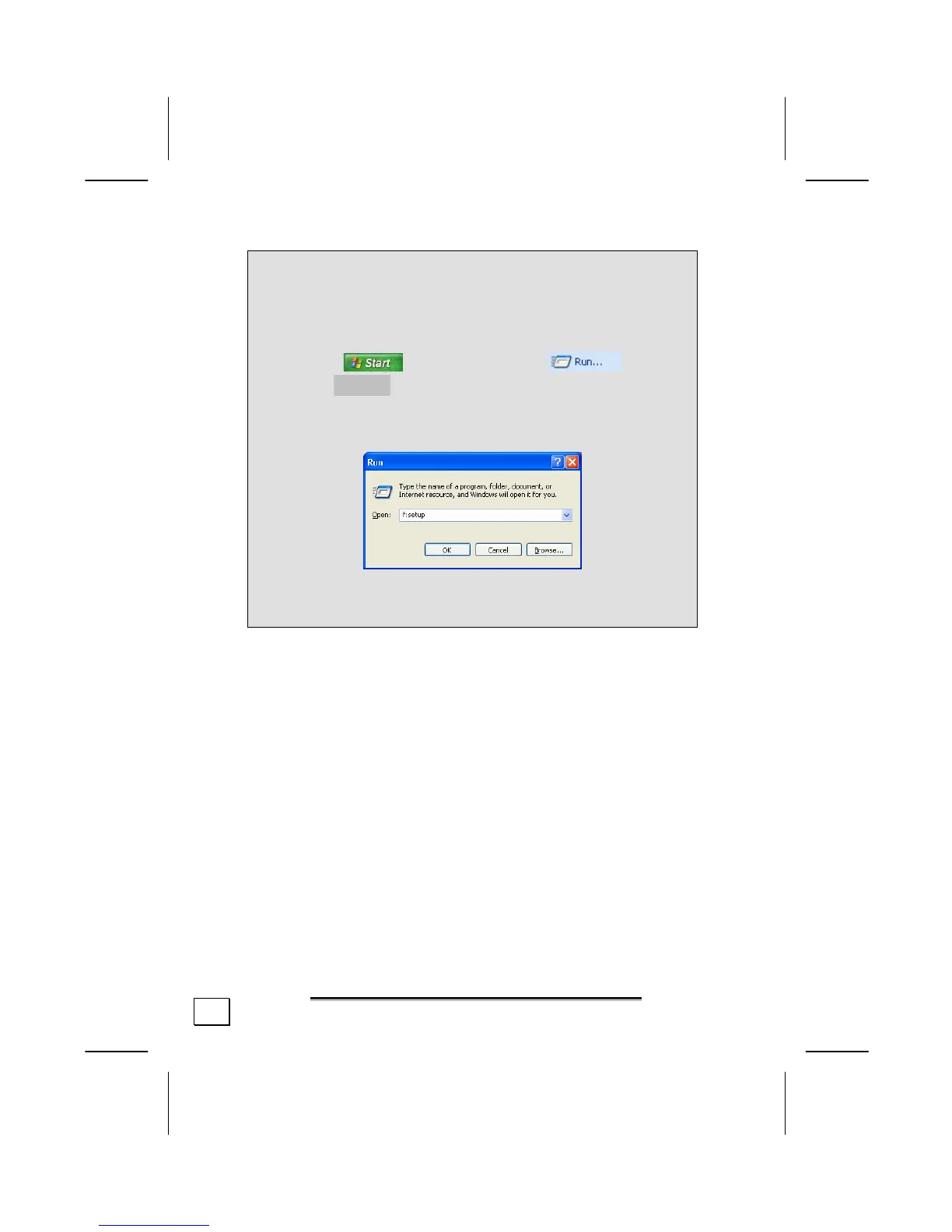
manual installation without the CD Autorun function:
1. Click on and select the item
(Or hit á + R to launch the corresponding dialog).
2. Now enter the letter of the CD-ROM drive followed by a
colon and the program name setup:
3. Click on “OK“.
4. Follow the instructions given by the setup program.
8. A window now appears with which you can start the driver’s
installation. Click on the USB Tablet Driver icon and follow
the instructions on screen.
INSTALLATION OF THE APPLICATIONS
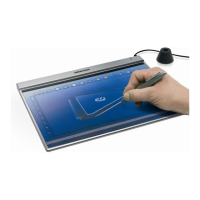
In order for you to be able to use your Graphics tablet optimally,
we have enclosed application software.
1. If you have already installed the driver (see previous pages),
you can now install the application software.
2. Select the required application from the program window of
the CD. If the window is no longer visible, simply insert the
CD again.
3. Follow the program’s installation instructions.
4. After a successful installation, you can find the new programs
in the Start menu under Programs. Restart the PC in order to
fully complete the installation.



 To Next Page