4
Installation and operation
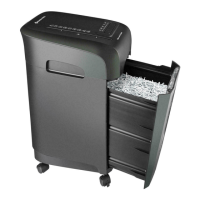
Place the equipment on a flat and even surface.
Make sure that the equipment is placed away from any radiators or hot areas.
Do not cover the cooling vent at the rear of the equipment.
Avoid the use of extension cables and multiple power sockets if possible and connect
the equipment directly to a wall socket (as specified in the section on technical information).
Please keep the equipment at a distance of at least 10cm / 4” away from the wall in order to
ensure the cooling vent has an adequate supply of air.
Please keep the bin positioned perfectly.
Operation:
Turn on the main powerswitch at the rear of the machine to "I" position. The equipment is now ready to use. If
the power on indicator does not light up, please refer to the section "General Troubleshooting" on page 7
of this manual.
Auto " " position
Place the paper in portrait orientation into the corresponding in feed unit. The paper will be recognized
by the photo sensor, and the blades will begin to feed the paper through automatically. The equipment
will stop once again after a short period when no paper has passed through the cutter. After shredding is
completed, you can press "
" to switch from operation mode into standby and have a minimal power
consumption.
Please press the "
" button again to switch back from standby to operational mode.
Please be aware of the maximum shredding capacity of machine is 12 sheets 75gsm (20lbs. weight)
paper.
Forward " > " position
When you keep pressing the " > " button, the blades will run to forward; if you release the button, blades
will stop running. We recommend that you only use " > " button to make sure that the remaining paper in
slot gets shredded or you want to clear the slot.
Reverse " < " position
When you keep pressing the " < " button, the blades will run in reverse. After you release the button, the
blades will stop running. The purpose of this button is to rectify a paper jam. In this case, the direction of
the shredding operation is reversed before the work cycle ends in order to free the shredding blades.
Overload
If you overload more paper than the machine is capable of handling, the overload indicator will turn
to red continuously. The blades will run in reverse automatically and remo
ve the jammed paper. Reduce
the number of sheets and try again. The machine will work if the overload indicator light is off. If this
particular fault is not rectified automatically, please press the " <" button in order to remove any paper.
The machine will then be reset to operational mode.


 To Next Page
 Loading...