37
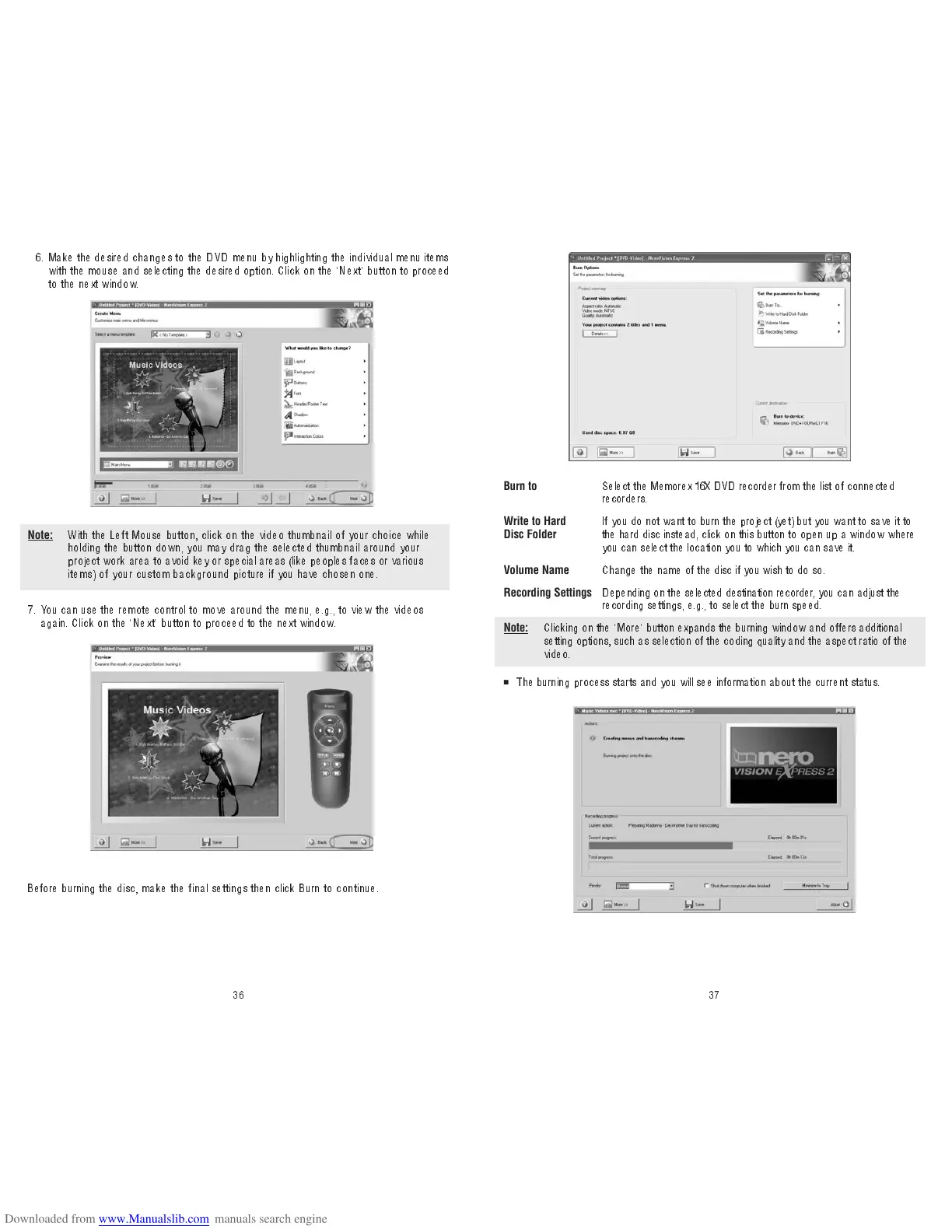
7. You can use the remote control to move around the menu, e.g., to view the videos
again. Click on the "Next" button to proceed to the next window.
Note:
With the Left Mouse button, click on the video thumbnail of your choice while
holding the button down, you may drag the selected thumbnail around y our
project work area to avoid key or special areas (like peoples faces or various
items) of your custom background pi cture if you have chosen one.
Before burning the disc, make the final settings then click Burn to contin ue.
36
6 . Make the desired changes to the DVD menu by highlighting the individual menu items
with the mouse an d select ing the desired option. Click on the "Next" button to proceed
to the next window.
Burn to
Select the Memorex 16X DVD recorder from the list of connected
recorders.
Write to Hard
If you do not want to burn the p roject (yet) but you want to save it to
Disc Folder
the hard disc instead, click on this button to open up a window where
you can select the location you to which you can save it.
Volume Name
Change the name of the disc if you wish to do so.
Recording Settings
Depending on the selected destination recorder, y ou ca n adj us t the
recording settings, e.g., to select the burn speed.
Note:
Clicking on the "More" button expands the burning window and offers additional
setting options, such as selection of the coding quality and the aspect ratio of the
video.
■
The burning process starts and you will see information about the current status.


 To Next Page