User Guide
Rev 1.2
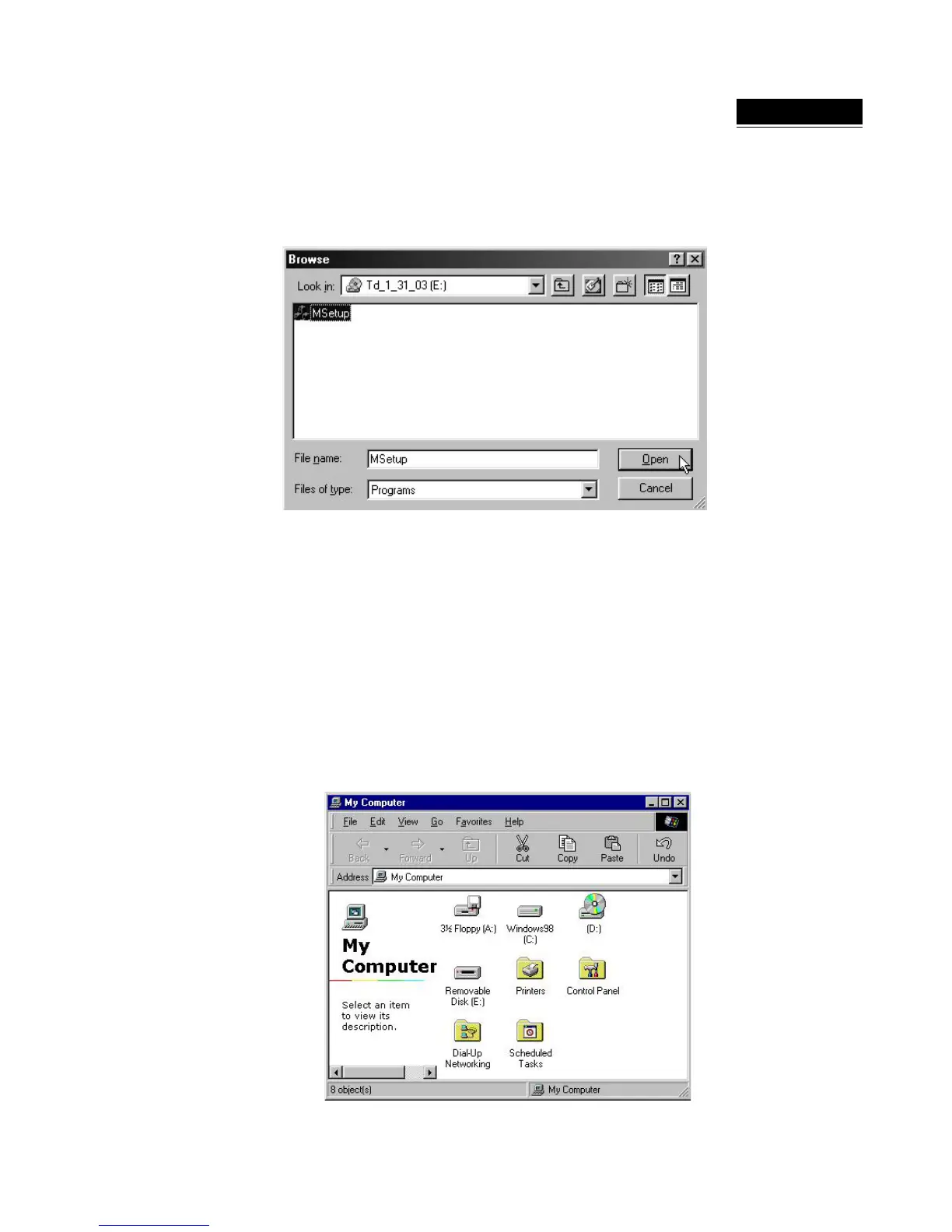
6. Click “Start” on your menu screen, and then select “Run...” Click on the “Browse…” button in the
dialogue box that opens and select the CD-ROM drive into which you placed the installation CD.
7. The file “Msetup.exe” will appear in the dialogue box (Figure 3). Double click on the Msetup icon, and
the CD will install the correct drivers for the Memorex USB ThumbDrive.
Figure 3
8. Follow the onscreen directions as listed in step 1 and as shown in Figure 1 by clicking on the “Install”
button.
9. Remove the installation CD from the drive and click “OK” to reboot your computer. Your Memorex
USB ThumbDrive is now ready to use.
Once your computer reboots, you can verify that Windows recognizes the Memorex
ThumbDrive
.
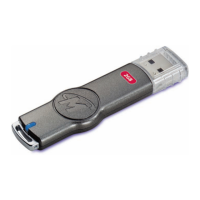
• Bring your computer screen to the desktop view and double click on “My Computer.” The Memorex
ThumbDrive should appear as a “Removable Disk” icon (as in Drive E in Figure 4 below.) The actual
drive letter assigned to your ThumbDrive may vary.
Figure 4


 To Next Page