User Guide
Rev 1.2
NOTES:
1. Multiple USB devices plugged into a computer using the Windows 98 operating system may run into
some problems. Windows 98 SE resolved these types of conflicts.
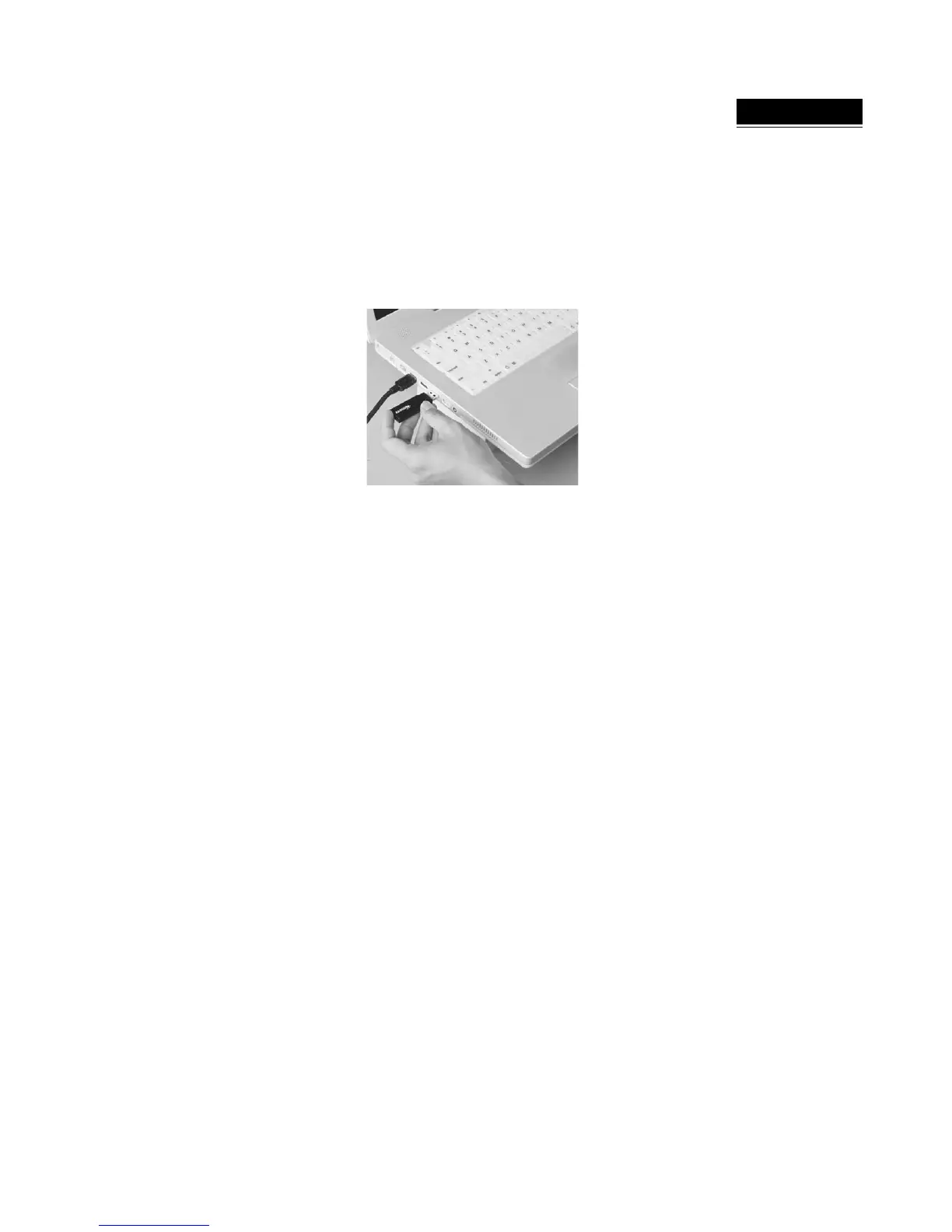
2. When a Memorex ThumbDrive is inserted into a USB port (Figure 5), it is configured as if it were a
removable hard disc drive. You can use the same “drag-and-drop” methods to read and write files to
the ThumbDrive, as you would to a hard drive or a floppy disk.
Figure 5
3. As with any removable storage medium, removing the Memorex ThumbDrive while data are being
written or transferred may corrupt the files or erase the entire content on the drive. Always wait for the
green LED to stop blinking to indicate when the data transferring operation is complete.
WINDOWS ME, 2000, XP DRIVE MEMOREX THUMBDRIVE INSTALLATION
For installation of the Memorex ThumbDrive on systems using Windows ME, 2000, or XP, no driver installation
is required. Simply install your ThumbDrive into any available USB port on your computer and the system will
automatically recognize the installed device.
ADDITIONAL DRIVE OPERATION NOTES
Write Protect Switch:
The Memorex ThumbDrive includes a switch that will prevent any data writing or accidental erasure of
critical files. At the end of the ThumbDrive there is a little switch that can be moved to the left, under the icon
of a padlock, to prevent adding or eliminating any data.
LED Status Indicator
GREEN LED - When lit, your Memorex ThumbDrive is powered, recognized by your computer
FLASHING GREEN LED - When the status light is flashing, your Memorex ThumbDrive is reading data from
or writing data to the ThumbDrive. NOTE: Removal of your drive during this operation may cause a loss of data
or your data to be corrupted and is not recommended.
REMOVING YOUR THUMBDRIVE
When removing your Memorex ThumbDrive, it is always recommended that you “eject” your drive by either
using the Unplug or EJECT HARDWARE icon located in your system tray. The system tray is typically located
in the lower right corner of your desktop. Once located, you can elect to STOP USB DISK after left clicking the
ICON in the system tray.
You can also select the ThumbDrive thru the drive listing under MY COMPUTER. Once the drive is located,
right click on your ThumbDrive, and select the Eject from the drop down menu.


 To Next Page