Choose from a wide range of additional maps pre-loaded on microSD card and
simply swap cards in or out as you need them, or choose whole or sections of
map from your Memory-Map v5 collection on your PC.
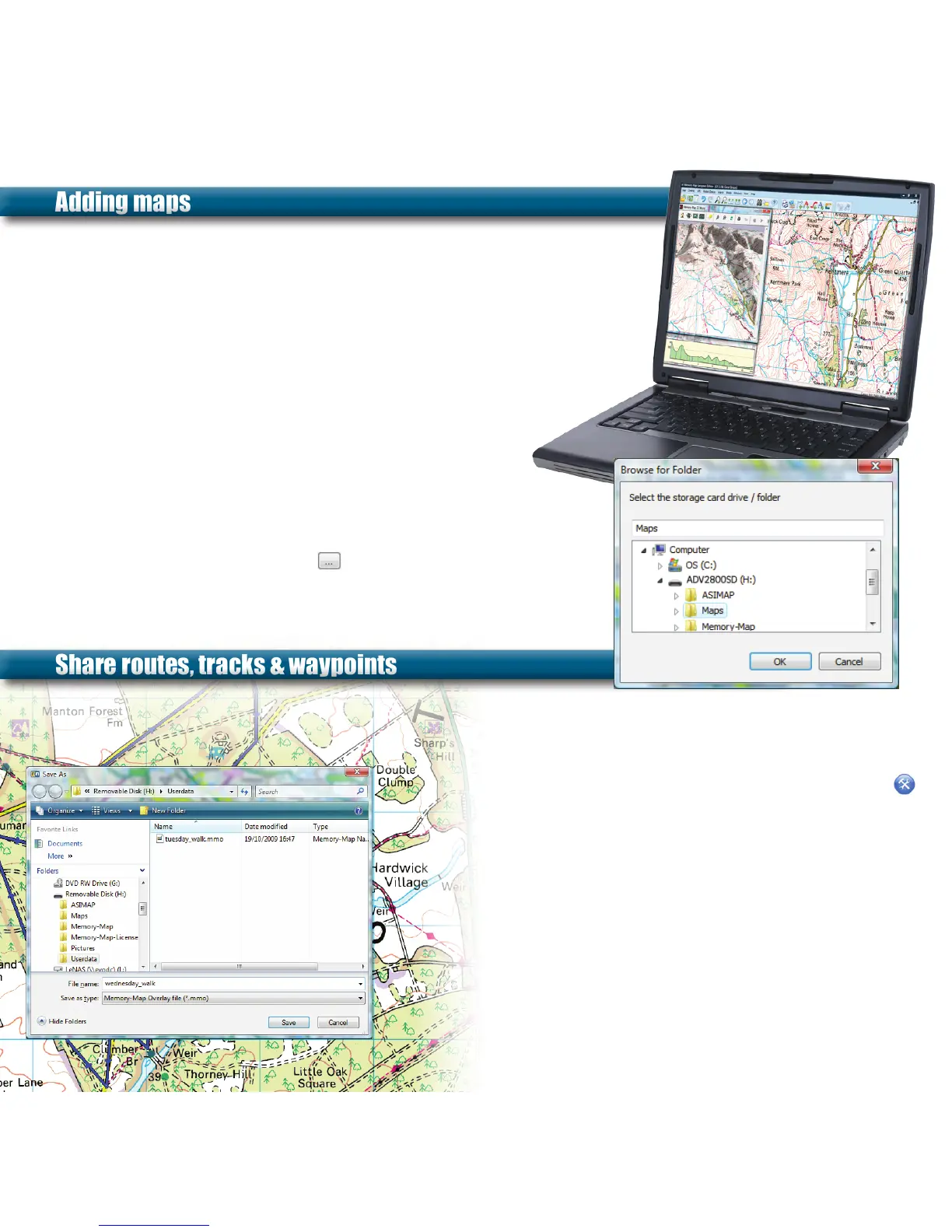
1) Turn on Adventurer and view main menu. Connect Adventurer 3500
to PC using USB cable provided.
2) Open Memory-Map on your PC.
3) Open the map you want from your map list.
4) Draw a route around the area you want, right click the route
and use Operations > Enclosed Area > Send to
Mobile Device. Alternatively, scroll / zoom the map
to the area you want and select Mobile Device > Send
Map or Send Visible Map Portion.
5) Name the map section eg. Sherwood Forest, 1:50k, select
‘Storage card on PC’ and click . Select ‘ADV3500SD’ from the
drive list and choose the Maps folder. Click OK.
Uploading and downloading information between
Memory-Map and the Adventurer 3500 is easy. Share routes,
tracks, waypoints and other POIs quickly and simply.
1) On Adventurer 3500 tap the Settings & Overlay icon
2) Overlay > Save As... and name your overlay.
3) Connect to PC via USB. Tap USB mass storage
4) Open Memory-Map on PC and use the Overlay >
Import menu. Browse to the Userdata folder on the
‘ADV3500SD’ storage card on your computer.
5) Click Open. Select the .mmo overlay file.
6) See the Memory-Map Installation Guide for details on
managing your overlays.
To send overlays from PC to Adventurer 3500 simply
right-click on the route or mark and save directly to the
ADV3500SD > Userdata folder on the storage card.
4 • UK


 To Previous Page