The M2 Quick Start Guide
Construct Feature:
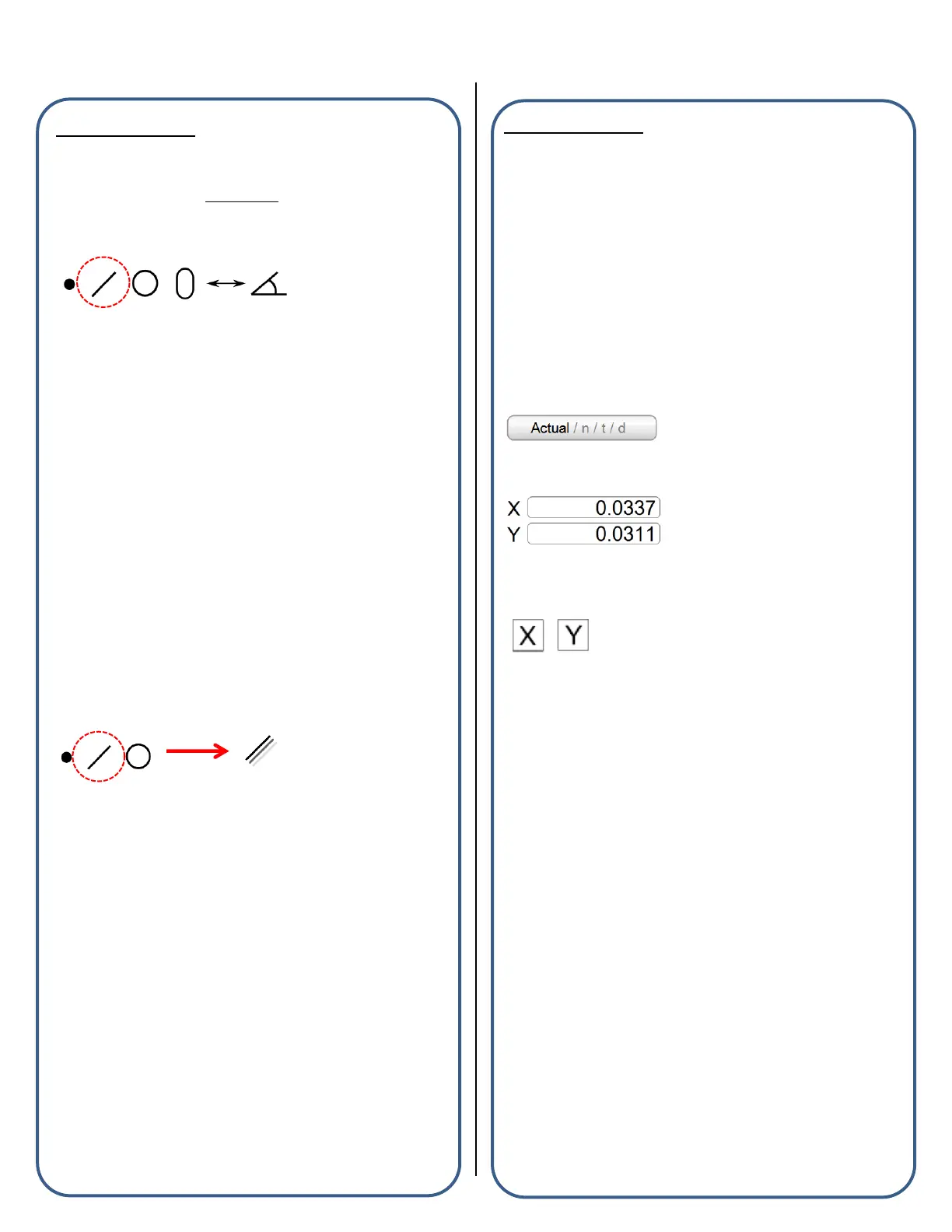
“Construct Line” Example
The M2 Software supports Tangent Line Constructions and can be
performed using the following procedure:
■ Select the measure line button from the measure toolbar.
■ Select the two circles from the feature list or part view that are to be
parents of the tangent line construction.
■ Press “Done” to complete the Tangent Line construction. The feature
will be added to the feature list and part view.
All supported feature constructions can be performed using this
same procedural method.
“Measure Repeat” Example
The M2 software supports measuring features in “Repeat Mode” using
the following procedure:
■ When measuring in “Repeat Mode”, the Measure Feature button
does not need to be pressed between each feature measurement. The
system prepares the next feature measurement automatically at the
completion of the previous feature. This mode is designed for
measuring a large quantity of “like features” sequentially. “Repeat
Mode” is available for all feature types using the same procedure.
■ Press the measure feature button for the desired feature type, next
select the repeat button for that feature.
■ You can now select any video probe you would like and begin
probing the first feature. When finished press “Done”.
■ You will notice that the system is now ready for another line
measurement. This will continue until “Repeat mode” is exited. Press
the “Done” button to exit “Repeat Mode”.
Apply a Tolerance:
“X/Y Position Tolerance” Example
The M2 software supports applying an XY positional tolerance to a
circle feature and can be accomplished by using the following
procedure:
■ Select the circle feature in the feature list you intend to apply the
tolerance to.
■ Access the feature detail screen for the circle by pressing in the
feature detail viewport.
■ Toggle the feature detail screen from “Actuals” view to “Nominals”
view using the screen selection button located above the feature
coefficients.
■ Set the nominal position values in X and Y for your circle feature.
■ Select the X or Y positional tolerance button from the toolbar and
then enter the desired tolerance values in the appropriate fields.
■ Switch the detail view screen from “Tolerance” to “Deviation” using
the view selector button to observe the results of the applied tolerance.
All supported tolerance types can be applied to features using the
same fundamental procedure described above.
Supported Tolerances by Feature Type
■ Point Features: True Position(RFS), X/Y/Z Positional
■ Line Features: X/Y Positional, Angle(Theta), Parallelism, Angularity,
Perpendicularity, Straightness
■ Circle Features: True Position(RFS/MMC/LMC), X/Y Positional,
Diameter, Concentricity, Runout, Roundness
■ Distance: X/Y/Z Positional, Length
■ Arc Features: True Position(RFS), X/Y Positional, Diameter/Radius
■ Angle: Angle(Theta)


 To Next Page
 Loading...