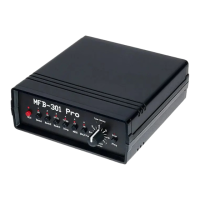
MFB-301-Pro USB-Data-Transfer
The MFB-301 Pro can be connected to a computer running a recent Windows operating
system. Given that the corresponding driver has been installed, a terminal software can be
used to load and save patterns and to request and update the firmware of the unit.
Driver Installation
The MFB-301 Pro uses the CY7C65213 chip by Cypress to convert USB to serial data and
vice versa. To setup a connection to your computer, a driver needs to be installed.
This driver can be found on the Cypress website: https://www.cypress.com/sdc
Navigate to the USB section and search for the entry
Download USB-Serial Driver - Windows
Hint: Before being able to download the driver, you will need to register with the manufacturer
and confirm this procedure by e-mail.
Install the driver by double clicking the .exe file.
Next, connect your computer to the MFB-301 Pro by using a suitable USB-cable and
switch on both units.
You may use the USB-cable that comes with the power supply of the MFB-310 Pro.
The MFB-301 Pro does not require a separate power supply.
Wait until Windows recognizes the unit and displays it as usable.
Terminal Software
Ideally, a terminal software is used to communicate between the computer and the MFB-301
Pro. We recommend the free software HTerm.exe. HTerm can be found here for example:
https://www.heise.de/download/product/hterm-53283
Connecting to HTerm
Launch HTerm.exe by double click.
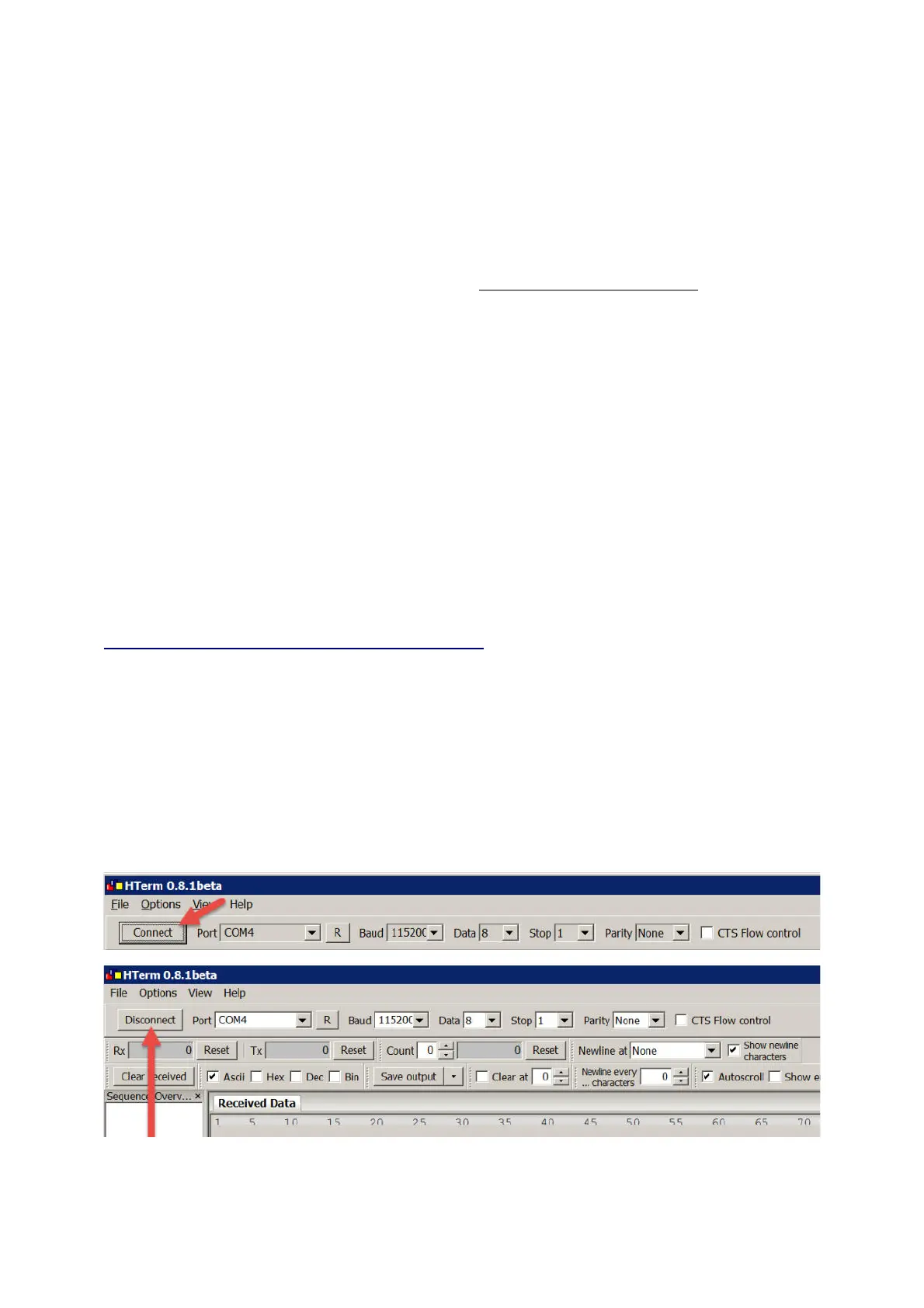
The top left of the GUI will display the COM ports.
Connect the MFB-301 Pro to your computer via USB. A COM number should appear
after a short while. If not, you may need to click the R button once in the GUI.
Next to the COM display, a few numbers are being shown. There is no need to edit any
of these. The values are: BAUD 115200, DATA 8, STOP1, Parity None.
On the left side of the GUI, press Connect until the display entry reads Disconnect .
Ready!
Hint: In case nothing happens, the driver has not been successfully installed.
1


 To Next Page
 Loading...