MiBoxer APP
User Instruction
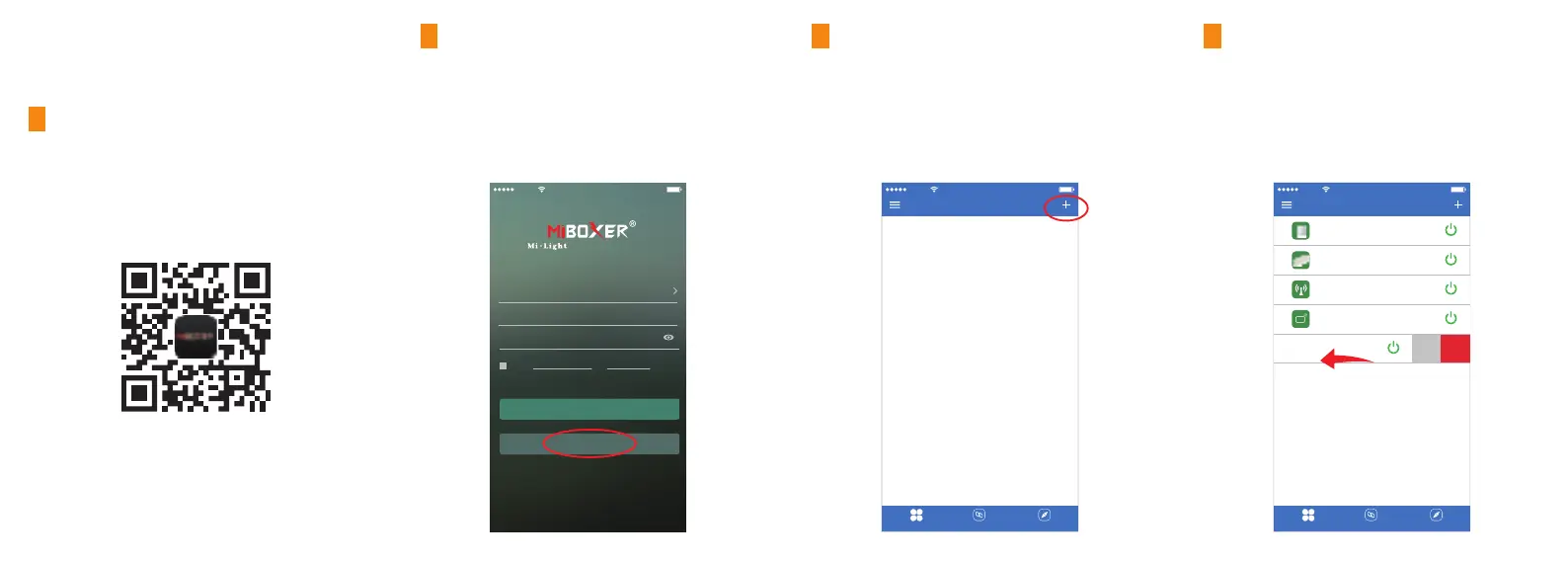
For IOS System: Pls search "MiBoxer" on APP store. (Above
IOS9.0)
For Android System: search "MiBoxer" on Google Play (Above
Android 5.0) or Scan below QR-code to download APP.
APP Downloading
1
Open APP and click Register button;Complete the register and
log in.
Register MiBoxer Account
2
1. Click the right top “+” on the device list.
2. Please select the device type you will add, then complete
the adding according to the hint of APP.
3. Back to device list after adding successfully, then pull down
refresh in list to get the device status.
Add Device
3
Mobile
10:18 95%
Device List
DeviceGroupDiscovery
Slide device list to left, click " Edit " to modify device name;
click " Delete " to delete device.
Note: If the device was shared to others, then the device will
also be deleted on your friends' device list.
Modify device name or delete device
4
Scan QR Code to Install APP
Controller
ON
Mobile
10:18 95%
Device List
Remote
ON
DeviceGroupDiscovery
ON
EditDelete
WiFi Box
ON
Gateway
ON
Subordinate New Brand
Mobile
10:18 95%
Mobile number / Email address
Password
United Kingdom +44
Authentication code login
I agree Service Agreement and Privacy Policy
Log in
Register
Forgot Password


 To Next Page