Click left top " " icon on the home page;
Then click " " to check detailed instructions.
Third Party Voice Control instructions
7
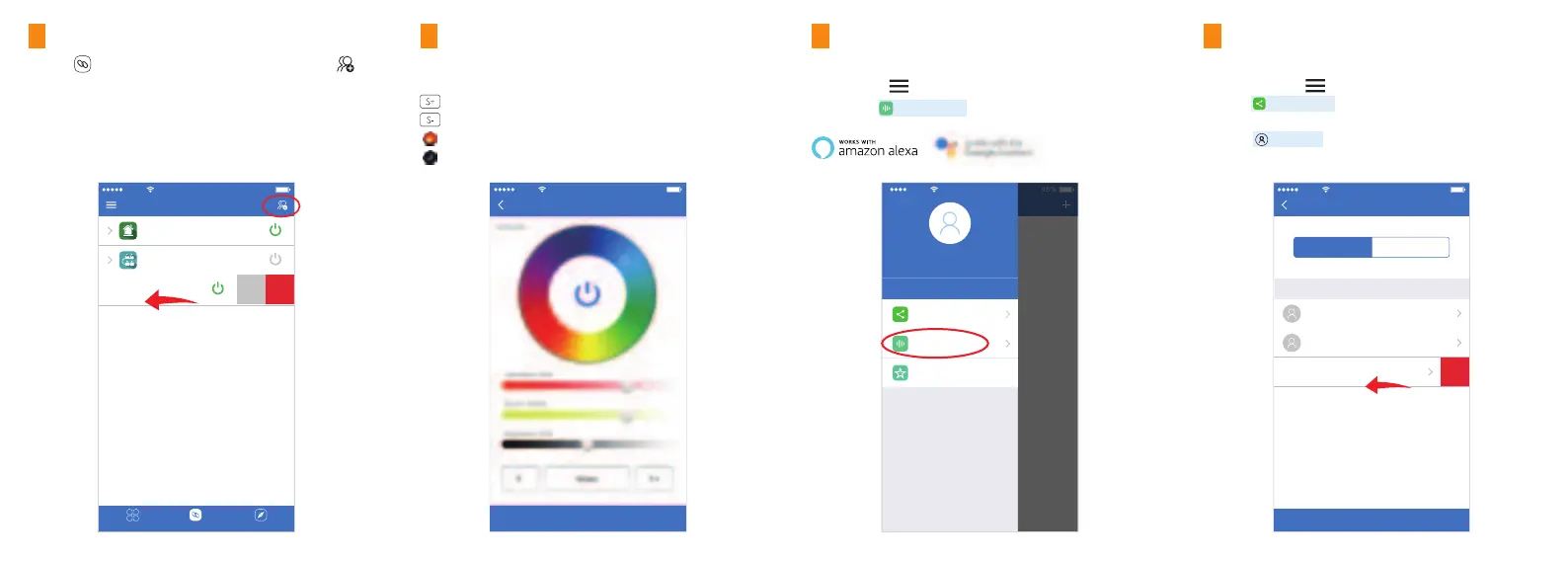
1. Click to switch to Group list, then click the right top
icon on the Group list to create groups.
2. Slide the Group list to left to Edit / Delete groups.
Note: The group just work on APP Controlling, cannot work on
Voice control. Please open third party APP for Group Voice control.
Group Control
5
Home
ON
Meeting Room
OFF
Bedroom
ON
EditDelete
Mobile
10:18 95%
Group List
DeviceGroupDiscovery
Share the device to friends, Let your friends can control this device.
1. Click the left top " " icon on the home page.
2.
Click " " to My sharing, then click"Add sharing"
(Note: the receiving sharing device cannot be shared again).
3. Click " " to edit sharing, slide to left to delete
sharing.
Sharing Device
8
Mobile
10:18 95%
*********@****.com
Log OutSetting
Shared Device
Voice Control
Version V1.0.1
Anson
Voice Control
Click the device or group that you want to dim on device list and
group list into Dimming Interface.
Search "Mi-Light Smart" on third-party platform APP and set up.
APP Control
6
Shared Device
Mobile
10:18 95%
My sharing
You share the device to below users
Sent sharingReceived sharing
Jack
jack@milight.com
Miranda
miranda@milight.com
Add sharing
Pierson
pierson@milgith.com
Delete
Jack
jack@milight.com
Click speed+ under dynamic mode.
Click speed- under dynamic mode.
Sunset mode: Gradually OFF within 10 minutes.
Good night mode: Gradually OFF within 1 minute.
Mobile
10:18 95%
Controller
White Light Timer


 To Previous Page