Copyright © 2009-2011 Micca, Ltd. All rights reserved.
VII. Micca MPLAY Startup
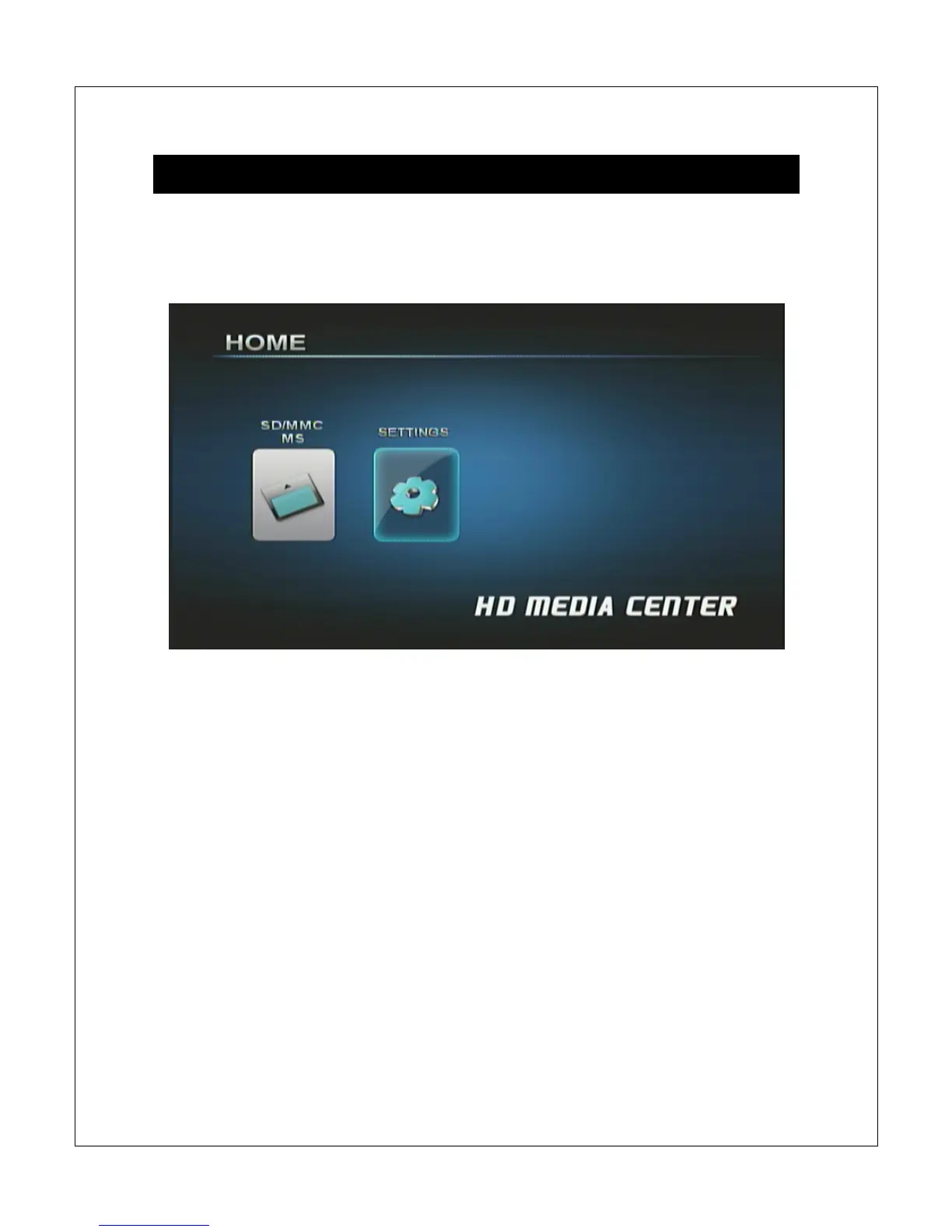
When powered on, the Micca MPLAY displays a brief loading screen and then
the [Home] screen. By default the [Home] screen will have the [Setup] icon plus
icons representing compatible storage devices found during start up.
During start up the Micca MPLAY configures attached storage devices in the
following order: external USB drive, SD card, internal hard disk drive. The
storage device icons on the [Home] screen are arranged in this same order. The
internal hard disk drive, if installed and properly partitioned and formatted, will be
represented by a [USB] icon.
It is possible to remove and insert external USB devices or SD cards with the
Micca MPLAY powered on. Displayed storage device icons will adjust
automatically.
Use the <
> and <
> buttons on the remote to highlight a storage device and
press the <OK> button to select it and bring up the [Select Media] screen.


 To Next Page