Installation of software to run VT-04
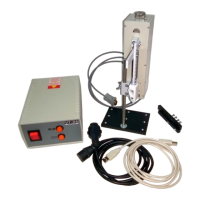
The automated dipper mechanism VT-04 operates under control from host PC. Connection of control electronic unit with
host PC is provided via USB-port emulating COM-port.
Official site to download latest drivers for USB-to-COM system: https://www.ftdichip.com/FTDrivers.htm.
It may appear that old versions of the drivers fit your host PC better. Some old releases are also available at:
http://microtm.com/download/CDM_v2.12.24_WHQL_Certified.zip
http://microtm.com/download/CDM2.08.30WHQLCertified.zip
http://microtm.com/download/CDM2-12-18.RAR
http://microtm.com/download/CDMv2.10.00WHQLCertified.exe
To install USB-to-COM drivers, unpack the driver installation pack in a temporary folder on hard disk and switch on the
device (control electronic unit). After this first turning on, host PC will find new device and ask for drivers. Provide the driver
installation wizard with correct path to the driver installation pack in a temporary folder and system will be installed.
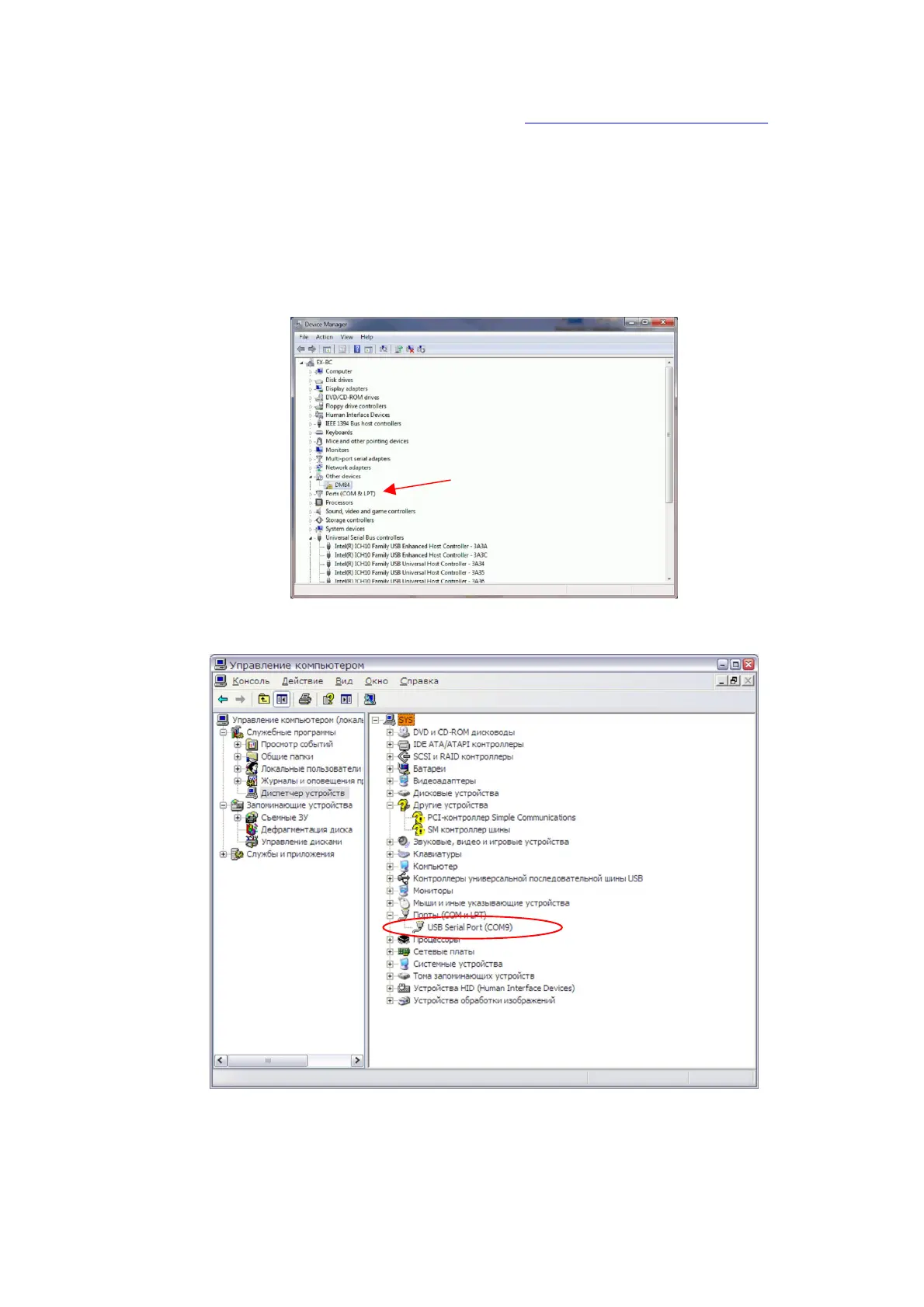
After the USB-to-COM driver installation check number of port that system assigned for the new device. Open branch
‘Ports (COM & LPT)’ in the computer Device Manager (Control panel – System – Device manager):
and remember the number of newly appeared device entitled ‘USB Serial Port (COM#)’, for example, COM9 as in the picture
below.
To run the dipper from host PC use specialized program that is available for download from:
http://microtm.com/download/vt-04_ctrl_inst.zip
This archive is an installation package. Please, unpack it in an empty temporary folder on the computer hard disk and run file
setup.exe. After finishing the setup procedure, control program can be started with conventional ways used in Windows.


 To Next Page
 Loading...