2 LT-6773 Rev 0 February 2024
TX3 Cloud Gateway Installation Manual
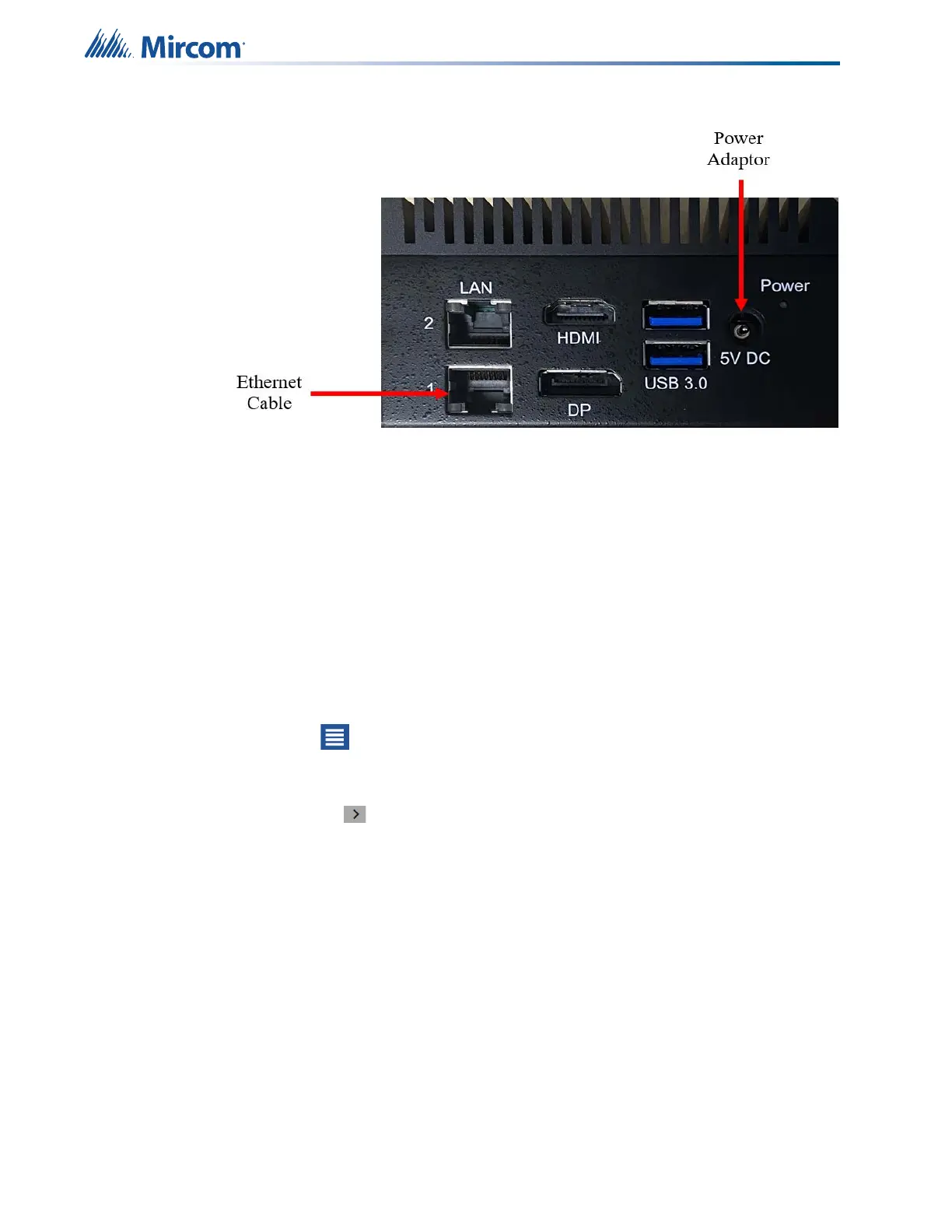
2. Attach the power adapter and cable to the unit.
Note: HDMI/DP/USB3.0 are intended for internal use only, not for customer use.
2. Activation
This process activates the TX3 Cloud Gateway, enabling it to work with your TX3 system.
1. Contact the Mircom sales department to purchase a TX3-Vision account and job site
license.
2. Log in to the TX3 Vision website (https://tx3vision.mircom.com/).
3. Once logged in, you will see the job site for which you have purchased the license.
4. Select the licensed job site.
5. Click on the icon.
6. From the drop-down menu click on Configuration.
7. Click the arrow
on the right of the Gateway Panel.



 To Next Page