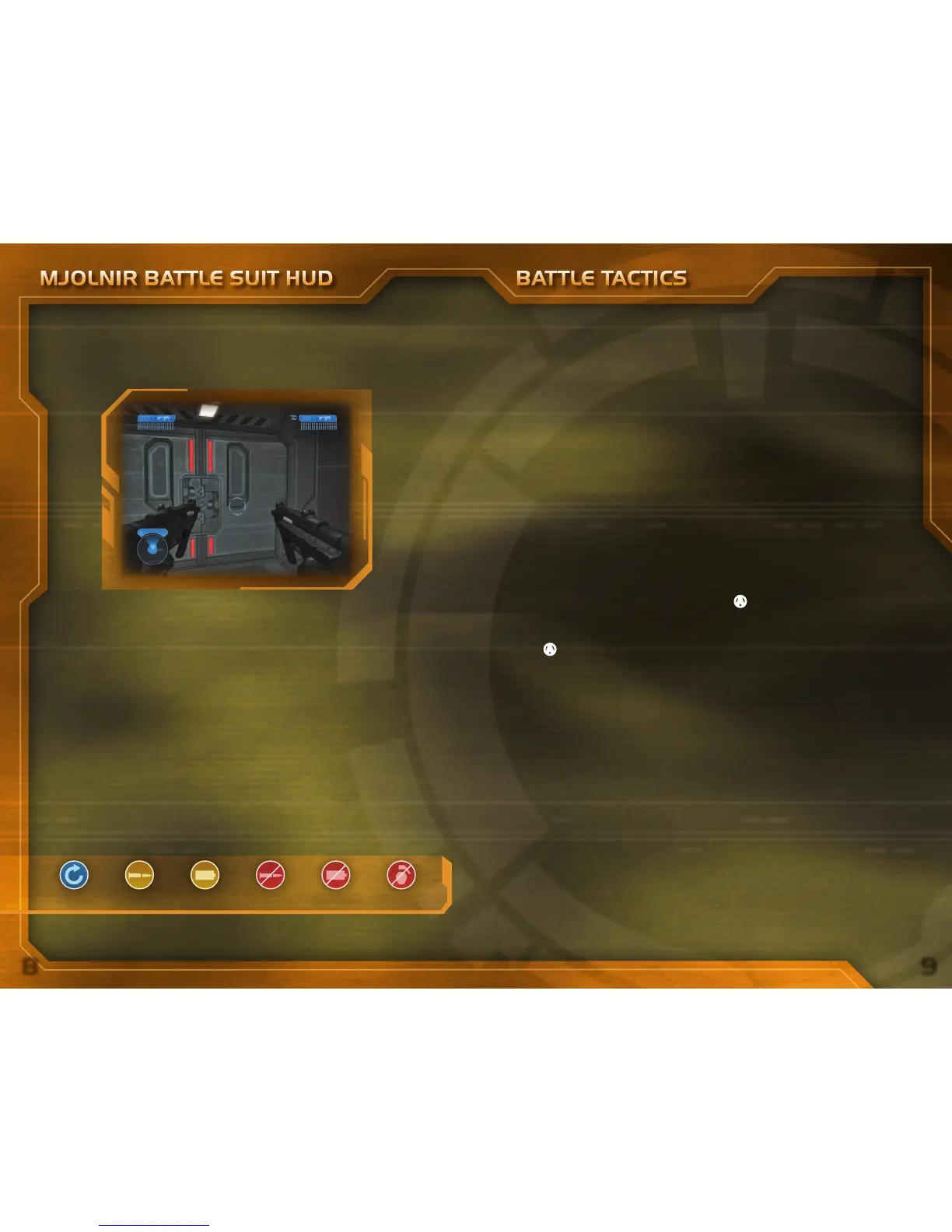
The Mjolnir Mark VI armor features an upgraded HUD system tied directly to
armor sensors and integrated fully with the neural interface. The HUD tracks
ammunition status on all UNSC weapons and now cross-references temperature
readings to track charge-depletion of Covenant weapons, should they be used.
Getting Started
The player profile defines your control settings, your character’s appearance, voice
options, and some Xbox Live settings. You can alter your settings at any time by
choosing Settings from the Main Menu, and then selecting Player Profile.
To create a new player profile, press START from the Start screen, then select
Create New Profile. Type a profile name using the virtual keyboard and then
press START again.
Main Menu
From the Main Menu, select Campaign to begin a solo or cooperative game.
Select Xbox Live
, Split Screen, or System Link to start a multiplayer game.
Select Settings to customize player profiles or modify game types.
Campaign
You can play a campaign as a single player in a solo campaign or with a friend
in cooperative campaign. You play a cooperative campaign in split screen mode.
A campaign is associated with a player profile. To start a new campaign, you need
to create a new player profile.
To start a solo campaign, select Campaign from the Main Menu. Select New
Campaign, select a difficulty, and then press
A
.
To start a co-op campaign, select Campaign from the Main Menu,
and
then select Cooperative. Both players need to select a player profile and then
press
A
.
Saving Progress and Loading a Level
Your progress in a campaign is saved automatically at specific checkpoints
throughout a game level. To continue a campaign from your last saved
checkpoint, select Campaign from the
Main Menu, and then select Resume.
To load a specific level, select Campaign, and then select Select Level. You
can select only levels you’ve already conquered.
Weapon Indicators
Mjolnir Mark VI armor can monitor the status of two weapons simultaneously.
A left-wielded weapon and ammo display on the left of the HUD, while right-hand
or single-use weapons display on the far-right portion of the HUD. When a single
weapon is wielded, status on your grenade types displays on the left side. Since
SPARTAN-117 can keep a weapon in reserve, it is indicated on the right side.
Motion Tracker
Indicates relative whereabouts of allies and hostile combatants. Located on the
lower-left portion of the HUD, it is tuned to detect aggressive or obvious motion
and cannot show the location of stationary or slow-moving hostiles.
Shield Indicator
A bar above the motion tracker. Solid blue indicates an optimal state.
Warning Indicators
These display below your reticle to provide valuable information.
MJOLNIR BATTLE SUIT HUD BATTLE TACTICS
End transmission.
Reload Low Ammo Low Battery No Ammo No Battery No Grenades





 To Next Page