Use the Settings menu to customize a player profile or create a set of rules for a
multiplayer game type.
Player Profiles
You can have a number of different customizable player profiles. Change a
profile’s name, modify the controller settings, edit the multiplayer characteristics
for a profile, or delete a player profile. To create or edit a player profile, select
Settings from the Main Menu, then select Player Profiles.
Changing the Control Layout
You can change the control layout for each player profile to better suit your style,
including the button scheme and the speed at which you look around. A number
of people choose to invert their controls. This means that when you push the
Right thumbstick forward, you look down, and when you pull it back, you look up.
Experiment to find which combination works best for you.
To change the control layout, select Controls from the Edit Profile screen. You
can also modify your layout in a campaign or a multiplayer game by pressing
START to bring up the Game Menu
.
Changing the Appearance of Your Multiplayer Character
To customize the appearance of your character in multiplayer games, select
Appearance from the Edit Profile menu. You can choose either a Spartan or
a Covenant Elite, set primary and secondary colors, and design a custom
player emblem.
Halo 2 multiplayer enables friends to find one another, to game together, and to
move throughout the
Halo 2 world as a group. You can play multiplayer games
with your friends via Split Screen, System Link, and over the Xbox Live™ service.
Split Screen
With split-screen play, you can compete with up to three other players, side by
side, on a single console. To start a split-screen game, select Split Screen from
the Main Menu.
System Link
With system-link play, you can connect two Xbox consoles with an Xbox system-
link cable, or up to 16 Xbox consoles using an Ethernet hub. For more information
on how to do this, see your Xbox console Instruction Manual. To host or join a
system-link game, select System Link from the Main Menu.
Xbox Live
With the Xbox Live service, you can play a multiplayer game with people from all
over the world, and you can download new
Halo 2 maps . To play an Xbox Live
multiplayer game, select Xbox Live from the
Main Menu (see pg. 24 for details).
Game Lobbies
In order to play any type of multiplayer game, you need to go through a game
lobby. A game lobby is the gathering place to meet and talk to friends, start a
game, or join a game.
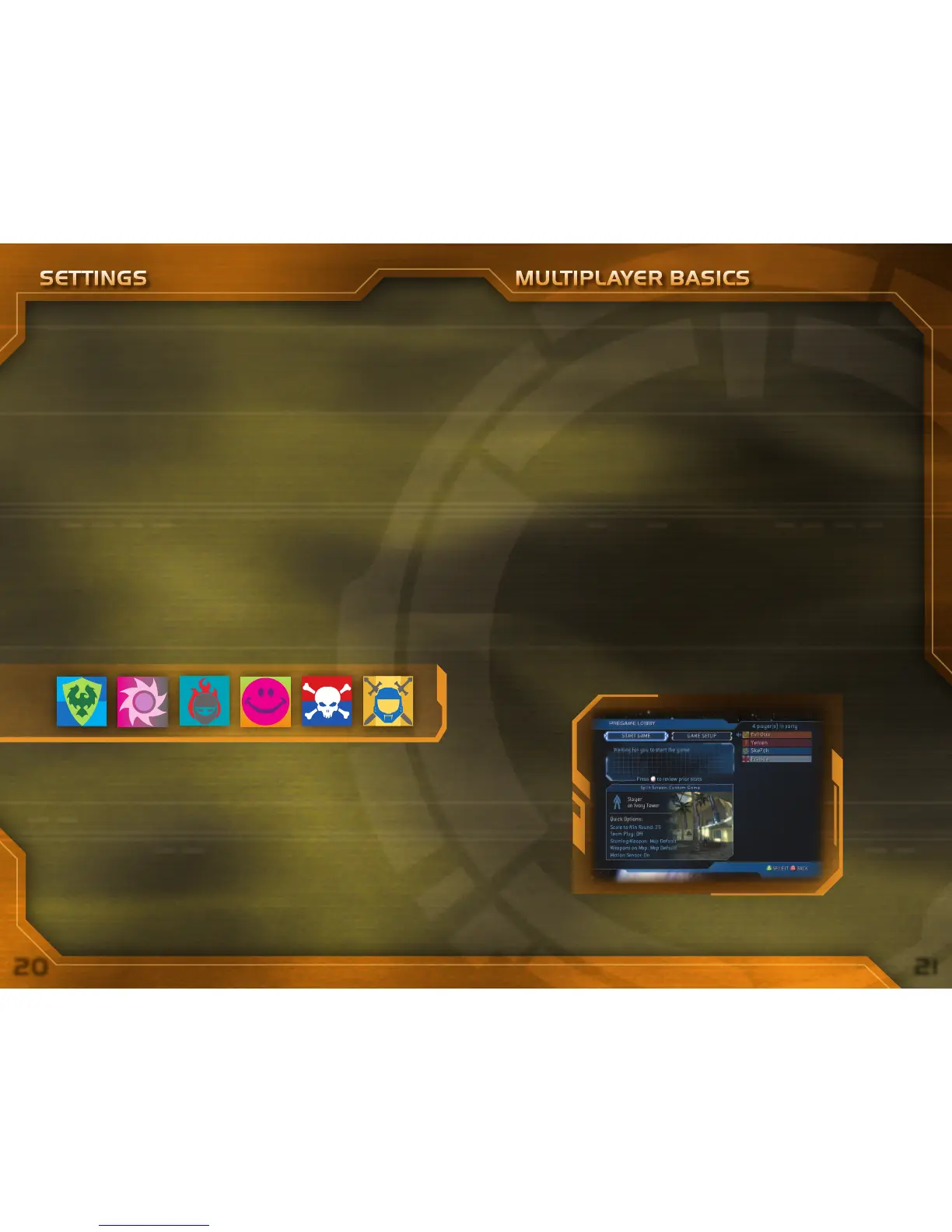
In the Pregame Lobby you can set up a game; you also can customize your game
map and options there, and start a co-op campaign in split-screen play.
SETTINGS MULTIPLAYER BASICS
When you play a system link game, go to the Available Games screen to create a
new game or join an available game.
Game Variants
Every type of multiplayer game has a set of rules called a variant. You can
modify the rules for a game you’ve created by creating a custom game variant.
To customize a game variant, select Options from the
Main Menu. To use a
variant that you’ve created, go to Game Setup
in the Game Lobby and select
Change Rules.





 To Next Page