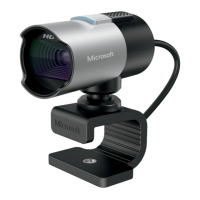
LifeCam Setup and Usage
2 May 2017 TIP-2014-044 3
©2017 Abbott Jewelry Systems, Inc.
Taking Pictures
1. Pictures can be acquired anywhere in The Edge where you see the camera icon (e.g., items, repairs,
customers).
2. To take a picture, click the camera icon, then select Acquire. You may be prompted to select the
device. If so, select LifeCam.
3. A live preview will appear in the Microsoft LifeCam Dashboard.
4. Manipulate the item, camera, or photo box to get a clean picture.
5. When you are ready, select Acquire to take the picture.
Troubleshooting
When you click
Select Photo
Device, The
Edge closes.
Your LifeCam camera
connection with The
Edge may have been
disrupted. Frequently
the result of a
Windows upgrade.
There are three possible solutions:
• Reboot the PC.
• Go to Administrative ► Select Photo Device and choose the
correct camera.
• If this is not successful:
1. Download and unzip the file located here:
http://docs.edgeuser.com/LifecamFIX.zip.
2. Double click on it to install it.
3. Follow the prompts, always selecting the affirmative.
• Open The Edge and proceed directly to trying to acquire an
image. Do NOT go to Administrative ► Select Photo Device.
does not appear
in the Select
Photo Device
Failed installation.
1. Check the cables and/or reboot the PC.
2. Go to Administrative
► Select Photo Device and choose the
correct camera.
GDI Error.
connection to the
server or shared folder
specified in
• Go to Administrative ► Configuration ► Production
Settings and make sure the photo folder configuration is correct.
• Make sure the camera software is not open elsewhere.
appears
Issue with display
settings.
• Right click on your desktop and go to Display Settings. Check
the text size and make sure it is 100% and try to change the
For
miscellaneous
failures, here is
a list of things
to try.
• Open up The Edge. Go to Administrative ► Select Photo
Device, make sure the camera shows up there, and highlight it
and select OK.
• Restart the computer and then try to acquire a picture again.
• Unplug the camera and plug it back in
• Try to switch to a different USB port.
• Test the device at a different computer. Does it work there? If
so, try reinstalling the camera on the non-working device.


 To Next Page