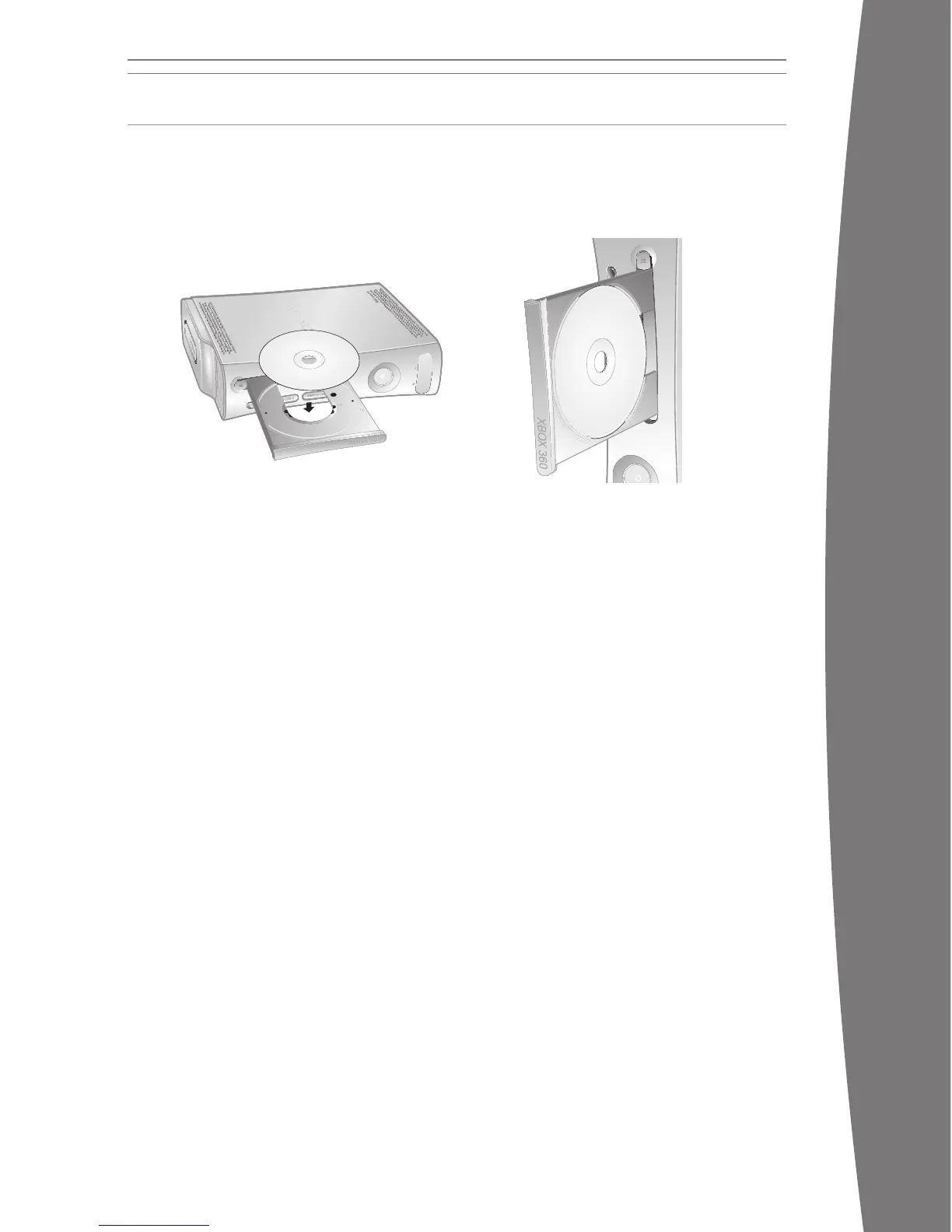
To insert a disc:
1 Press the eject button to open the disc tray.
2 Place the Xbox 360 game disc, audio CD, or
DVD movie on the disc tray with the label
facing up (to the right if the console is
vertical).
To eject a disc:
1 Press the eject button to open the disc tray.
2 Remove the disc.
3 Press the eject button to close the disc
tray.
nOTE
When the console is oriented vertically, make
sure the disc is held in place by the tabs on
the disc tray so that it doesn’t fall.
iMPOrTanT
To avoid jamming the disc drive and damaging
discs or the console:
• Remove discs before moving the console or
tilting it between the horizontal and
vertical positions.
• Never use cracked discs. They can shatter
inside the console and jam or break
internal parts.
• When the console is vertical, do not use
discs that are smaller than standard DVDs
and CDs. If the disc drive jams or is
damaged, contact Xbox Customer Support
to have your console repaired or
exchanged.
USING THE DISC DRIVEXBOX 360 FAMILY SETTINGS
The new Family Settings
feature for Xbox 360 gives
parents and caregivers the
ability to provide age-
appropriate entertainment
through customized settings.
Console settings can limit the games and
movies that can be played on your console.
Xbox LIVE settings can customize the Xbox
LIVE experience for each child account, even
when playing away from home.
Apply Family Settings
To apply Family Settings for your games and
Xbox LIVE:
1 Select System, Family Settings.
2 Choose the settings you want to apply to
your console and your Xbox LIVE accounts.
In the U.S. and Canada, Xbox 360 Family
Settings for games are based on the ESRB
(Entertainment Software Rating Board) rating
system and movie settings are based on the
MPAA (Motion Picture Association of America)
rating system. By default, Xbox 360 Family
Settings are set to Allow All for games and
movies. For more information about game
ratings, see www.esrb.org.
Not all movies have the rating encoded on the
DVD. These DVD movies will play regardless
of your settings.
Xbox LIVE Settings
You can make sure that your family has a
positive experience on Xbox LIVE by setting
limits for each child’s account. Manage up to
eight settings for each account and set
different limits for each account. Your child’s
Xbox LIVE settings are pre-selected when
their Xbox LIVE account is created. You can
make changes at any time by selecting
System, Family Settings, Live Controls, and
choosing the child’s account.
Family Settings for Xbox LIVE includes these
features:
• Parental approval for adding individuals to
your child’s friends list.
• Limiting voice, video, and text chat to
individuals on your child’s friends list.
• Blocking or limiting the display of your
child’s prole information and online
status.
• Bl
ocking or limiting your child’s ability to
view content created by other gamers.
• Blocking access to Xbox LIVE multiplayer
games.
• Pr
eventing your child from purchasing
items on Xbox LIVE Marketplace.
X130405002MNL.indb 11 8/10/2007 6:28:32 PM










 To Next Page