• Four lights on controller periodically ash
green: No Ring of Light quadrant
assignment. The controller is not
connected or all four quadrants are full.
• All other patterns: Internal problem
requires service. Contact Xbox Customer
Support at the phone number on the back
cover of this manual.
Wireless Controller Does Not Work
Turn on the wireless controller by pressing
the Xbox Guide Button and connect the
wireless controller to your console (see “Add
Wireless Controllers”).
If lights spin longer than 15 seconds when
connecting:
• Move the controller closer to the console.
• Make sure the batteries are fresh.
• Keep the console and controller at least
three feet away from large metal objects,
such as le cabinets and refrigerators.
• Me
tallic decorations or stickers on the
console or controller can interfere with
wireless controller performance. Remove
decorations and try connecting again.
• Make sure the front of the console is
positioned in the direction of the controller
and away from nearby walls.
• Cordless phones (2.4 GHz), wireless LANs,
wireless video transmitters, microwave
ovens, some mobile/cell phones, and
Bluetooth headsets can interfere with the
operation of the controller. Turn these off
or unplug them and retry connecting.
• If nothing else works, turn off your console,
remove and reinsert the AA batteries or
Xbox 360 Rechargeable Battery Pack into
the controller, and then repeat the steps
given in “Add Wireless Controllers.”
Headset Does Not Work
If the headset isn’t emitting any sound or you
are unable to transmit your voice:
• Make sure the headset connector is
plugged in securely.
• Try adjusting the volume using the volume
control on the headset connector.
• Make sure the mute button isn’t on.
• Make sure that voice isn’t turned off in the
Xbox Guide.
• Check your game manual to determine
whether you need to push a button while
speaking.
Accessory Does Not Work
Use Xbox 360-compatible gameplay
accessories that have this logo:
If an accessory is not supported by a specic
game, the game may not play.
Cannot Save Game
The Xbox 360 Hard Drive or Memory Unit
must have enough free space to save the
game. Delete unwanted items from storage or
attach an additional memory unit (sold
separately) for more space.
Hard Drive Not Listed as a Storage
Device
If your hard drive is not listed as a storage
device, try the following steps, in order.
1 Make sure the hard drive is fully inserted
into the hard drive bay and looks level.
Turn the console off, then on again.
2 Turn the console off and remove the hard
drive. Turn the console on and then off
again. Reattach the hard drive.
3 If available, try the hard drive on another
console, or try another hard drive on your
console to pinpoint the problem.
nOTE
Damaged hard drives will not show up in the
Xbox Guide and could harm your Xbox 360
console. Hard drives that have been crushed,
immersed in liquids, or exposed to intense
heat may be damaged beyond use and will
not show up in your list of storage devices.
Follow these steps to troubleshoot any
difculties you may have with the Xbox 360
v
i
d
e
o game and entertainment system. If the
steps in this troubleshooting section do not solve
your problem, go to www.xbox.com/support or
call the Xbox Customer Support number
provided on the back cover.
Do not take your Xbox 360 console or its
accessories to your retailer for repair or
service unless instructed to do so by an Xbox
Customer Support representative.
TROUBLESHOOTING
Do Not Attempt Repairs
Do not attempt to take apart, open, service,
or modify the Xbox 360 console, power
supply, or accessories. Doing so could
present the risk of electric shock, re, or
damage to
your Xbox 360 console.
Any evidence of any attempt to open and/
or modify the Xbox 360 console, including
any peeling, puncturing, or removal of any
of the labels, will, for safety reasons, void
the Limited Warranty and render the Xbox
360 console ineligible for authorized repair.
No Power
Conrm that you have an appropriate power
source and check all connections between
wall outlet and power supply, and power
supply and console (see “Connect to Power”).
The power supply light should glow green
when it is working properly.
No Picture
Connect the appropriate AV cable (see
“Connect to Your TV and Audio System”). Turn
on the TV. Select the video input on the TV (or
VCR, if connected to a VCR) that displays the
Xbox 360 game. Common names for video
input include Input Select, AUX, Line In, Line,
In, Input, Source, and EXT, depending on your
TV or VCR type. For more information, see
your TV or VCR manual. Don’t connect both
the included AV cable and an HDMI AV cable
(sold separately) to the console at the same
time.
No Sound
Check the AV connection (see “Connect to
Your TV and Audio System”). If you’re using
digital audio, make sure the receiver is turned
on and the output in your console’s audio
settings is set correctly. Don’t connect both
the included AV cable and an HDMI AV cable
(sold separately) to the console at the same
time.
Poor-Quality Sound
Clean the disc as shown in the Xbox 360
Warranty manual (Volume 2). Check the AV
connection (see “Connect to Your TV and
Audio System”). Play Dolby® Digital audio
only on audio systems that support Dolby
Digital. Select the audio output that is
supported by your system or TV: stereo or
Dolby® Surround for stereo speakers, mono
for monaural speakers. If sound is coming
from only one speaker, check that all audio
cables are connected correctly.
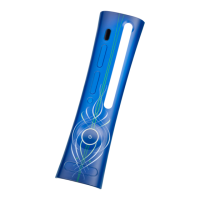
Disc Tray Does Not Open
Make sure the removable faceplate on the
front of the console is fully connected and
properly aligned. Check the connection to
power (see “Connect to Power”). Turn on the
console by pressing the Power button.
Game, Movie, or Music Does Not Start
Play only supported discs (Xbox 360 games,
audio CDs, DVD movies). Insert the disc as
instructed in this manual and close the disc
tray. Clean the disc as shown in the Xbox 360
Warranty manual (Volume 2).
Ring of Light Flashes
The lights in the console Ring of Light should
glow solid while the console is on and ash
when y
ou press the eject button. If the Ring of
Light ashes differently during operation, the
cons
ole has an internal problem:
• Two left lights on console ash red: The
console is too hot and will not play games
until cooled down. Place the console in a
well-ventilated area away from other heat
sources. Once the console cools, the
ashing will stop and the Xbox 360
cons
ole can be played. For more
information, see “Select a Location for your
Console”.
X130405002MNL.indb 24 8/10/2007 6:29:13 PM





 To Next Page