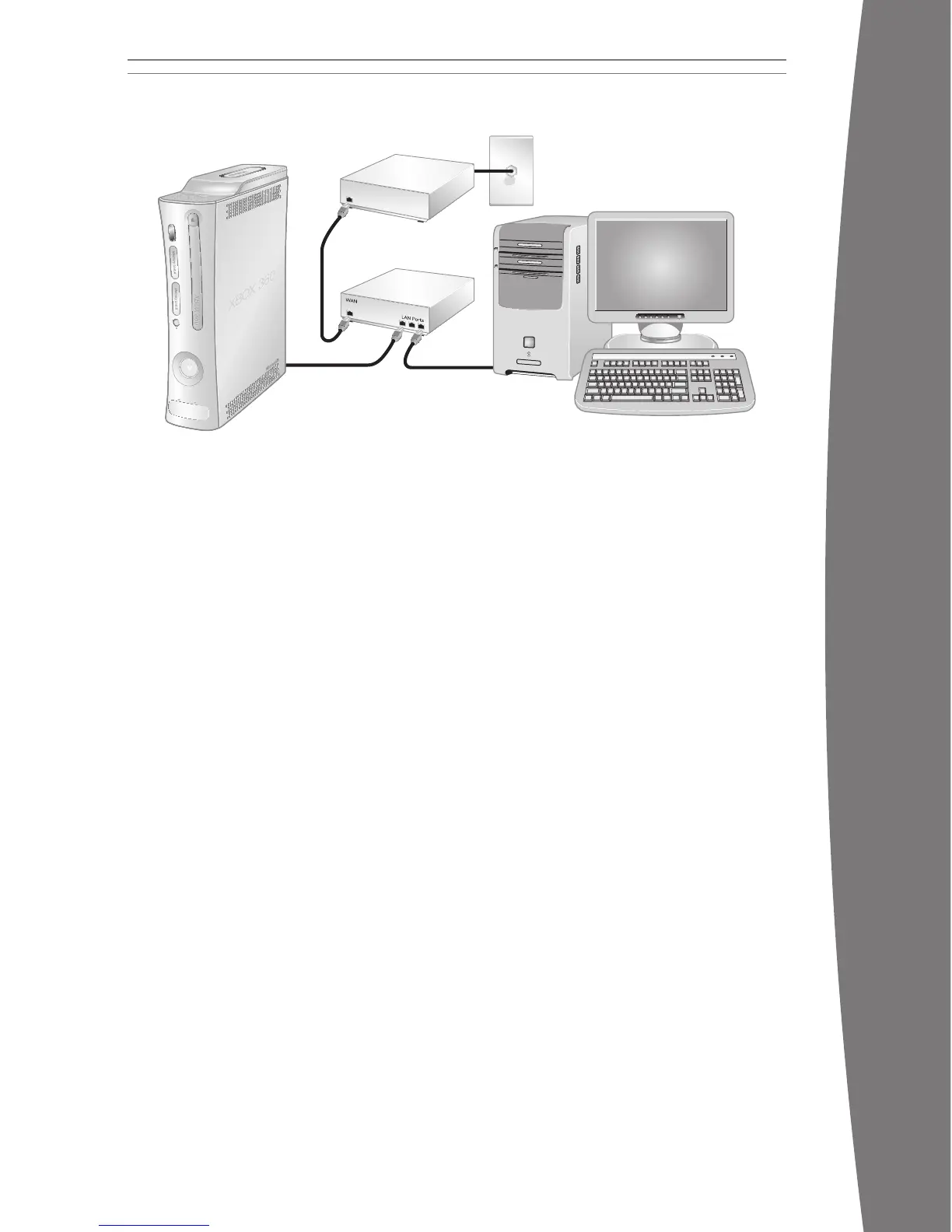
Router Connection
Choose a router connection if you want to
share your Internet connection with your PC
(or other device), your high-speed modem
supports an Ethernet connection, and you
want to be able to play on Xbox LIVE whether
your PC is on or off.
To set up a router connection:
1 Connect one end of an Ethernet cable to
the Ethernet port on your high-speed
modem and the other end to the WAN or
Uplink port on your router.
2 Connect one end of an Ethernet cable to an
Ethernet LAN port on your router and the
other end to the Ethernet port on your PC
(or other device). Follow the instructions
from your ISP to use your PC’s browser or
software to congure the router, then
veri
fy that your PC is connected to the
Internet.
3 Connect one end of an Ethernet cable to an
Ethernet LAN port on your router and the
other end to the Ethernet port on the back
of your Xbox 360 console.
nOTE
Some modems and devices may require a
network hub instead of a router.
4 Follow the on-screen instructions. You may
need to enter information provided by your
ISP in the System area of the Xbox
Dashboard.
Modem Connection
Choose a modem connection if you want the
easiest way to set up and play and you don’t
want to share your Internet connection with
your PC (or other device).
To set up a modem connection:
1 Connect one end of an Ethernet cable to
the Ethernet port on your high-speed
modem and the other end to the Ethernet
port on the back of your Xbox 360 console.
2 Follow the on-screen instructions. You may
need to enter information provided by your
ISP in the System area of the Xbox
Dashboard.
X130405002MNL.indb 15 8/10/2007 6:28:40 PM





 To Next Page