Gateway Connection
Choose a gateway connection if your ISP has
supplied you with an Ethernet gateway
device. Like a router connection, you can
share your Internet connection with your PC
(or other device) and play on Xbox LIVE
whether your PC is on or off.
To set up a gateway connection:
1 Connect your high-speed Internet
connection to your gateway (using the
coaxial cable jack for cable providers or
telephone jack for DSL providers).
2 Connect one end of an Ethernet cable to an
Ethernet LAN port on your gateway and the
other end to the Ethernet port on your PC
(or other device). Follow the instructions
from your ISP to use your PC’s browser or
software to congure the gateway, then
veri
fy that your PC is connected to the
Internet.
3 Connect one end of an Ethernet cable to an
Ethernet LAN port on your gateway and the
other end to the Ethernet port on the back
of your Xbox 360 console.
4 Follow the on-screen instructions. You may
need to enter information provided by your
ISP in the System area of the Xbox
Dashboard.
Troubleshoot Your Connection
If your Xbox 360 console cannot connect
automatically, you may need to manually
congure your network settings in the Xbox
Dash
board. Some Internet service providers
(ISPs) require specic settings, including host
name
, MAC address, and ISP user name and
password (for PPPoE authentication). If you
are unsure about whether you need this
information, check with your ISP. For more
information, go to www.xbox.com/setup.
Sign Up for Xbox LIVE
To create your account, select Xbox LIVE from
the Xbox Dashboard and follow the
instructions on the screen.
Communicate on Xbox LIVE
Use your Xbox 360 Headset to chat and
communicate with your friends while on Xbox
LIVE.
Connect Your Headset to Your
Controller
To connect your headset:
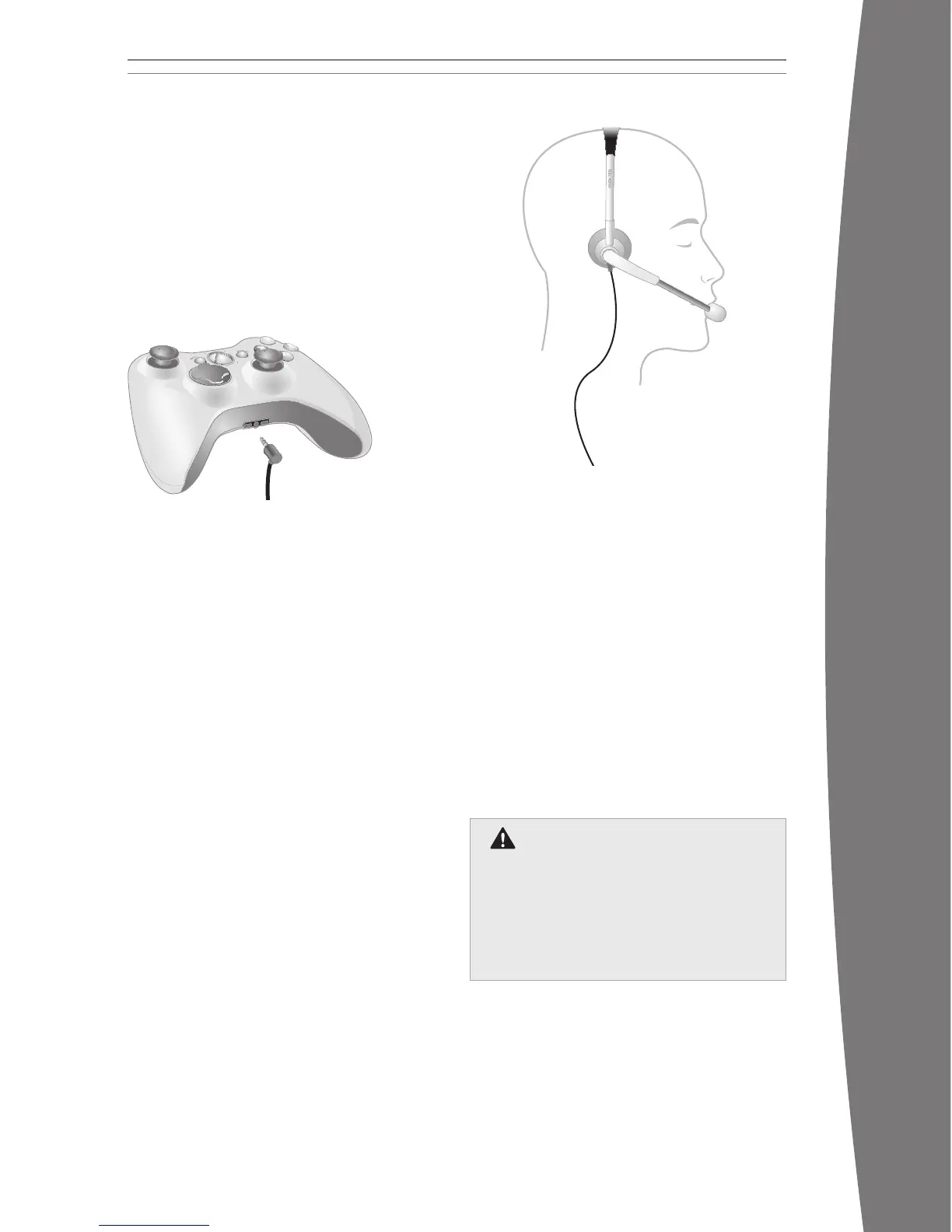
1 Turn down the volume by rotating the
volume control all the way to the left.
Insert the 2.5-mm headset connector into
the controller expansion port at the back of
your game controller.
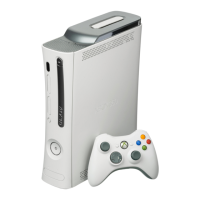
2 Put on your headset and adjust the
microphone.
nOTE
Correct placement of the headset and
microphone is critical to using your headset
successfully. Make sure the headset goes
over the top of your head, not around the
back of your head. You may rotate the
microphone and earpiece to your right or
left side. Position the microphone about
one inch (2.54 cm) from your mouth and off
to one side. This will ensure that it doesn’t
transmit your breathing into a chat session.
As you adjust the microphone, make sure
the microphone opening is pointed toward
your mouth and not rotated on its axis.
3 Now the headset is ready for a game or
chat session. Start your game or chat and
turn the volume up to a comfortable level.
Use Your Headset
To temporarily turn off voice transmission,
slide the mute switch on the headset control.
To adjust the listening volume of the headset,
rotate the volume control knob. For more
information about using your Xbox 360
Headset with a particular game, see your
game manual.
To chat and send voice messages, you need
an Xbox LIVE membership.
iMPOrTanT
To prevent damage to your headset, avoid
sitting or stepping on the headset, its cable, or
the cable connector.
Hearing Loss
Extended exposure to high volumes when
using a headset may result in temporary
or per
manent hearing loss. Some
unapproved third-party headsets may
produce higher sound levels than
appr
oved Xbox 360 Headsets.
X130405002MNL.indb 17 8/10/2007 6:28:45 PM





 To Next Page