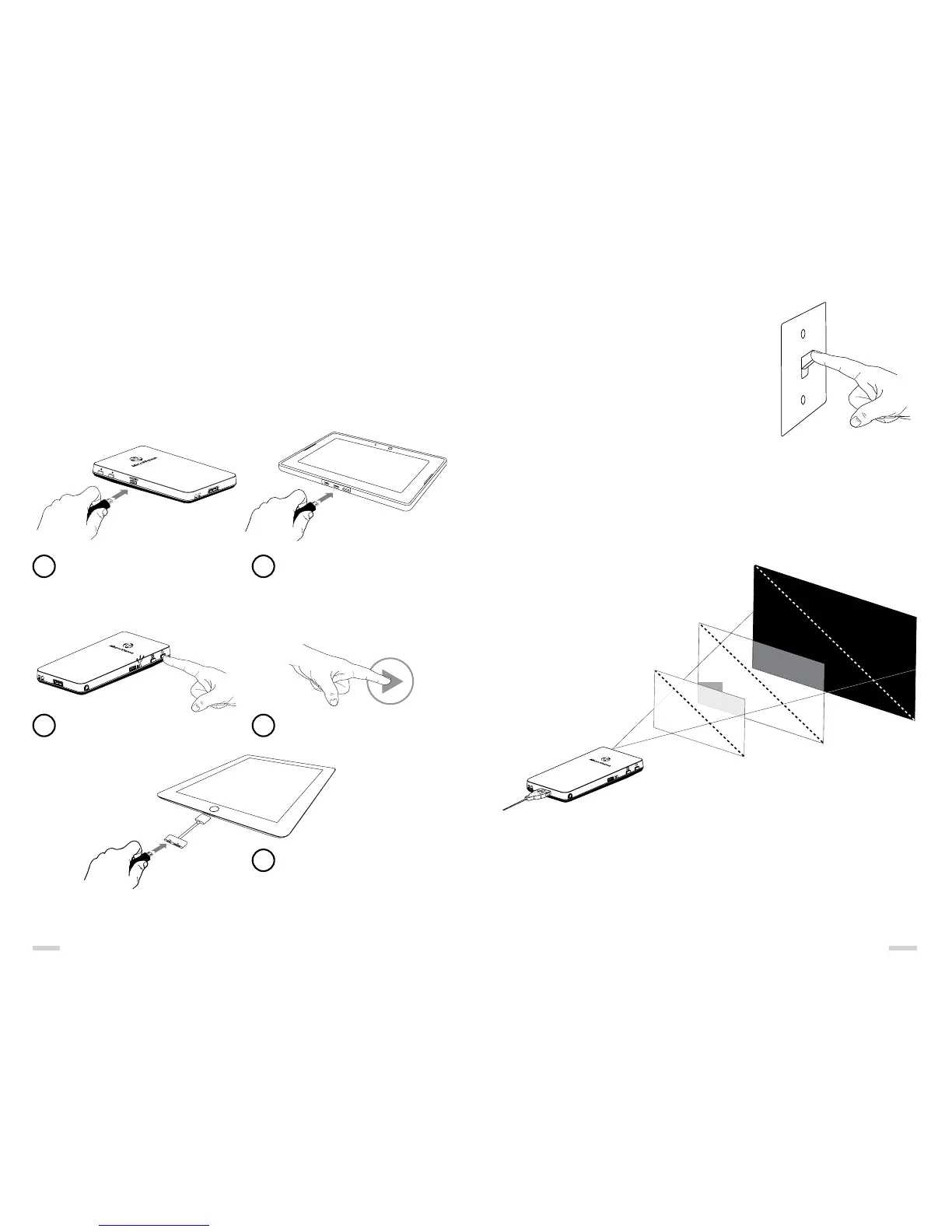
Connecting to HDMI Video Sources
The SHOWWX+ HDMI can connect to a variety of devices that provide HDMI video-out.
A micro-to-micro HDMI cable is provided. HDMI-approved third party cables are available
supporting standard and mini to micro connectivity. SHOWWX+ HDMI is HDCP compliant
and as such can display rights managed (HDCP) content. To display content, if not automatic
make sure the source device has TV/Video-Out set to “On” or “Enabled”. To learn if your HDMI
video source devices is capable of TV/Video-Out and how to enable, refer to its User Guide.
To see compatible devices with SHOWWX+ HDMI visit http://www.microvision.com/showwx/
hdmi/compatibility
Semi-Lit
Home / Office
Semi-Dark
Dimmed Lighting
Note:
Image diagonal is approximately equal to the distance from the projector to the screen.
There are two main factors to consider when using
the SHOWWX+ HDMI.
Ambient light
» It is recommended to shut blinds, close curtains
and turn lights down to make the room dark
so the projected image looks the best.
Distance from screen
» The projector distance from the screen will impact
the appearance of the image brightness.
The closer to the screen the brighter the image will appear.
Complete Darkness
<12”
24”-36”
70”-100”
Usage Guidelines
The following is a guideline of what image sizes are possible under
various lighting conditions:
14 15
Connect the HDMI cable to the
micro HDMI port on the projector
Power on the projector
Connect the HDMI cable directly
into the HDMI output connector
on the Video-Out Device
Note: Depending on the host HDMI
connector type, may require standard,
mini or micro cable (micro provided).
If not automatic, enable video
out from the source device
iPad 2 supports Video Mirroring via
optional Apple Digital Adapter (sold
separately by Apple). Connect the
SHOWWX+ HDMI using a standard
HDMI-to-Micro HDMI cable (sold
separately) to enable Video Mirroring
(what you see on the screen can be
displayed or projected) functionality.
1
3
2
4
5



 To Next Page