Last update: 2018/04/30 18:00 mididocs:seq:beginners_guide:start http://wiki.midibox.org/doku.php?id=mididocs:seq:beginners_guide:start
http://wiki.midibox.org/ Printed on 2019/10/22 16:44
EDIT page with the datawheel, and the cursor position is copied to the Jam page, but with Step
(GPK11) you can change the cursor position while on the Jam page as well. Turning the knob takes
you briefly to the EDIT page, and after a few seconds of inactivity you will be returned to the Jam
page.
You can step record CC messages the same way you can record notes. There are two alternative
conditions: either the incoming CC message number has to have a dedicated CC parameter layer
already, or there is a CC layer that is currently 'off'. For example, an incoming CC#001 will be
recorded in the first CC layer where there already are CC#001 messages, or if there is no such layer,
the CC#001 message will recorded into the first free CC layer. If there are no available CC layers, the
incoming messages won't be recorded anywhere.
4.1.4. Live recording
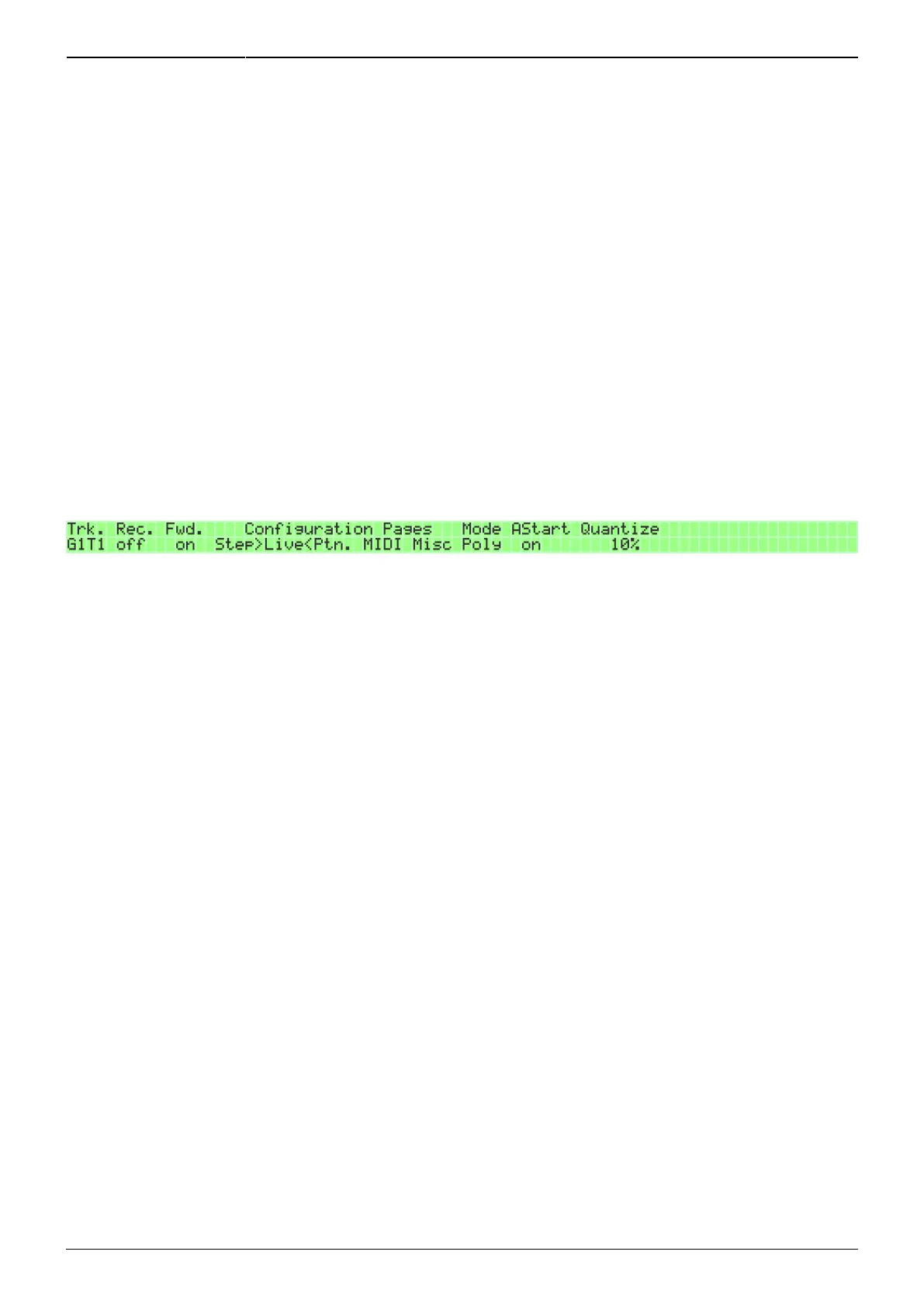
On the Jam page, press GPB5 to choose Live recording settings for editing. They appear in the right
LCD.
Mode can be set to either 'Poly' or 'Mono'. 'Mono' allows you to record only one note at a time, and
always in the first note layer, overwriting any notes that already were there, while 'Poly' allows you to
record as many notes simultaneously as you have note layers on the track you're recording on. (The
number of available note layers depends on how you have set up the track; see section 2.1.1.) Both
modes overwrite whatever was in the note, velocity and length layers for each recorded step. If a step
had several note layers with notes in them (i.e. a chord) and you record a single note in that step
(which always goes in the first note layer), all the other note layers are erased as well.
AStart controls whether or not to start the sequencer automatically when you press a key on your
MIDI controller to record the first note. If the sequencer is already running, AStart setting makes no
difference. Note that if the sequencer is not running and AStart is 'off', recording will always be step
recording (and will use step recording settings from the Jam page), even if Live recording is selected
on the Jam page.
Note also that with Live recording, if you have AStart 'on', the first note will always be recorded in
step 1, regardless of the cursor position, and all subsequent notes will be recorded at the running
cursor position.
Quantize can be set from 0% to 99%, and it controls the tolerance with which “early” off-beat notes
will be recorded in the following step, instead of in the step where they technically were played. The
higher the value, the more likely it is that an “early” note will be recorded into the next step.
Note that when note forwarding (Fwd) on the Jam page is 'on' and an “early” note is moved by the
quantize function to the next step, the note will be triggered twice. When you press a key on your
MIDI controller, the note is immediately forwarded to the port and MIDI channel for that track
(because Fwd is 'on'), and sounds for the first time. Because it was a a bit early, it is moved “into the
future”, i.e. the next step, but the sequencer won't be there for another 0.2 seconds or so. However,
when the sequencer does reach the next step, it will play the note that was moved there, the note
that had sounded already a fraction of a second before.



 To Next Page