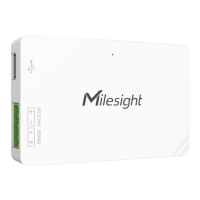
The Milesight UC51x Series LoRaWAN® Solenoid Valve Controller is a wireless solenoid valve controller designed for remote control of DC latching solenoids. It features two solenoid interfaces and two GPIO interfaces, allowing for both local and remote control. The device is built with ultra-low-power LoRaWAN® technology and includes a solar-powered, built-in battery for uninterrupted operation. Its IP67-rated enclosure and M12 connectors provide protection against water and dust, making it suitable for outdoor applications.
Key Features:
- Compatible with standard DC latching solenoids.
- OPEN/CLOSE control via mobile App or command status monitoring.
- Two GPIO interfaces for flow monitoring or valve status monitoring.
- Transmission distance up to 15 km with line of sight.
- Waterproof design (IP67 case and M12 connectors).
- Solar-powered with built-in rechargeable batteries.
- Quick wireless configuration via NFC.
- Time and flow control via Milesight IoT Cloud.
Hardware Overview:
The UC51x series includes models UC511 and UC512. Both models feature a solar panel, NFC area, and solenoid & pulse interfaces. The UC511 also includes a DC power connector, while the UC512 has a LoRaWAN® antenna connector.
Data Interfaces:
The device has two data interfaces (1 & 2) with the following pin assignments:
- Pin 1: DC+/OUT1 of Solenoid Valve
- Pin 2: DC-/OUT2 of Solenoid Valve
- Pin 3: GND
- Pin 4: INSERT BOOT (Note: PIN3 and PIN4 do not need to connect for "Solenoid Valve Switch" option in section 3.4).
Power Interface (UC511-EA):
- Pin 1: VCC (5-24V)
- Pin 2: GND
Internal Interfaces:
The internal board includes a Power Button, Type-C USB port, and LED Indicator. It also features DIP switches for solenoid interface voltage selection:
- 12V: 1 on 2 off 3 off
- 9V: 1 off 2 on 3 off
- 5V: 1 off 2 off 3 on
- Turn On: Press and hold for more than 3s. LED: Off → On.
- Turn Off: Press and hold for more than 3s. LED: On → Off.
- Reset: Press and hold for more than 10s. LED: Blinks.
- Check: Quickly press. LED: Light On (Device is on), Light Off (Device is off).
Operation Guide:
The UC51x series can be monitored and configured via the Milesight ToolBox App (NFC) or ToolBox software (USB).
NFC Configuration:
- Download and install "Milesight ToolBox" App from Google Play or Apple App Store.
- Enable NFC on your smartphone and launch Milesight ToolBox.
- Attach the smartphone with NFC area to the device to read basic information.
- Basic information and settings are displayed. You can read and configure the device by tapping the button on the Device Status. Password validation (default: 123456) is required for first configuration.
- Ensure the smartphone's NFC area is correctly positioned; removing the phone case is recommended.
- If NFC read/write fails, try again after moving the phone away and back.
- A dedicated NFC reader can also be purchased from Milesight IoT for configuration.
USB Configuration:
- Download ToolBox from the Milesight IoT website.
- Open the UC51x case and connect it to a computer via the Type-C port.
- Open ToolBox, select "General" as type, and log in with the password (default: 123456).
- After logging in, you can click "Power On" or "Power Off" to control the device and change settings.
Solenoid Valve Control:
Solenoid valves can be controlled via ToolBox software or App.
- Via ToolBox Software: Click "Open" or "Close" on the Status page to change valve status.
- Via ToolBox App: Click valve status buttons on the Device > Status page, then attach the smartphone to the device.
LoRaWAN Settings:
Configure transmission parameters for the LoRaWAN® network.
-
Basic Settings: Supports join type (OTAA/ABP), App EUI, App Key, and other information. Default settings can be used.
- Device EUI: Unique ID on the label.
- App EUI: Default is 24E124C0002A0001.
- Application Port: Default is 85.
- Join Type: OTAA and ABP modes available.
- LoRaWAN Version: V1.0.2 and V1.0.3 available.
- Application Key: Appkey for OTAA mode (default: 5572404C696E6B4C6F52613230313823).
- Device Address: DevAddr for ABP mode (5th to 12th digits of SN).
- Network Session Key: Nwkskey for ABP mode (default: 5572404C696E6B4C6F52613230313823).
- Application Session Key: Appskey for ABP mode (default: 5572404C696E6B4C6F52613230313823).
- RX2 Data Rate/Frequency: For receiving downlinks.
- Spread Factor: Used if ADR is disabled.
- Confirmed Mode: Resends data if no ACK from network server.
- Rejoin Mode: Sends LinkCheckReq MAC packets to validate connectivity; re-joins network if no response.
- Set the number of packets sent: Configurable when rejoin mode is enabled.
- ADR Mode: Allows network server to adjust datarate.
- Tx Power: Transmit power.
- Notes: Contact sales for EUI list/random App keys. Select OTAA for Milesight IoT cloud management. Only OTAA supports rejoin mode.
-
Frequency Settings: Select supported frequency and channels for uplinks, ensuring they match the LoRaWAN® gateway. For CN470/AU915/US915 frequencies, channel indexes can be entered as comma-separated values (e.g., "1, 40" or "1-40, 60"). "All" enables all channels, "Null" disables all.
-
Multicast Settings: Supports up to four multicast groups for bulk device control.
- Enable Multicast Group and set a unique multicast address and keys (default values provided).
- Add a multicast group on the network server (e.g., Milesight UG6x gateway: Network Server > Multicast Groups). Fill in the same information as device settings and select devices to control.
- Go to Network Server > Packets, select the multicast group, fill in the downlink command, and click "Send." The network server broadcasts the command to devices in that group. Ensure all devices' application ports are the same.
Solenoid Settings:
Configure reporting settings via Device Settings > Basic (ToolBox software) or Setting > General Settings (ToolBox App).
- Reporting Interval: Default 20min, range 1-1080 mins.
- Data Storage: Enable/disable local data storage (see section 3.6 for export).
- Data Retransmission: Enable/disable data retransmission (see section 3.7).
- Solenoid Valve Wiring Switch: When enabled, connecting the solenoid cable to any solenoid interface automatically turns on the device.
- GPIO1/2 Acquisition Type: Select "Digital input" (detects valve state) or "Pulse Counter" (measures flow for water meters).
- Prevent Jitter Delay Time: Prevents frequent uplinks of GPIO status when GPIO mode is DI.
- Data Reporting: Select contents to report: "All," "Valve 1 & Water Meter 1," or "Valve 2 & Water Meter 2."
Schedule Settings:
Configure solenoid switch plans via Device Settings > Schedule (ToolBox software) or Setting > Schedule (ToolBox App).
- Configure up to 16 plans.
- Item: Plan number.
- Status: Enable/disable plan.
- Initial State of Solenoid Valve: Control valve open/close during the plan.
- Start Time/End Time: Set time range for plan execution.
- Water Volume (Pulses): Set water flow amount. Plan completes when time or water volume condition is met. This only works if GPIO type is pulse counter.
- Repeat: Set weekly schedule. If none selected, plan executes once.
- Notes: Ensure device time is correct and synced. Multiple active plans will execute the one with the largest item number.
Data Storage:
UC51x series stores up to 1000 data records locally and allows export via ToolBox App or software.
- Go to Status (ToolBox software) or Device > Status (ToolBox App) to sync device time.
- Go to Device Settings > Basic (ToolBox software) or Device > Settings > General Settings (ToolBox App) to enable data storage.
- Go to Maintenance > Basic (ToolBox software) or Device > Maintenance (ToolBox App), click "Export," select time range, and click "Save" to export data.
- Note: ToolBox App can only export the last 14 days' data. For more data, use ToolBox software.
- Click "Clear" to clear all stored data.
Data Retransmission:
UC51x series supports data retransmission to ensure data delivery even if the network is down.
- Network server sends downlink commands to query historical data for specified time range (see UC51x Series Communication Protocol).
- If the network is down, the device records the disconnection time and re-transmits lost data when reconnected.
- Use ToolBox software or App to sync time. If LoRaWAN® version is 1.0.3, the device sends a request to query time from the network server.
- Enable data storage and data retransmission features.
- Enable rejoin mode and set the number of packets sent. The device sends LinkCheckReq MAC packets every 30 mins. If no response for 8 times (4 hours), it records a data lost time point (disconnection time minus 4 hours).
- After network reconnection, the device sends missing data from the lost time point based on the reporting interval.
- Notes: If rebooted/powered off during retransmission, all retransmitted data will be sent again. If disconnected again, only the latest disconnection data is sent. Retransmission data format starts with "20ce." Data retransmission increases uplinks and shortens battery life.
Maintenance:
- Upgrade:
- ToolBox Software: Download firmware from www.milesight-iot.com. Go to Maintenance > Upgrade, click "Browse" to import firmware, and upgrade.
- ToolBox App: Download firmware to smartphone. Open ToolBox App, click "Browse" to import firmware, and upgrade.
- Notes: Operation on ToolBox is not supported during upgrade. Only Android ToolBox App supports upgrade.
- Backup: UC51x devices support configuration backup for bulk device configuration.
- ToolBox Software: Go to Maintenance > Backup and Reset, click "Export" to save current configuration as a JSON backup file. Click "Browse" to select backup file, then "Import" to import configurations.
- ToolBox App: Go to Template page, save current settings as a template. Select this template and attach to another device to write configuration.
- Reset to Factory Default:
- Via Hardware: Open case, hold power button for more than 10s.
- Via ToolBox Software: Go to Maintenance > Backup and Reset, click "Reset."
- Via ToolBox App: Go to Device > Maintenance, click "Reset," then attach smartphone with NFC area to UC51x.
Installation:
UC51x supports wall mounting or pole mounting. Ensure you have the mounting bracket, wall/pole mounting kits, and tools.
- Wall Mounting:
- Fix wall plugs into the wall, then fix the mounting bracket with screws.
- Place device on mounting bracket, fix bottom of device to bracket with a fixing screw. This screw is necessary for signal integrity.
- Pole Mounting:
- Straighten hose clamp, slide it through rectangular rings in mounting bracket, wrap around pole.
- Tighten locking mechanism with screwdriver by turning clockwise.
Milesight IoT Cloud Management:
UC51x series can be managed via the Milesight IoT Cloud platform, which provides comprehensive services including remote management and data visualization.
- Add UC51x to Cloud: Ensure Milesight LoRaWAN® gateway is online. Refer to gateway's user guide for connecting gateway to cloud.
- Go to "My Devices" page, click "+New Devices." Fill in the SN of UC51x and select associated gateway.
- Click and go to "Basic Settings" to change class type to match device settings.
- Click and go to "Interface Settings" to select used interfaces and customize name and thresholds.
Solenoid Valve Control (Cloud):
Solenoid valve can be controlled by Milesight IoT cloud webpage or App. Ensure all schedule plans on the device are disabled before controlling from the cloud.
- Click to open the solenoid valve and configure duration. If any local plan on UC51x is active, this control will not work.
- You can also add a switch on the dashboard to control solenoid valves.
- Go to "Triggers" page to add actions to trigger the solenoid valve for a period or specific volume of water.
- Note: Water volume control only works when a water meter is connected to UC51x.
- Note: In LoRaWAN® Class A working mode, control commands will delay until the time icon disappears.
Device Payload:
UC51x Series uses the standard Milesight IoT payload format based on IPSO. Refer to the UC51x Series Communication Protocol for decoders of Milesight IoT products.

 Need help?
 General

 To Next Page