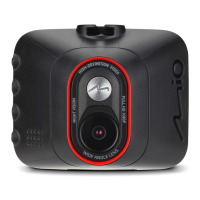
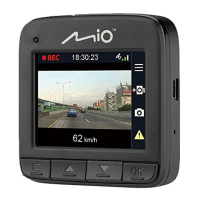
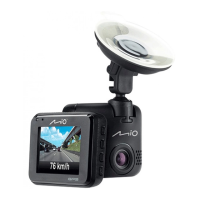
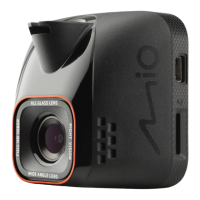
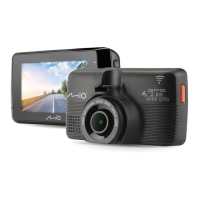
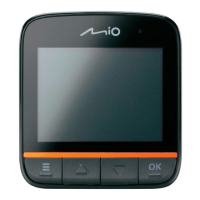
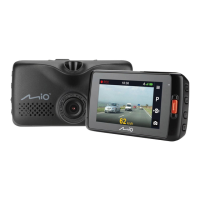
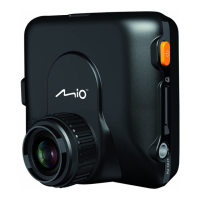
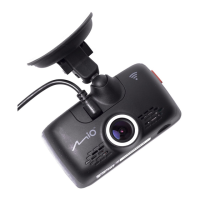
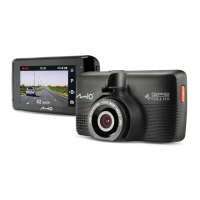
The MiVue™ C300 is a dashcam designed for in-vehicle use, offering continuous recording, event recording, and photo capture capabilities. It supports a MicroSD card for data storage and features a built-in LCD screen for display and interaction.
Function Description:
The primary function of the MiVue™ C300 is to record video while driving, serving as a dashcam. It offers different recording modes, including continuous recording and event recording, which is triggered by sudden impacts or accidents. Users can also manually capture photos. The device is equipped with a G-sensor to detect impacts and a microphone to record audio. Playback of recorded videos and photos is possible directly on the device's LCD screen.
Important Technical Specifications:
- Storage: Supports Class 10 MicroSD memory cards up to 32 GB capacity.
- Battery: Contains a non-replaceable internal Lithium Ion battery.
- Charging: Uses a specified charger (LPS, "Limited Power Source" with output rated +5 V dc / 1 A).
- Regulatory Compliance: CE marked, complying with the Electromagnetic Compatibility Directive (2014/30/EU) and various European Standards (EN 55022, EN 61000-3-2, EN 61000-3-3, EN 55024, IEC 61000-4-2, IEC 61000-4-3, IEC 61000-4-4, IEC 61000-4-5, IEC 61000-4-6, IEC 61000-4-8, IEC 61000-4-11, IEC 60950-1).
- Model Number: N526 (for regulatory identification purposes).
Usage Features:
- Getting Started:
- Inserting a Memory Card: A Class 10 MicroSD card (up to 32 GB) must be inserted before recording. The card should be held by the edges and gently inserted into the slot. To remove, push the top edge of the card inwards to release it.
- Formatting a Card: To format a memory card, press the Menu key twice to open the Setup menu, then select "Format" and confirm with "Yes" and "OK".
- Mounting in a Vehicle: A window mount is needed. The device should be placed in an appropriate location that does not obstruct the driver's view or airbag deployment. The camera lens should not be blocked by any object or reflective material. The angle of mounting should be adjusted so that the camera's view is parallel with the level ground, and the ground/sky ratio is close to 6/4. Cable clips are provided to secure the power cord.
- Connecting Power: Connect the recorder to the car charger, which then plugs into the cigarette lighter socket.
- Operating Basics:
- Power Key: Press briefly to turn on the device; press and hold to turn off. When the device is on and not recording, press briefly and repeatedly to cycle through operation modes: video > capture > playback.
- Status Indicator: Glows red when charging, flashes green when recording, and glows green when turned on.
- LCD Screen: Displays the output.
- Mini-USB Connector: Used for connecting to the charger.
- Speaker: Outputs audio.
- Microphone: Receives sounds.
- OK Key: Starts or stops recording, acts as the ENTER button.
- Down Key: Moves to the next item, zooms out of the image.
- Up Key: Moves to the previous item, zooms in on the image.
- Menu Key: Opens the settings menu when not recording, returns to the previous screen, changes the speed (1X, 2X, 4X, 8X) during video playback.
- Memory Card Slot: Data is recorded to a MicroSD card.
- Setting Date and Time: From the Setup menu, select "Date/Time," then "Set." Use the Up/Down keys to select the desired setting and press "OK."
- Recording Modes:
- Continuous Recording: Starts automatically when connected to the car charger. Recordings are divided into video clips of about 130 MB each. Recording does not stop between clips. The recorder automatically stops and saves when the vehicle engine is turned off. Recording can be manually stopped by pressing "OK."
- Event Recording: Triggered by sudden impacts (G-sensor). The recorder starts an "emergency" recording. Manual event recording can be initiated by pressing the Menu key during continuous recording.
- Capture Mode: Press the Power key briefly and repeatedly to switch to capture mode. Press "OK" to take a photo.
- Playback Mode:
- To select a video or photo for playback, press the Power key briefly and repeatedly to switch to playback mode.
- Press "OK" to play/pause.
- Use the Up/Down keys to switch to the previous/next file.
- File Management:
- Protecting Files: In playback mode, open the Playback menu, select "Protect." Choose "One" to protect the current file or "All" to protect all files. A lock icon appears on protected files. To remove protection, select "One" or "All" and confirm.
- Deleting Files: In playback mode, open the Playback menu, select "Delete." Choose "One" to delete the current file or "All" to delete all files. Protected files cannot be deleted.
- Customizing Settings:
- Access settings by pressing the Menu key twice to open the Video/Capture/Playback menu or pressing the Menu key once to open the Setup menu.
- Video Settings:
- Resolution: Sets the image resolution.
- REC Sound: Toggles audio recording.
- Time Stamp: Shows/hides date and time in recordings.
- Capture Settings:
- G-sensor: Sets sensitivity level or disables.
- Resolution: Sets image resolution for photos.
- Time Stamp: Shows/hides date and time in photos.
- Playback Settings:
- Delete: Deletes files.
- Protect: Protects or removes protection from files.
- Thumbnail: Switches to thumbnail view.
- Volume: Adjusts volume level.
- Setup Settings:
- Format: Formats the memory card (all data will be erased).
- Language: Sets the language.
- Sys. Reset: Restores system settings to factory defaults.
- Light Freq.: Sets frequency to match local power supply when recording.
- Date/Time: Sets the system date and time.
- LCD Timer: Sets the timer for the LCD to turn off automatically.
Maintenance Features:
- General Care:
- Keep the device away from excessive moisture and extreme temperatures.
- Avoid direct sunlight or strong ultraviolet light for extended periods.
- Do not place anything on top of the device or drop objects on it.
- Do not subject the device to sudden and severe temperature changes, which can cause moisture condensation.
- The screen surface can be easily scratched; avoid touching it with sharp objects. Non-adhesive generic screen protectors designed for LCD panels can help protect the screen.
- Never clean the device with it powered on. Use a soft, lint-free cloth to wipe the screen and exterior.
- Do not use paper towels to clean the screen.
- Do not attempt to disassemble, repair, or make any modifications. Disassembly, modification, or repair attempts can cause damage and void any warranty.
- Do not store or carry flammable liquids, gases, or explosive materials in the same compartment as the device, its parts, or accessories.
- Overheating may damage the device.
- Charger Care:
- Use only the charger supplied with the device.
- Ensure adequate ventilation around the charger; do not cover it with paper or other objects that reduce cooling.
- Do not use the charger while it is inside a carrying case.
- Connect the charger to a proper power source according to voltage requirements on the product case/packaging.
- Do not use the charger if the cord is damaged.
- Do not attempt to service the charger; there are no serviceable parts inside. Replace if damaged or exposed to excess moisture.
- Battery Care:
- Use a specified battery in the equipment.
- The unit contains a non-replaceable internal Lithium Ion battery. To reduce the risk of fire or burns, do not disassemble, crush, puncture, or dispose of in fire or water.
- Risk of explosion if the battery is replaced by an incorrect type.
- Dispose of used batteries according to instructions.
- Replace only with the same or equivalent type recommended by the manufacturer (for service personnel).
- The battery must be recycled or disposed of properly.
- Use the battery only in the specified equipment.

 Need help?
 General

 To Next Page