5 | P a g e
Pairing the camera using Mirabella Genio App
• Connect the power to the camera using the supplied DC 5V 1A power
adapter then switch it on.
• Wait for 30-40 seconds, the indicator light will start blinking rapidly in RED
(2 blinks per second) – The camera is now ready to pair.
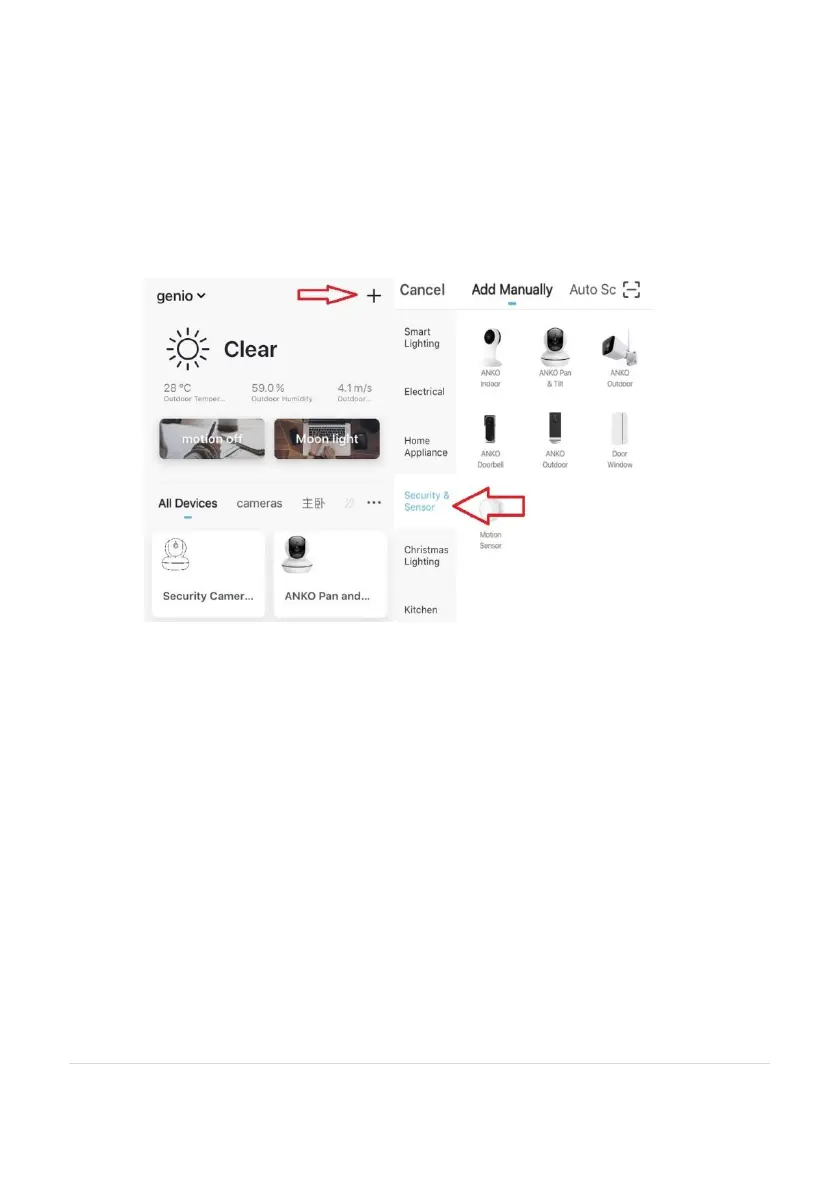
• Launch the Mirabella Genio APP, then tap on “+” symbol, then choose
Security & Sensor, and select your camera from the menu.
Follow the APP’s instruction carefully to complete the network pairing process.
Video instuctionsof the full pairing process are avilable at www.mirabellagenio.com.au
If after scanning the QR code the indicator light changes from blinking Red to blinking
Blue but fails to become a solid Blue, or if you have received a time out and/or device
not found error, this is an indication of a communication error with the router,
Please ensure
• That you have manually disabled the 5Ghz WIFI signal on the router
setting.
• Make sure you enter the correct 2.4Ghz Wi-Fi name and password
If the led indicator light is not red and blinking rapidly when turned on (2 blinks per
second), power off the camera, wait for 10 sec, power on and hold the reset button
until the light start to blinking red rapidly and repeat the pairing process again.


 To Next Page