4
Learn More
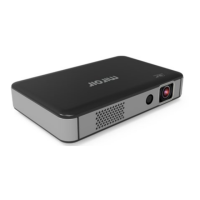
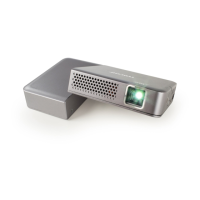
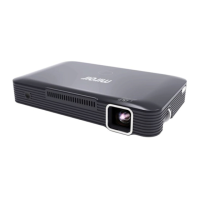
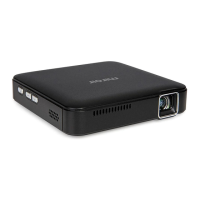
To learn more about your Miroir Mini Projector and its
operations, to review specs, and find answers to frequently
asked questions please visit: www.miroirusa.com
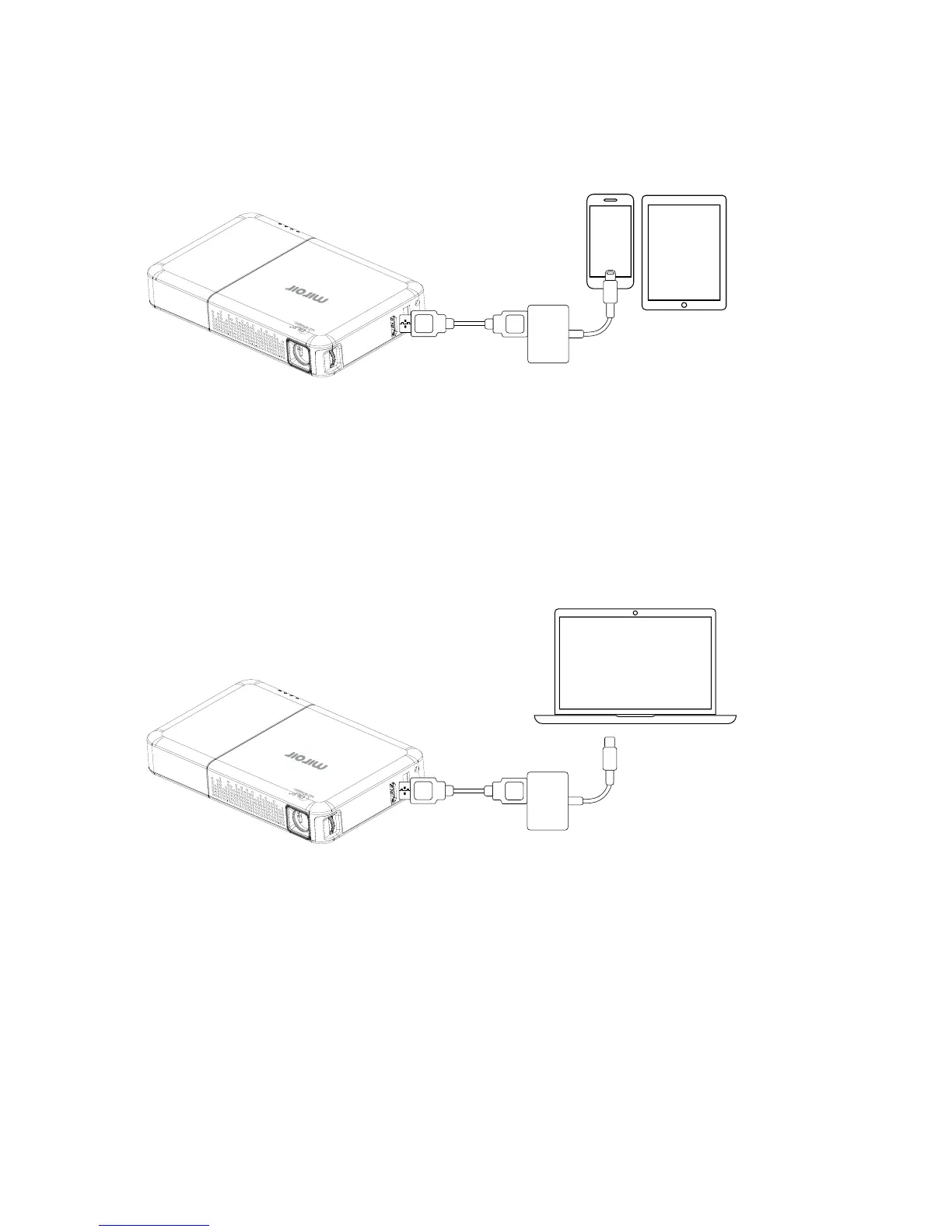
Connect Your Device Using HDMI
To connect your iPhone or iPad to a Miroir projector, you will need an
Apple Digital AV Adapter (sold separately) and an HDMI cable (included
in the box).
HDMI
AUDIO
USB
5V
OUT
HDMI Cable
(Included)
Apple Lightning
Digital AV Adapter
(Sold separately)
Connect Your MacBook Pro
and MacBook Using USB-C
To connect your MacBook to a Miroir projector, you will need a USB-C
Digital AV Multiport Adapter (sold separately) and an HDMI Cable
(included in the box).
HDMI
AUDIO
USB
5V
OUT


 To Next Page