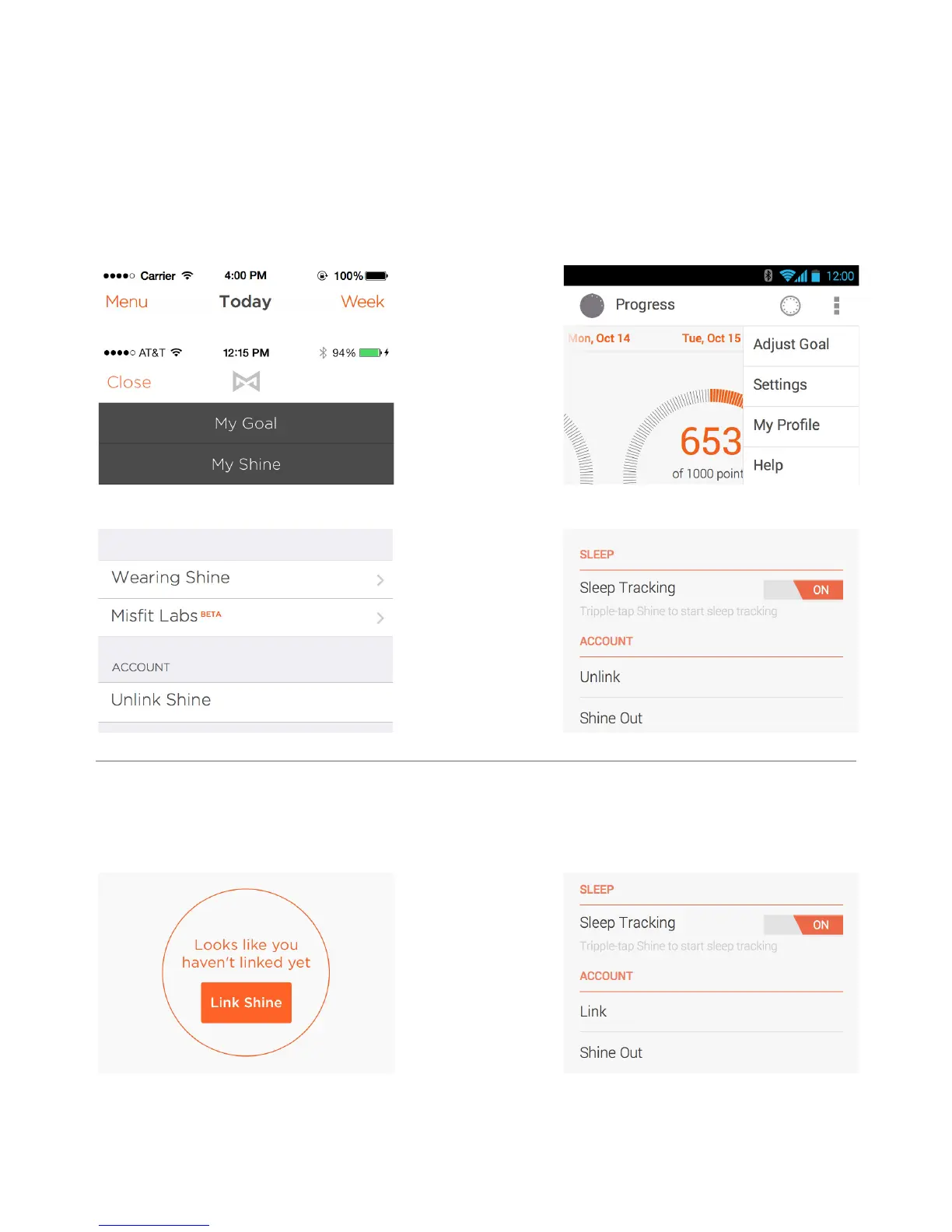
Unlinking/linking a Shine
Only one Shine can be linked to one account at a time.
If you would like to change which Shine is linked to your account, you can follow these steps to
unlink the current Shine and link another one.
To unlink a Shine:
1. Open the menu and tap “My Shine” (“Settings” for Android)
iOS:
2. Tap “Unlink”
To link a Shine:
1. Open the menu (and tap “Settings” for Android)
iOS:
2. Tap “Link Shine”
3. Place Shine on the screen. If you’re linking a Shine that was used by someone else, make sure
that Shine has been unlinked from their account before proceeding.
Android:
Android:
3


 To Next Page