EasyManua.ls Logo

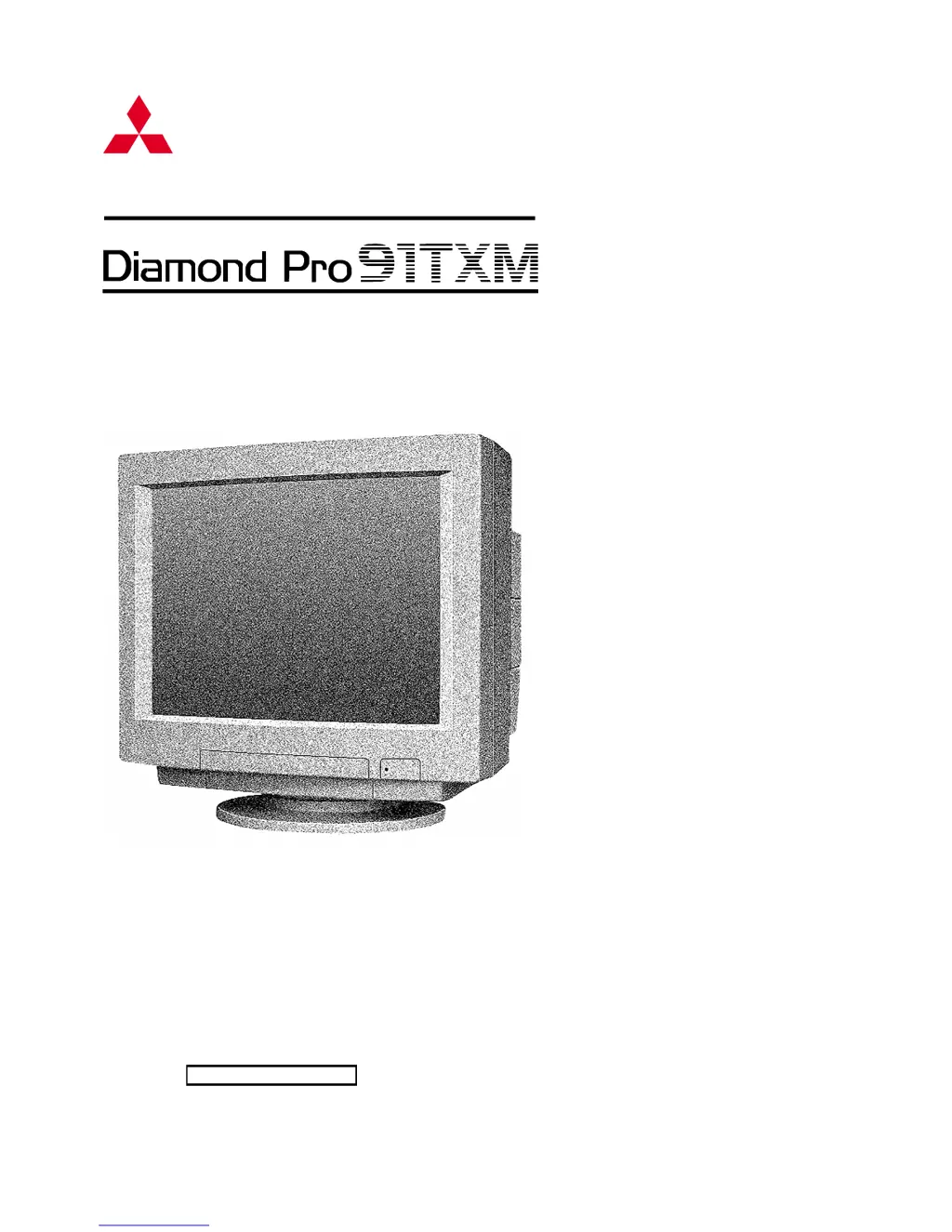
Mitsubishi Diamond Pro 91TXM - User Manual

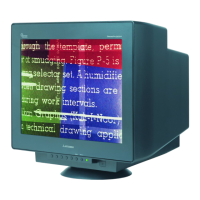
Mitsubishi Diamond Pro 91TXM
32 pages
Print Icon
To Next Page IconTo Next Page
Loading...
AUTO-SCANNING WITH DIGITAL CONTROL
COLOR DISPLAY MONITOR
For future reference, record the serial
number of your display monitor in the
space below:
SERIAL No.
The serial number is located on the
rear cover of the monitor.
MITSUBISHI
USER'S GUIDE
MODEL
TFW9105SKTKW

Questions and Answers

  • K
    Katherine MoralesJul 30, 2025
    What to do if my Mitsubishi Diamond Pro 91TXM has no picture?
    • R
      Rebecca KelleyJul 30, 2025
      If your Mitsubishi Monitor shows no picture, check the following: * If the LED is on, adjust the contrast and brightness controls. * If the LED is off, check the power switch and AC power cord. * If the LED is blinking, check the signal cable, BNC cables (ensure they are correctly connected, especially the green cable), the computer power switch, and the power management function to ensure it is not active.
  • S
    Scott SimonAug 4, 2025
    Why is my Mitsubishi Monitor display too dark or too bright?
    • A
      aaronwalkerAug 4, 2025
      If your Mitsubishi Monitor's display is too dark or too bright, it might be due to the input video signal level selection not being appropriate for your graphics adapter output (0.7V or 1.0Vp-p). Please adjust the setting using the front OSD (On-Screen Display).
  • A
    Adam HillAug 9, 2025
    What to do if Mitsubishi Monitor display is missing, shifted, or the wrong size?
    • C
      Cynthia SmithAug 9, 2025
      If your Mitsubishi Monitor's display is missing, shifted, or the size is incorrect, try the following: * Depress the MEMORY RESET SWITCH for a standard signal. * Adjust H.SIZE, V.SIZE, H.POSITION, and V.POSITION with non-standard signals. * Note that the monitor may not be able to get a full-screen image depending on the signal; in this case, select another resolution or vertical refresh timing. * Wait a few seconds after adjusting the size of the image before changing or disconnecting the signal or powering off the monitor.
  • U
    ujonesAug 14, 2025
    Why is my Mitsubishi Monitor picture unstable?
    • C
      Christopher AlvarezAug 14, 2025
      If your Mitsubishi Monitor's picture is unstable, it could be due to misconnected BNC cables or a disagreement in the input signal frequency range. CGA, MDA, and EGA modes may not be available. Check the specification of the graphics adapter and monitor.
  • S
    Steven ParkerAug 19, 2025
    What causes a Mitsubishi Diamond Pro 91TXM display to be unstable?
    • H
      Helen TranAug 19, 2025
      An unstable display on your Mitsubishi Monitor may be caused by misconnected BNC cables. Check the rear connections.
  • J
    Jasmine RobertsAug 23, 2025
    How to fix no green color on Mitsubishi Monitor with BNC connection?
    • H
      Heather ShermanAug 23, 2025
      If you are missing the green color on your Mitsubishi Monitor when using a BNC connection, it is likely that the BNC cables are misconnected, specifically that the green and composite sync connections are reversed. Check the rear connections.

Summary

Introduction to the Diamond Pro 91 TXM

1.1 Features

Lists the key features and capabilities of the Diamond Pro 91TXM monitor.

Connecting the Monitor

2.2.1 Connecting to Any IBM VGA Compatible System

Step-by-step guide for connecting the monitor to IBM VGA compatible systems.

2.2.2 Connecting to An Apple Macintosh Centris, Quadra, and Apple Macintosh II Family

Instructions for connecting the monitor to various Apple Macintosh computer models.

2.2.3 Connecting to a Unix Workstation & Third Party Graphics Card

Explains how to connect the monitor to Unix workstations and third-party graphics cards.

OSD (On Screen Display) Functions

Normal Mode Operation

Explains how to use the OSD to adjust standard monitor settings like contrast and brightness.

Enhanced Mode Operation

Details advanced OSD adjustments for fine-tuning picture geometry and color balance.

Troubleshooting

Mitsubishi Diamond Pro 91TXM Specifications

General IconGeneral
Screen Size19 inches
Display TypeCRT
Maximum Resolution1600 x 1200
Refresh Rate85 Hz
Dot Pitch0.28 mm
Input ConnectorsVGA
Viewable Size18 inches
Max Resolution1600 x 1200
Horizontal Refresh Rate30-96 kHz
Vertical Refresh Rate50-160 Hz
Input SignalAnalog

Related product manuals