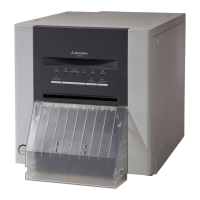
MITSUBISHI Digital Color Printer CP9550DW
2
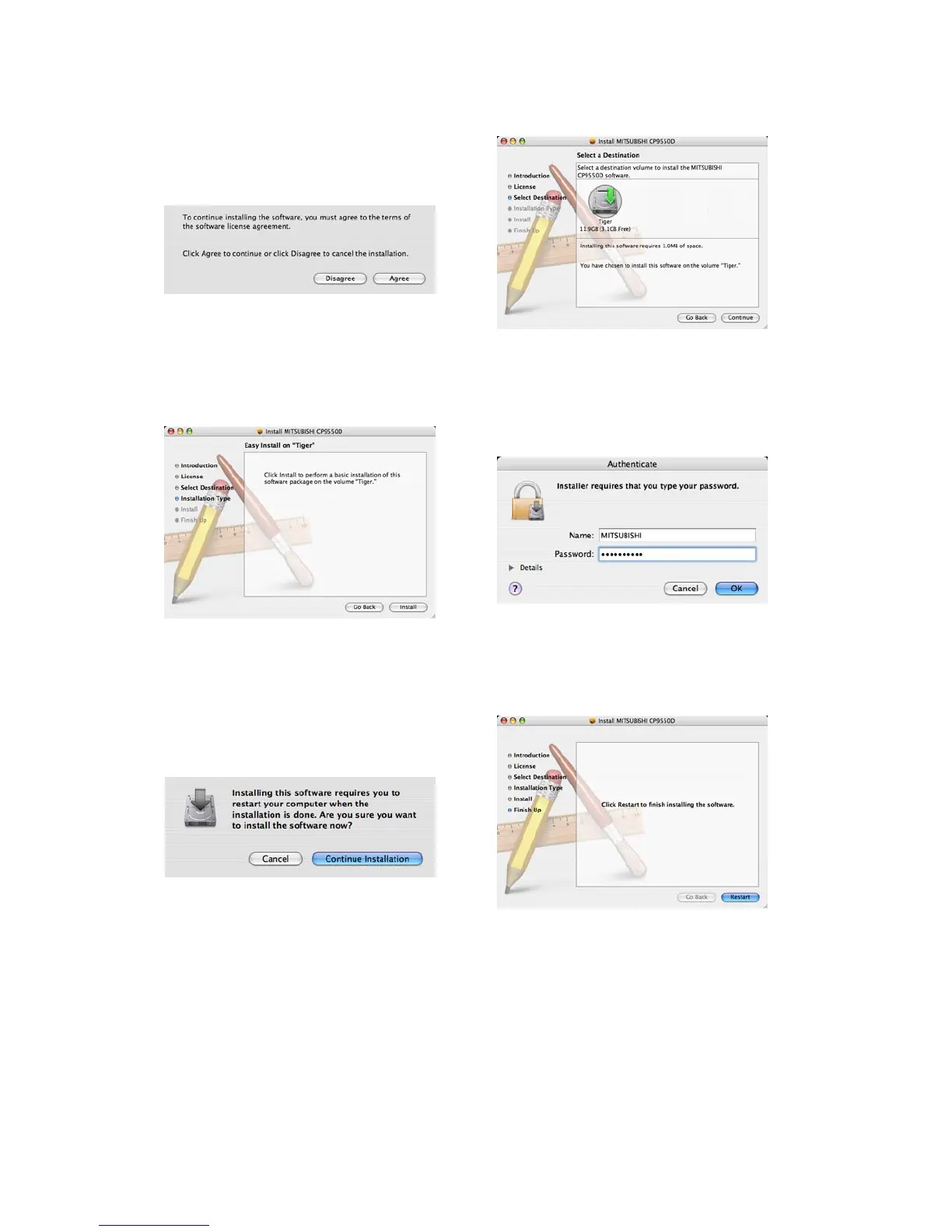
5) When you agree with the terms and conditions of the Agreement, click “Agree”. (Fig.3)
6) Select the destination of the driver and click “Continue” button. (Fig.4)
<Fig. 3> <Fig. 4>
7) Click “Install” button.(Fig.5)
8) Enter a name and password, and click “OK” button. (Fig.6)
<Fig. 5> <Fig. 6>
9) Click “Continue Installation”. (Fig.7)
10)Click “Restart” to restart the personal computer. (Fig.8)
<Fig. 7> <Fig. 8>



 To Next Page