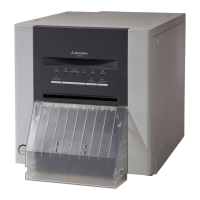
MITSUBISHI Digital Color Printer CP9550DW
3
11) Turn on the printer and connect it with the personal computer.
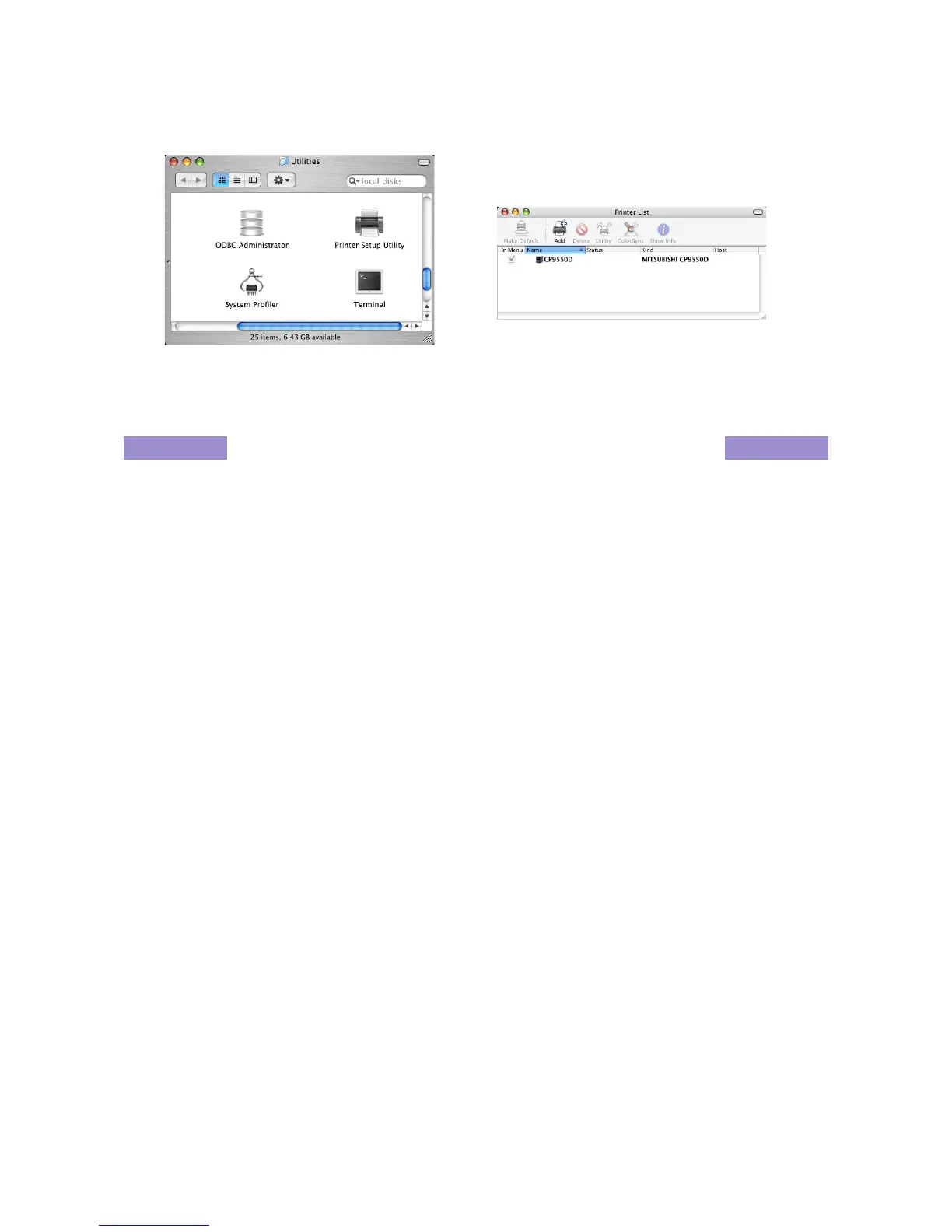
12) Double-click “Printer Setup Utility” of “Utilities” folder in the ”Applications” folder. (Fig. 9)
13) The CP9550D is automatically added to “Printer List”. (Fig. 10)
<Fig.9> <Fig.10>
Uninstallation
Operate the following procedures to uninstall the printer driver.
1) Start “Terminal”.
2) When you do not have administrator authority, obtain it by “su” command.
3) Go to the directory where the uninstallations script is stored and execute the script (Rem9550.sh).
./Rem9550.sh
4) When a password is required, enter the password for the administrator.
5) When uninstallation is completed successfully, the following message is displayed.
Uninstallation was completed.
Is a computer rebooted? (Y/N):
6) Enter “Y” or “y” to reboot the computer.
If the computer is not rebooted automatically, exit the ongoing applications and reboot the computer
manually.



 To Next Page