13 14
CHANGE THE WATCH FACE
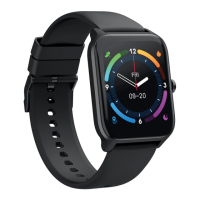
From the Watch Core home screen, tap and hold the Multi-touch Screen .
11. WATCH SETTINGS
SAVE POWER
From the WatchCore home screen, press the Home Screen Button and
locate the Save Power feature. From here you can choose to only show the time
function on your Watch
Core. This will save battery life but other functions will
become unavailable. Long press the Home Screen Button to exit power
saving mode.
TORCH
From the Watch
Core home screen, press the Home Screen Button and locate
the Torch feature. Tap icon to activate torch. Press the Home Screen Button
again to exit.
2
SETTINGS
From the Watch
Core home screen, press the Home Screen Button and locate
the Settings feature. Tap icon to open a list of settings such as adjusting the
time format, resetting the watch, help and more.
12. WATCH
CORE NAVIGATION
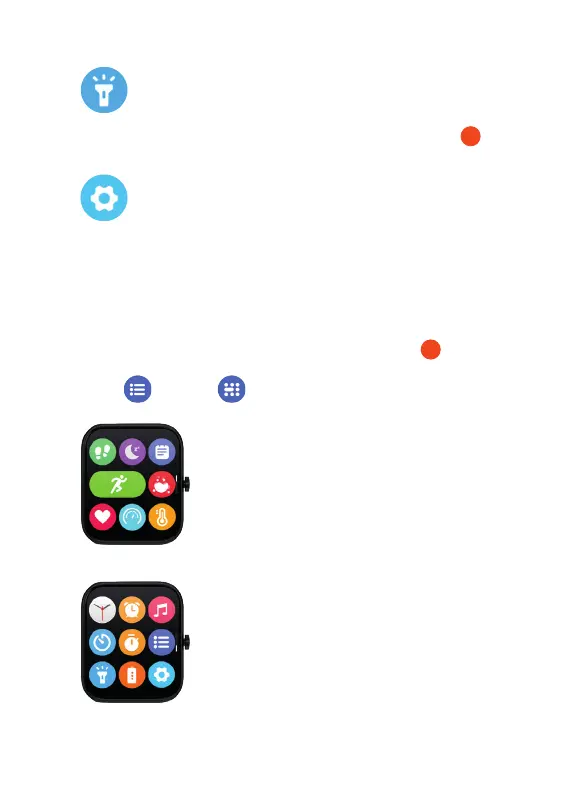
MAIN MENU ICONS P1:
1. Steps (see p9)
2. Sleep (see p9)
3. Sports Record (see p8)
4. Workouts (see p8)
MAIN MENU ICONS P2:
1. Watch face (p13)
2. Alarm Clock (p11)
3. Music (p12)
4. Countdown (see p11)
5. Stopwatch (see p11)
MAIN MENU
From the Watch Core home screen, press the Home Screen Button for the
main menu. Swipe down to view the more options. This menu can be viewed in
list view or grid view . Examples below are shown in grid view.
5. Blood oxygen (see p9)
6. Heart Rate (see p10)
7. Stress (see p10)
8. Temperature (see p10)
6. Menu view (see p14)
7. Torch (see p14)
8. Save Power (p13)
9. Settings (p14)
2


 To Next Page
 Loading...