5 6
LET’S STAY CHARGED
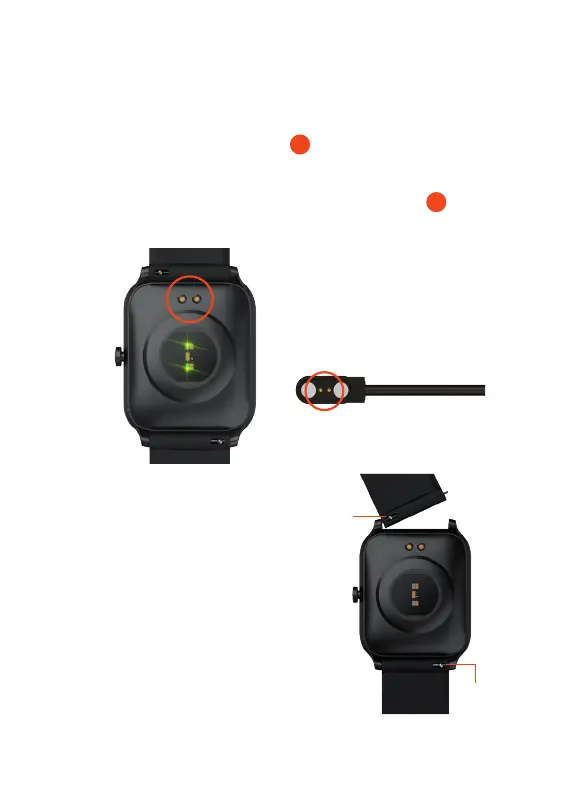
Turn the watch over, to align and attach the charging pins to
the Magnetic USB Charging Dock . You will see the charging
icon on the watch screen display for 5 seconds. It will take up
to 2 hours to fully charge this watch and then a battery icon
will show. Regular wiping of the charge contact points will
ensure there are no problems charging your watch.
7
6
IMPORTANT!
Please ensure the Watch S
is dry before charging
LET’S CHANGE THE
WATCH STRAP
You can replace the watch strap
with most regular 20 - 22mm straps
and attach it to the watch body. Just
slide the pins to remove the straps
and replace with the new ones.
Pins
Pins
1. Open the WoFit app
2. Tap the ‘Mine’ icon to reveal your settings.
3. Select ‘Connect via 3rd Party Platform platform’.
4. Select connect to ’Apple Health’.
5. Open your Apple Health app and tap your profile picture.
6. In your Apple Health profile select: Apps in your privacy settings.
7. Select ‘WoFit’ from the list.
8. Finally, activate the categories that you want WoFit to track.
1. Open the WoFit app
2. Tap the ‘Mine’ icon to reveal your settings.
3. Select ‘Connect via 3rd Party Platform platform’.
4. Select connect to ’Google Fit’.
5. Choose a Google account to connect your WoFit app.
6. Allow WoFit to access your Google account
7. WoFit is now connected to your Google Fit app.


 To Next Page