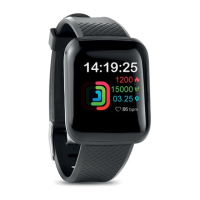
WIRELESS PAIRING
1. Switch on the wireless mode of your smartphone
2. Open the APP installed in your smartphone.
3. Check the MAC address shown your display host.
4. Go to “Add Device” page on APP, select “MO9076”, with the
same MAC address on host.
5. Press “Connect Device”.
6. After the device is successfully connected, a Wireless signal will
be shown on the display host.
Note: Wireless connection opens continuously will reduce the
standby time of the smart watch.
QUICK MODE OVERVIEW/APP SETTINGS
Start with: Time mode > Step mode > Distance mode >Calorie
mode > Mac address > Time mode
Note: the display of other extra functions will pops up upon the
those functions are activated
USER INFO SETTING AT APP
Under “User" section, you can set daily sports and sleeping target,
unit, gender, weight, Photo, user name etc.
DISPLAY MODE
To wake up the Smart watch, touch senor menu button to enter
Time mode.
Time mode
Displays current time. Auto sync starts and will update the local
time after binding the
device with phone.
Step mode
Displays the total amount of steps of the current day. Read the
getfit 2.0 APP to view
today’s step goal progress.
Sleep monitor
The device enters into sleep monitor mode automatically when you
are going to sleep in a regular sleeping position and movement.


 To Next Page