40 41
Getting Started
Connecting devices
CRAFTrhythm can be attached to an iPad using a Camera Connection kit, or an Android
device using a USB OTG (On-the-go) adapter.
NOTE: If you wish to use more than one USB device with your tablet, phone or computer,
connect all devices through a powered USB hub.
Install and open CRAFTapp. You will see a splash screen until a CRAFTrhythm has been
detected, at which point you will see the Sequencer page appear.
Playing Craft
At this point, you can play your CRAFTrhythm with any MIDI controller! CRAFTapp forwards
all incoming MIDI to CRAFTrhythm automatically. Just make sure that your MIDI controller is
sending to the same MIDI channel that the CRAFTrhythm is assigned to.
Kit Page
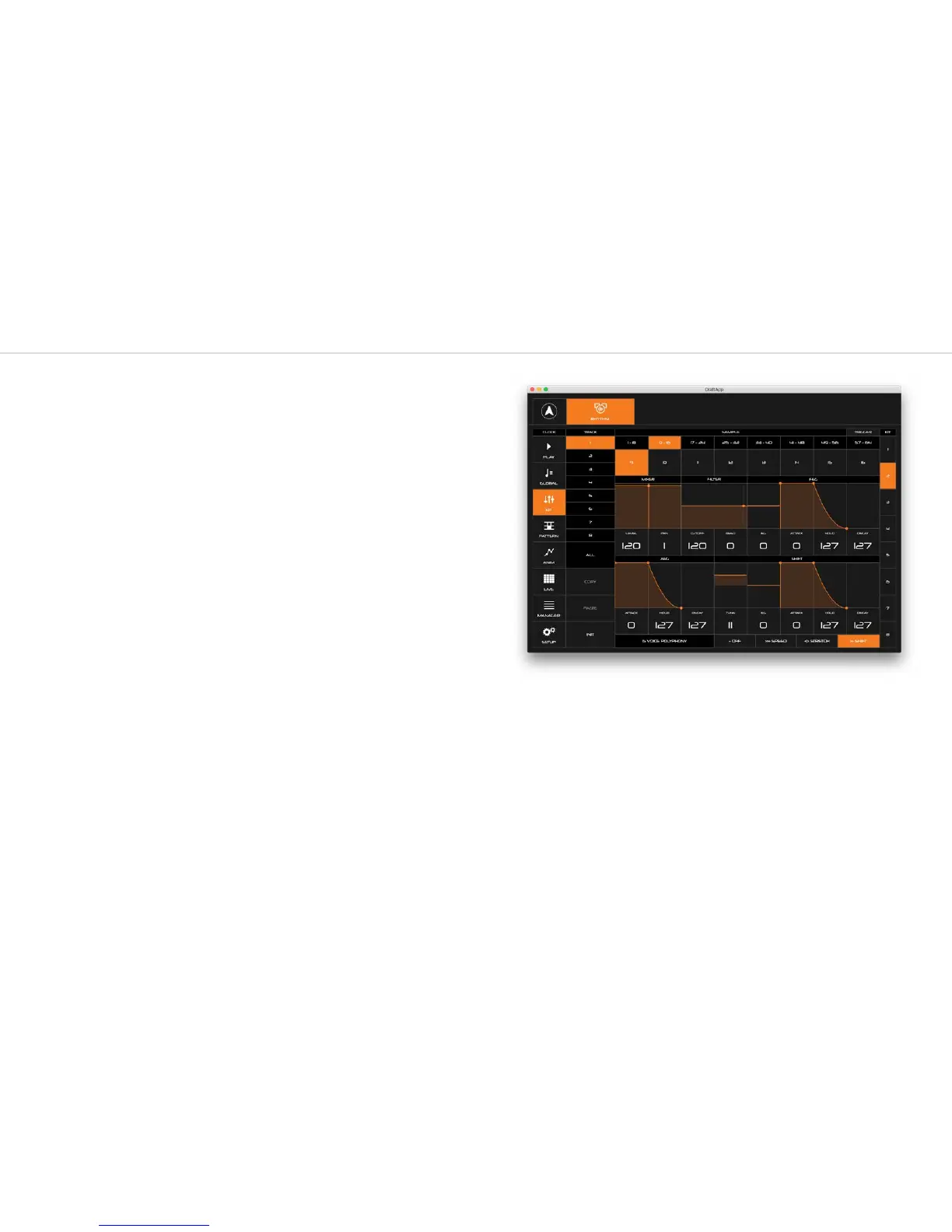
This page gives you access to all the sample engine parameters for all of your 8 tracks. It also
allows you to store or load these parameters as kits.
Switch between the different tracks using the menu on the left hand side of the page, there is
also a button for all tracks if you want to apply parameters globally.
The main window shows the various different sections of the sample engine. Here you can
assign a sample to the track and change mixer, filter, envelope and pitch settings. There is
also a small label at the bottom of the window that shows the current polyphony of your
CRAFTrhythm.
On the far right hand side there are quick shortcut button to load new kits. If you want to
save a kit to one of these slots then you can press and hold on the slot you would like to save.



 To Next Page