F H-W1803-52
Axis Flush Instructions30
My remote or wall control is not controlling my fan
Verify that the fan is receiving power by power cycling the fan.
To do this:
1. Cut power to the fan via standard On/Off wall switch, or the
breaker if standard wall switch is not applicable.
2. Wait at least 10 seconds, and then restore power.
3. The fan will power on in Pairing mode for 3 minutes.
5. When the LED indicator remains solid green, and three (2)
audible beeps are heard, the pairing process is complete.
I don’t see my fan’s WiFi (ModernFormFan_XXXXXX) in my phone’s
list of available WiFi networks.
1. If your fan had been previously paired the Wi-Fi radio will be off.
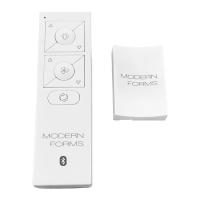
2. To turn on Wi-Fi, press and hold fan speed up and fan speed down
buttons on your remote control or wall control for 6 seconds.
3. The fan will beep and you will see its Wi-Fi network available for
connection.
My home Wi-Fi network is not showing up in the app’s list during
setup.
1. Your fan supports connection with 2.4GHz 802.11b/g/n networks.
Confirm your network is compatible by checking your router
settings or contact your router manufacturer.
2. Make sure your network’s SSID is not hidden.
3. Your fan does not support 5 GHz network connectivity.
connection.
15. Troubleshooting cont.
4. Press and hold and buttons on wall control for 10-15
seconds.


 To Next Page