11.UPDATING FIRMWARE
DOWNLOAD firmware
1. Remove Monimoto from your vehicle.
2. Remove all batteries from the battery pocket.
3. Wait for 3 minutes.
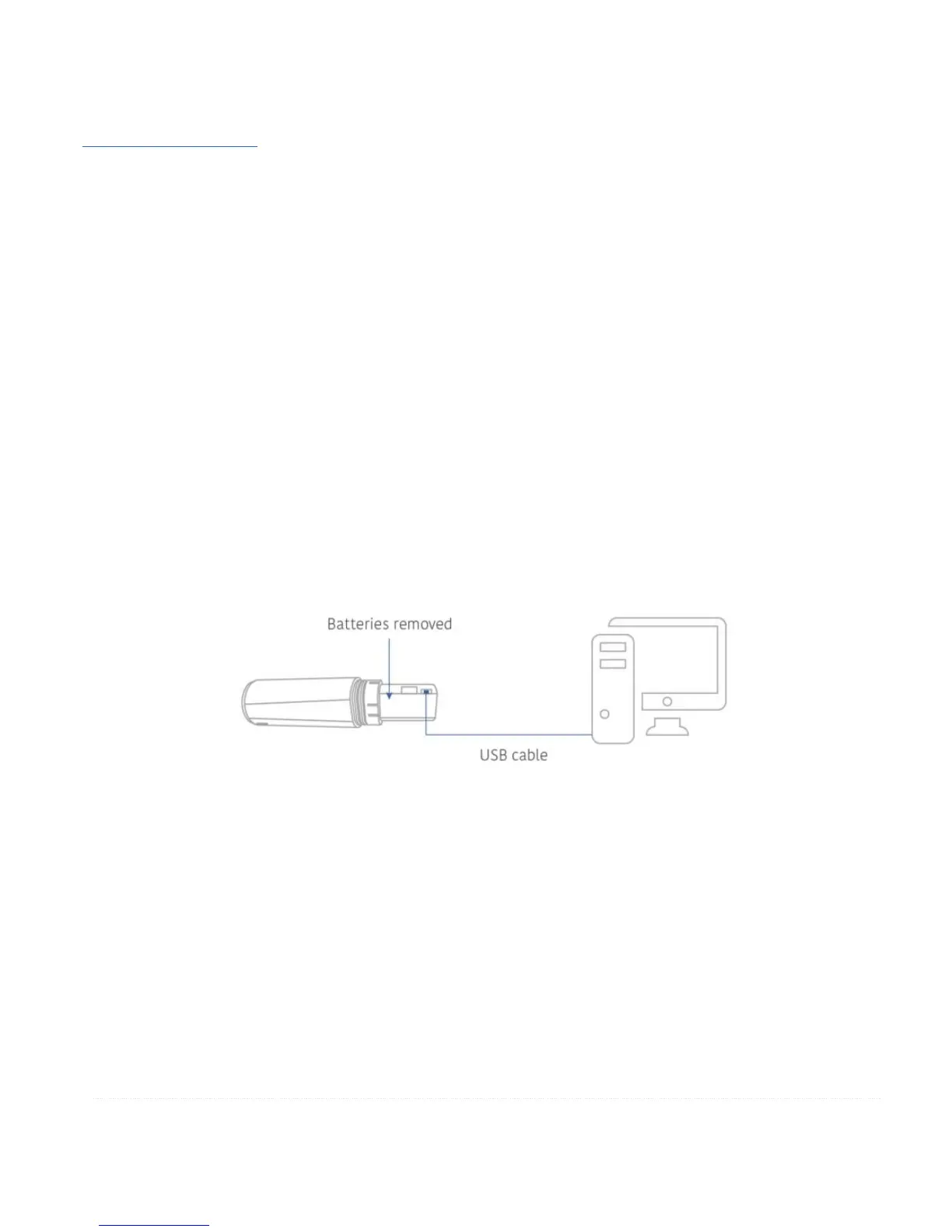
4. Connect Monimoto to your Windows PC using the micro USB cable. Weak red light indicates
that Monimoto has entered boot mode. (PC only. Do not connect to Mac – it will not work.
Believe us.. we have tried…)
5. The folder called CRP DISABLD should automatically pop-up with the firmware.bin file in it. If it
doesn’t – open Computer and look for CRP DISABLD drive. Sometimes you need to wait a
minute while Windows installs USB drivers or unplug and plug the USB cable again.
6. Delete the firmware.bin file found in the drive.
7. Copy the new firmware file (no need to rename it) and paste it to to the same CRP DISABLD
folder.
8. Unplug micro USB cable from Monimoto.
9. Place the batteries back into the battery pocket.
10. LED will start flashing in a following pattern: 1 long flash, multiple short flashes for ~25 seconds
and finishing with 1 long flash again.


 To Next Page