Suggestions for Testing
• Use an iPad, if possible. The larger screen is easier to see while boxing.
• Start with the Basic Training videos to get a feel for what the icons mean and
the proper way to hit.
• Start at the “Light” level to figure out timing and get a feel for Moov.
• Level-up as you get more comfortable at different levels.
• Read through the summary on your Activity Report at the end of your workout
where you can find your punching stats such as hardest punch.
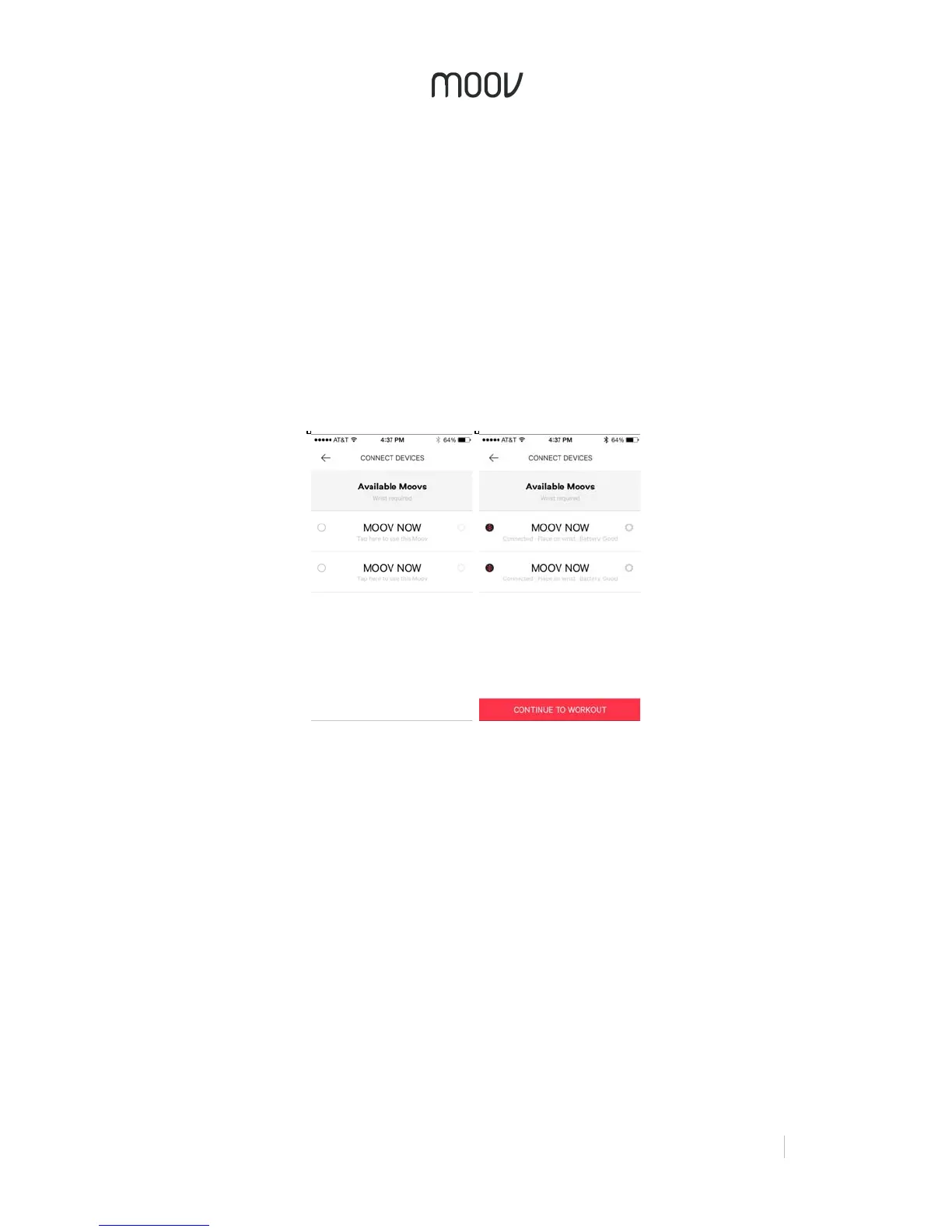
Moov Connection Screen
If you have already registered your Moovs, just tap the name of the Moovs you want
to connect. Tap 2 Moovs for Cardio Boxing. Once you see the circle filled and
battery level of your Moovs on the connection screen, they are connected.
Putting on Moov
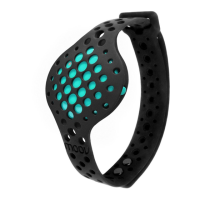
You will need two Moovs for Cardio Boxing - one on each wrist. To secure Moov,
insert the end of the band into the loop on the other end and then insert the clasp
into the wristband and press it into the band a few times to ensure that the clasp is
flat and in line with the band.
Check Your Moovs are on the Correct Wrists
Punch to check that your Moovs are assigned to the correct wrists. As you punch,
the circles around “L” and “R” will display movement. If your Moovs are assigned to
the incorrect wrists, tap “Switch” in between the two circles.


 To Next Page
 Loading...