21
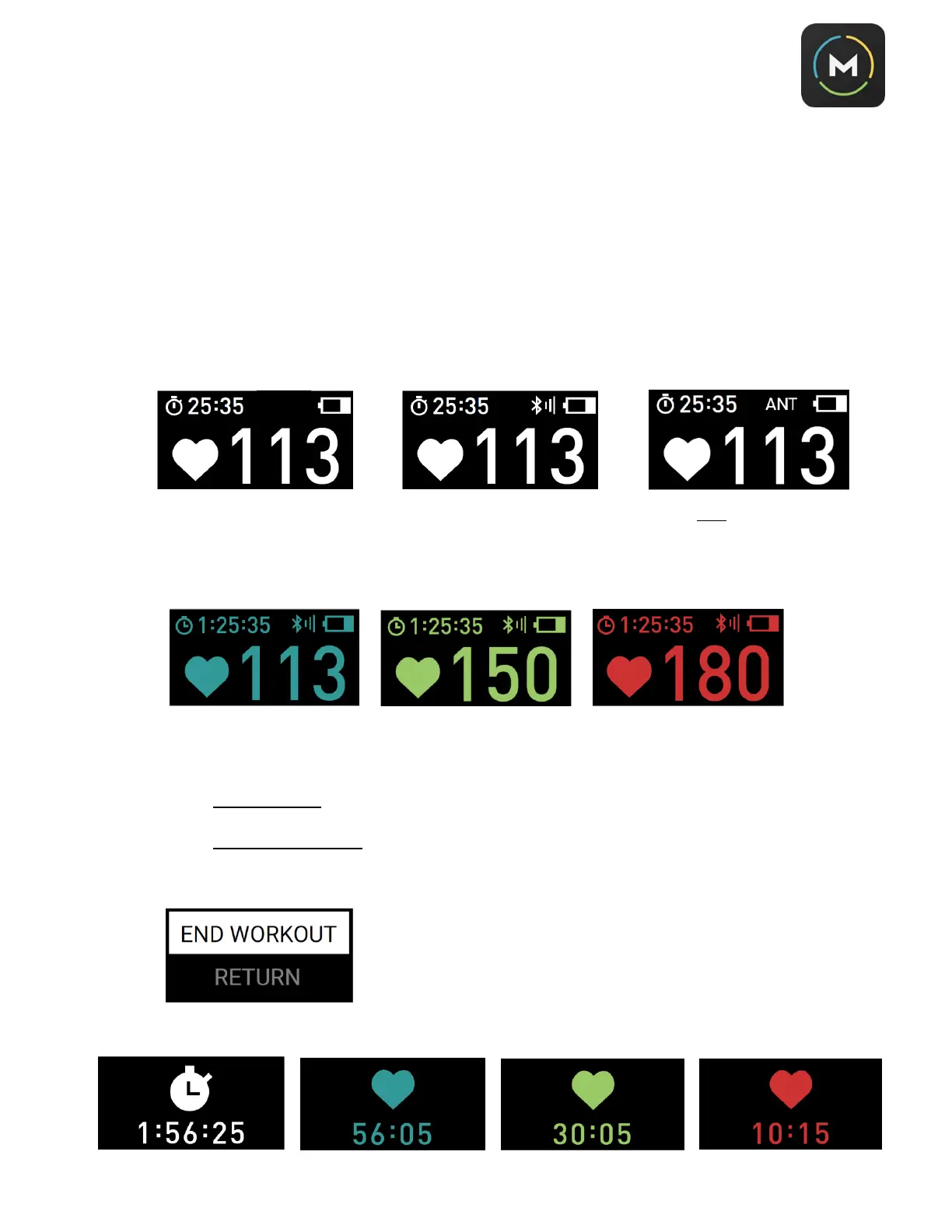
8. The M5 will display the type of device connection it showing on the screen (ANT+, Bluetooth, or no
connection)
a. The M5 can send ANT+ or Bluetooth (BLE) to any compatible app (such as Morpheus or other
heart rate training app) or device (such as certain cardio machines)
b. The M5 can receive ANT+ heart rate signal from devices that can send it (such as the M3 chest
strap)
c. Note that if the M5 is connected to something via BLE (such as a mobile app or a fitness
watch), it will NOT record the workout data to allow for upload post-workout. Workout data
can only be recorded when connected via ANT+ or not connected to anything at all.
d. You will know which connection type is being used on the M5 screen.
9. Tap the touchscreen any time to change from a view of “time in zone” to a view of “total workout
time”.
10. To end a workout, press the side button. You will see the screen shown below. If ready to end the
workout, press the side button when
END WORKOUT
is highlighted white. If wanting to return to the
workout, touch
RETURN
on the screen and then press the side button to confirm.
e. If M5 is connected to the Morpheus app for live training, you can stop the workout via the
Morpheus app and then stop the workout on the M5. Only the data that is in the app be saved.
f. If M5 is NOT connected to the Morpheus app for live training (and is not connected to
anything else via Bluetooth), you will end the workout on the M5 and sync the data to the app
later.
11. After confirming you want to end the workout, you will see the total training time. You can use the
touchscreen to toggle through the zones to see the amount of time spent in each of the 3 zones.



 To Next Page