10. Tracks (continued)
Folder View
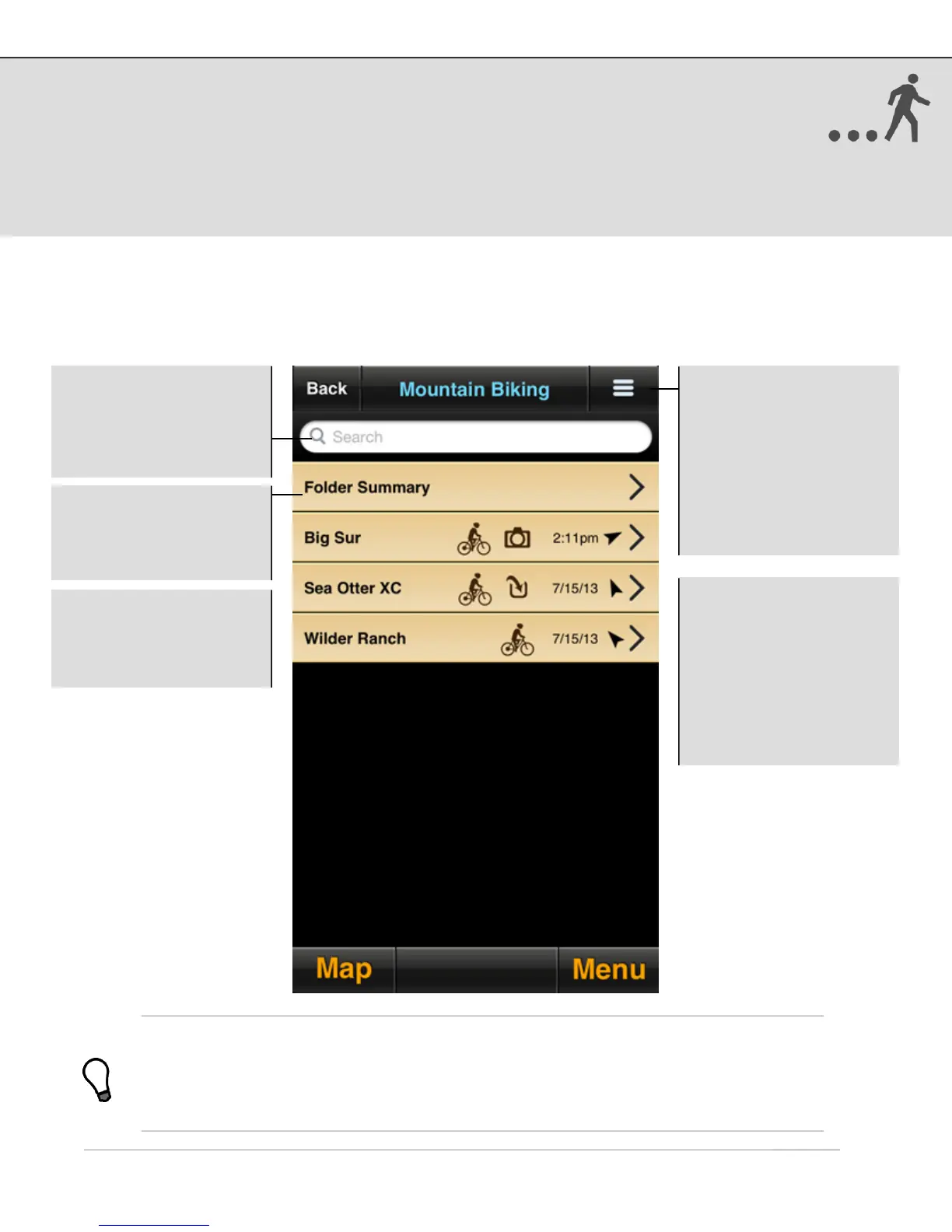
Use the folder view interface to quickly search, move, export, or delete tracks. Select
the Edit button to view the track management options (export, move, delete).
1
Viewing folder summary statistics (e.g. total distance, average speed, etc.) may be
useful for grouping tracks based on activity type, or a period of time while training. For
example, separate your biking tracks and your hiking tracks into different folders to see
summaries for each. Or create a folder for a particular month to see a summary of all
your activities for that month.
US and Foreign Patents Granted and Pending. Fullpower®, MotionX®, TapTap®, and ShakeShake® are registered trademarks of Fullpower Technologies,
Inc.All other trademarks remain the property of their respective owners. © Copyright 2003-2013 Fullpower Technologies, Inc. All rights reserved.
!
Options:
• Sort by track date,
proximity, or name
• Edit folder name
• Move tracks to a
different folder
• Delete tracks
• Export tracks (email
GPX files)
Search: Search all tracks
in the category or folder
currently being viewed.
Start typing and the list
will be auto-populated.
Select a track to see
details, statistics, notes,
etc., and to access
additional options
Icons
• Activity mode: indicates
mode used during track
recording
• Camera: photo attached
• Import: the track was
imported from a GPX file
• Directional arrow: points
to the start of the track
Folder Summary: View
summary statistics for all
tracks in a particular
folder
1


 To Next Page