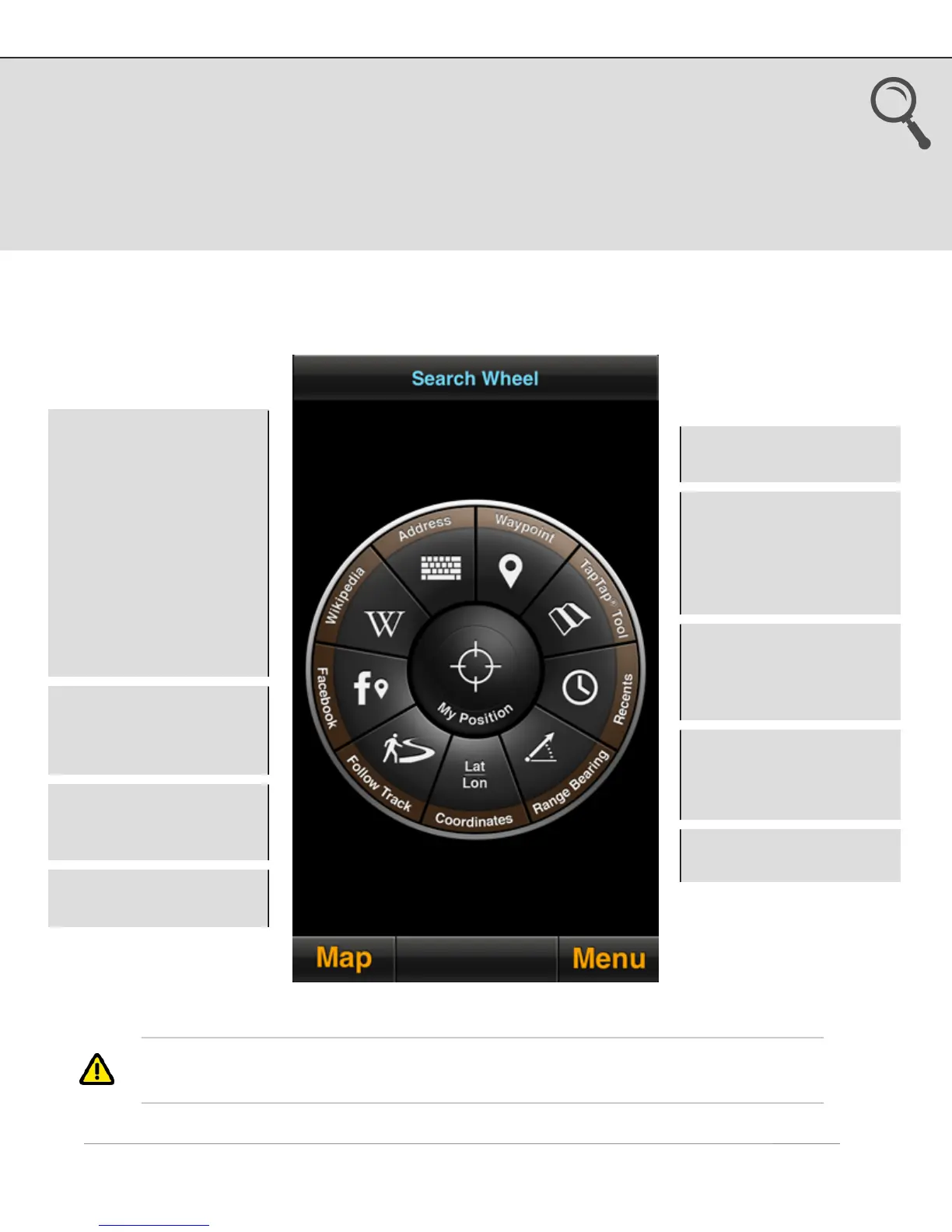
3. Go To
Select one of the search methods from the wheel to find a destination for navigation,
or a track to follow. Once a destination has been defined, the Compass screen displays
ETA, speed, VMG, distance and bearing to waypoint, etc, and the Map screen displays
the straight-line path between your current position and the waypoint.
MotionX Search Wheel
1
If UTM, MGRS, or OSGB is selected as the coordinate system, the input fields will
reflect the appropriate system.
US and Foreign Patents Granted and Pending. Fullpower®, MotionX®, TapTap®, and ShakeShake® are registered trademarks of Fullpower Technologies,
Inc.All other trademarks remain the property of their respective owners. © Copyright 2003-2013 Fullpower Technologies, Inc. All rights reserved.
TapTap® Tool: Create a
new waypoint by picking
a point on the map. A
new waypoint will be
created and saved
Lat/Lon: Define
waypoint coordinates
1
Address input:
•
Location or landmark,
e.g. “Mount Everest”
•
Address, options:
-
full address
-
city name
-
state/province
-
zip/postal code
•
Lat / Lon, for example
“41.89 N, 87.61 W”
•
Import from Address
Book contacts
•
Country name
Range/Bearing: Enter a
range (distance) and
bearing (degrees) from
your current position
Follow Track: Follow
one of your saved tracks
Waypoint: Select from
your saved waypoints
Recents: View your
waypoints sorted by date
to quickly find recently
saved points
Facebook: View and
navigate to your friends’
Facebook check-ins
Wikipedia: View POIs
around you or in a
specified location; read
the associated articles


 To Next Page