Trevor Gilley
This seems like
a good day to
start exercising,
right?
5 min ago
No recent status updates.
Update now!
Browser
11:35
Messaging
Messaging
No recent unseen
messages.
Status Indicators
Your Online Status
Touch to change your status.
Widgets
Touch to open, or touch &
hold to move or delete.
Flick left or right to open
more panels of widgets.
Shortcuts
Open the app menu.
Notifications
Flick this bar down to see
details.
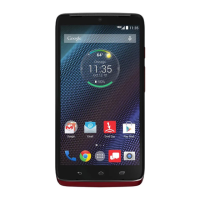
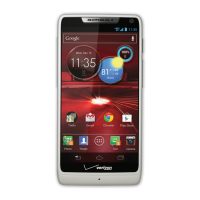
Use & change your home screen
On your home screen, shortcuts are icons that you
touch to open your favorite apps, Web bookmarks,
contacts, mail labels, or music playlists. Widgets show
you news, weather, messages, and other updates.
Flick the home screen left or right to open other panels
of shortcuts and widgets.
• To open something, touch it. Touch Home to
return to the home screen.
• To change the settings for some widgets, open the
widget and then touch Menu >
Setup. (Some
widgets don’t include this feature.)
You can find details about the settings for
Happenings (“Add accounts” on page 12), Messages
(“Set up messaging” on page 20),
Music (“Music”
on page 33),
Social Status (“Update your status” on
page 12), or
News or Weather (“Set up widgets” on
page 27).
• To add something or change your wallpaper, touch
and hold an empty spot until you see the
Add to
Home screen
menu.
You can add a folder to organize your shortcuts.
• To move or delete something, touch and hold it
until you feel a vibration, then drag it to another
spot, another panel, or the trash at the bottom of
the screen.



 To Next Page