EasyManua.ls Logo

Motorola MBP85SN - User Manual

Motorola MBP85SN
32 pages
Print Icon
To Next Page IconTo Next Page
Loading...
USER’S GUIDE
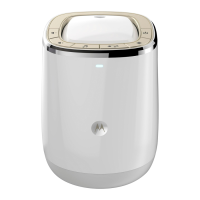
Smart Nursery
Dream Machine
Model: MBP85SN
The features described in this guide are subject to modifications without prior notice.

Questions and Answers

  • O
    Omar Ellison MDAug 17, 2025
    What to do if I get a message that there are problems accessing my Motorola MBP85SN Baby Monitor device?
    • L
      Lisa AyalaAug 17, 2025
      If you see a message indicating problems accessing your Motorola Baby Monitor device, possibly due to a lack of internet connection, try again in a few minutes. If the problem persists, restart your device and your wireless router.
  • V
    vwilliamsAug 20, 2025
    How to add a new Motorola MBP85SN device if I can't find it during setup?
    • T
      Tammy ConradAug 20, 2025
      If you are adding a new Motorola Baby Monitor device to your account and cannot find it, the device may need to be reset. To reset the device, press and hold the PAIR button at the bottom of the device for 7 seconds.
  • V
    Vanessa WaltersAug 22, 2025
    What to do if Motorola Baby Monitor setup fails and I can't find my device on Android or iOS?
    • L
      Laura DavisAug 23, 2025
      If you can't find your Motorola Baby Monitor device during the last step of setup on Android™ and iOS devices, reset the device to setup mode and try again. Press and hold the PAIR button on the bottom of the device until you hear a beep. Wait a minute for the device to restart. When the device LED is flashing, it indicates that it is in setup mode. Now restart the setup from your smartphone again.
  • A
    Alexandra HarveyAug 26, 2025
    How to fix Motorola MBP85SN login if it doesn't work after registration?
    • M
      Mark HernandezAug 26, 2025
      If you are unable to log in to your Motorola Baby Monitor account, check your username and password.
  • L
    lilauraAug 27, 2025
    What to do if I am not able to access my Motorola MBP85SN Device?
    • M
      Megan GuzmanAug 28, 2025
      If you cannot access your Motorola Baby Monitor device, check if the device is within Wi-Fi range. If the LED on your device is flashing slowly, move the device closer to the router for better Wi-Fi connectivity and try again.
  • H
    Heather SantosAug 30, 2025
    Why is my Motorola Baby Monitor device shown as remote when on the same Wi-Fi network?
    • A
      Andrew FriedmanAug 30, 2025
      If your Motorola Baby Monitor device is shown as remote even when accessing it from the same Wi-Fi network, and you can only access it for 5 minutes at a time, check your wireless router settings. For example, for Buffalo brand routers there is an option called Wireless Isolation. Disable this option.
  • P
    Patrick ThompsonSep 1, 2025
    How to adjust the sound alert setting threshold on Motorola MBP85SN Baby Monitor?
    • D
      donald18Sep 1, 2025
      To adjust the sound alert setting threshold on your Motorola Baby Monitor, adjust Sound Sensitivity to trigger notifications under the Setting menu.
  • G
    Gregory FlemingSep 4, 2025
    Why is the lightshow projection image blurry on my Motorola MBP85SN?
    • M
      Melissa SextonSep 4, 2025
      If the lightshow projection image from your Motorola Baby Monitor is blurry, ensure the distance between the Dream Machine and the projection area is approximately 7 - 10 feet.
  • B
    Brian SchultzSep 6, 2025
    Why can't I hear any sound when accessing my Motorola MBP85SN Baby Monitor?
    • K
      Kathryn ChenSep 6, 2025
      If you do not hear any sound when accessing the Motorola Baby Monitor device, tap on the speaker icon in the Audio Monitoring to hear audio. By default, the audio is not ON when you are playing Melody.
  • A
    amy62Sep 9, 2025
    What to do if I forget my Motorola MBP85SN Baby Monitor password?
    • A
      Amy HartmanSep 9, 2025
      If you've forgotten your Motorola Baby Monitor password, click on the "Forgot Password" link on https://app.hubbleconnected.com/ #lostpassword OR on your Android™ or iOS application. An e-mail will be sent to your registered e-mail address.

Summary

Safety Instructions

Getting Started

Connecting to the power supply

Connects the Dream Machine to the power supply for initial operation.

System Requirements

Connecting Devices

Setup

General steps to connect the Dream Machine to your Wi-Fi network and app.

Android Device Setup

Guide for setting up the Dream Machine with an Android device and the Smart Nursery App.

iOS Device Setup

Guide for setting up the Dream Machine with an iOS device and the Smart Nursery App.

Overview of Hubble App

Troubleshooting

General Information

Motorola MBP85SN Specifications

General IconGeneral
CameraYes
Two-way CommunicationYes
Temperature SensorYes
Sound ActivationYes
LullabiesYes
Night VisionInfrared
Power SourceRechargeable battery
Number of Cameras SupportedUp to 4
Mounting OptionsTabletop

Related product manuals