
 Need help?
Do you have a question about the Motorola Moto G73 and is the answer not in the manual?
Details about the phone's physical components and their functions.
Guide on how to install and remove SIM and SD cards from the device.
Steps to transfer data from an old iPhone or Android phone to the new device.
Instructions for setting up and managing dual SIM card functionality on the phone.
Guide on creating a separate, safe space on the phone for family use.
Steps to configure voicemail settings, including password and greeting.
Instructions for setting up personal and corporate email accounts on the phone.
Topics related to personalizing the phone, such as wallpapers and ringtones.
Explanation of the home screen layout, icons, widgets, and navigation.
How to use and customize the phone's lock screen for security and quick access.
Guidance for new smartphone users on basic phone navigation and features.
Transition guide from iPhone to Android, highlighting key differences and new features.
Benefits and maintenance of a Google account for phone synchronization and data storage.
Explanation of icons displayed in the status bar and their meanings.
Glossary of common phone-related terms and their definitions.
Understanding touch, drag, swipe, and zoom gestures for phone interaction.
Customizing actions for the power button, such as opening the camera or assistant.
Methods for switching between open applications and navigating the phone interface.
Accessing and adjusting frequently used settings like Wi-Fi, Bluetooth, and brightness.
Methods for manually turning the screen off and on, and automatic screen timeout settings.
Procedures for powering down the phone completely.
Various ways to capture a screenshot of the phone's display.
Steps to record the phone's screen activity, including audio and touch points.
Guide on creating animated GIFs from recorded videos on the phone.
How to activate and deactivate the phone's flashlight using quick settings or gestures.
Using the camera to scan QR codes for quick access to websites or information.
Recording voice memos using the Recorder app and managing recordings.
Using voice commands with Google Assistant for hands-free phone operation.
Using voice commands or widgets to get navigation and directions.
Adding and customizing clock and weather widgets on the home screen.
Utilizing Digital Wellbeing features to monitor and limit phone usage.
Opening, closing, resizing, and customizing the virtual keyboard.
Using word suggestions and auto-correction features to improve typing speed.
Selecting and manipulating text from various sources, including web pages and messages.
Converting spoken words into text using the phone's voice typing feature.
Saving and automatically filling personal information in forms using Google services.
Setting static or dynamic wallpapers for the home and lock screens.
Styling personal photos with AI effects to use as wallpaper.
Adding and arranging frequently used app shortcuts in the favorites tray.
Adding widgets, app shortcuts, and folders to organize the home screen.
Customizing how apps are displayed and organized on the home screen and in the app tray.
Changing the phone's look and feel by installing and using third-party launchers.
Setting up a screen saver to display photos or information when the phone is idle.
Configuring the screen saver to start automatically when the phone is docked or charging.
Disabling the automatic start of the screen saver feature.
Finding and installing additional screen saver apps from the Play Store.
Basic operations for managing applications, including opening, closing, and switching.
Using split-screen view to run two applications simultaneously on the phone.
Watching videos or using navigation in a small, movable window while using other apps.
Understanding how and where to check notifications for alerts and updates.
Information about applications that come pre-installed on the phone.
Getting new apps from the Play Store or updating existing ones for performance and security.
Downloading and installing apps from sources other than the Google Play Store.
Organizing, controlling permissions, and removing applications from the phone.
Using safe mode to identify and resolve issues caused by third-party apps.
Using Play Protect to scan for and remove potentially harmful applications.
Using Google Assistant and the search widget to find information online.
Finding apps, settings, and files stored on the phone.
Navigating and bookmarking websites using the Chrome browser.
Reading incoming messages and composing new text messages.
Composing and sending text messages, including adding attachments and choosing SIMs.
Adding files to messages or saving received attachments.
Organizing conversations, starring messages, and deleting or archiving texts.
Customizing notification settings for text messages.
Enabling delivery reports to confirm message receipt by recipients.
Managing group messaging settings to control conversation threads and message conversion.
Selecting a different app for sending and receiving text messages.
Setting up device pairing to send and receive messages on a computer via the Messages app.
Accessing and viewing emails received through the Gmail app.
Responding to emails by replying, replying to all, or forwarding messages.
Composing and sending new emails using the Gmail application.
Attaching files from the phone or Google Drive to an email.
Searching for specific emails within the Gmail inbox and other categories.
Deleting individual or multiple emails from the Gmail account.
Viewing and saving attachments received with emails.
Setting up an automatic email signature for outgoing messages.
Managing notification settings for incoming emails.
Locating and viewing upcoming events and notifications from the calendar.
Navigating the calendar interface and changing different date views.
Creating, editing, and deleting calendar events with reminders and details.
Hiding or showing events from specific Google accounts or Gmail for a cleaner view.
Adjusting notification settings for calendar events to manage alerts.
Setting alarms by touch or voice command and managing alarm settings.
Utilizing countdown timers with labels and the stopwatch feature for time tracking.
Configuring automatic or manual date and time settings, including time zones.
Viewing multiple time zones simultaneously in the Clock app for coordination.
Sharing photos and videos wirelessly or via USB connection.
Automatically backing up photos and videos to Google Photos and adjusting backup settings.
Reviewing and managing phone storage, including deleting recommended items.
Adding contacts automatically from accounts or manually from text messages and calls.
Modifying existing contact information or removing contacts from the phone.
Combining duplicate contact entries to maintain a clean contact list.
Organizing contacts by name or display order in the Contacts and Phone apps.
Sharing contact information via name card files, text messages, or NFC.
Answering incoming calls, including auto-answer on headset and caller ID announcement.
Declining calls, responding with texts, or blocking numbers from calling.
Dialing numbers directly, from contacts, or using voice commands.
Enabling and using Wi-Fi calling for better call quality in areas with poor cellular signal.
Blocking unwanted calls and texts from specific numbers or unidentified callers.
Managing call waiting settings to be notified of new calls during an active conversation.
Accessing and managing the history of received, made, and missed calls.
Accessing and listening to voicemail messages.
Configuring voicemail settings like password, greeting, and notification options.
Tuning into FM radio stations, managing favorites, and using the radio app.
Streaming or downloading music, enhancing audio with Dolby Atmos, and using volume buttons for track control.
Transferring music files between the phone and other devices using Bluetooth or USB.
Connecting MIDI devices to the phone for musical instrument use.
Connecting to available Wi-Fi networks, sharing connections, and managing saved networks.
Turning airplane mode on or off to disable wireless connections.
Monitoring and managing cellular data usage, including setting warnings and limits.
Using the phone as a Wi-Fi hotspot or USB/Bluetooth tethering to share internet.
Pairing with Bluetooth devices, using them for calls, music, and file sharing.
Setting up and using NFC for quick and secure payments.
Sharing content wirelessly with nearby Android phones using Nearby Share.
Transferring files between the phone and computer using a USB cable.
Mirroring the phone's screen or casting media to a TV using Chromecast.
Changing screen brightness manually or using adaptive brightness settings.
Enabling dark theme for a comfortable viewing experience and battery saving.
Automatically adjusting screen colors to warmer tones at night for better sleep.
Selecting color modes for accurate or enhanced color display and adjusting color temperature.
Setting apps to use the full screen, including areas around the camera.
Managing how notifications appear on the screen when it's off.
Adjusting the time before the screen automatically turns off due to inactivity.
Using volume buttons to control media, call, ringtone, and notification volumes.
Customizing volume for individual apps and enabling automatic muting based on usage.
Using Do Not Disturb mode to silence calls, notifications, and vibrations.
Changing default call ringtones and assigning unique ringtones to specific contacts.
Enabling or disabling notifications for individual apps or all apps.
Customizing which notifications appear on the lock screen and their content visibility.
Enabling the ability to snooze notifications by swiping them.
Managing notification dots on app icons and app bubbles for conversations.
Adjusting notification volume and setting custom sounds for apps.
Categorizing app notifications as default or silent, and hiding status bar icons.
Enabling and customizing the sidebar for quick access to apps and features.
Selecting between gesture navigation and 3-button navigation for moving between apps.
Configuring screen wake and sleep actions using taps and gestures.
Customizing settings for capturing screenshots, including three-finger gestures.
Assigning actions to double-pressing or pressing and holding the power button.
Setting up a double-tap gesture on the phone's back for quick shortcuts.
Activating the flashlight using gestures or quick settings.
Quickly opening the camera by twisting the phone.
Connecting the phone to a charger and understanding charging indicators and tips.
Optimizing settings related to connections, screen, and syncing to conserve battery.
Enabling optimized charging to reduce battery stress and extend its lifespan.
Using adaptive battery features to manage app power consumption based on usage patterns.
Utilizing overcharge protection to limit battery charging to 80% and prevent damage.
Activating Battery Saver mode to conserve power on a low battery.
Displaying the battery charge percentage in the status bar for easy monitoring.
Understanding phone internal, SD card, and cloud storage options and their benefits.
Freeing up phone storage space by scanning for unused items and removing them.
Moving media files to an SD card and managing SD card content.
Locating and managing files downloaded from the internet or apps.
Attempting to recover accidentally deleted photos, videos, or texts using recovery apps.
Storing music files in the cloud using Google YT Music for access on any device.
Controlling phone location access for GPS, Wi-Fi, and mobile networks.
Enabling or disabling location services for the phone and managing app permissions.
Checking which apps have recently accessed the phone's location.
Reviewing and managing location-based services settings.
Adjusting screen colors, magnification, and text size for better readability.
Enabling TalkBack for screen reading and voice descriptions of phone interactions.
Enabling audio descriptions for movies and shows that support the feature.
Using captioning for speech and improving compatibility with hearing aids.
Adjusting timing controls and using external switches or keyboards for phone interaction.
Choosing default apps for specific actions like opening links or browsing.
Controlling app access to usage data, background data, and special features.
Adding and removing Google, email, and other application accounts from the phone.
Updating personal information and settings for the Google account.
Managing automatic syncing of Google apps and checking sync status.
Disabling automatic data syncing for specific Google apps or the entire account.
Setting up PIN, pattern, or password for phone security and customizing lock screen behavior.
Configuring Smart Lock to keep the phone unlocked in trusted situations.
Temporarily enhancing lock screen security with Lockdown mode.
Hiding PIN pad numbers or pattern traces for increased privacy during unlocking.
Setting up trusted Bluetooth devices to keep the phone unlocked when connected.
Setting up and using face matching for unlocking the phone and authenticating apps.
Setting up and using the fingerprint sensor for unlocking the phone and signing into apps.
Pinning an app to the screen to keep it in view and prevent navigation elsewhere.
Creating a secure folder to hide and protect sensitive apps and data.
Setting up a SIM card lock to prevent unauthorized use of the cellular plan.
Reviewing and adjusting app permissions for data access and phone features.
Blocking or allowing apps to access the microphone and camera for privacy.
Controlling the visibility of characters when entering passwords for unlocking or logging in.
Managing security warnings for Wi-Fi and mobile network connections.
Configuring the emergency SOS feature to quickly call for help and send location data.
Adding emergency contact and medical information visible from the lock screen.
Enabling Android Emergency Location Service to send location to responders during emergencies.
Managing settings for receiving public safety and emergency alerts.
Adjusting keyboard appearance, sounds, vibration, and typing preferences.
Turning off glide typing for a more traditional multi-touch typing experience.
Controlling word suggestions and offensive word blocking for the keyboard.
Installing and switching between different keyboard apps for typing.
Changing the display language and setting specific languages for apps or keyboards.
Automatically backing up phone data, including apps, contacts, and settings, to Google.
Adding user profiles, lending the phone as a guest, or pinning screens for specific app use.
Creating, editing, and deleting user profiles on the phone.
Creating a temporary guest profile for sharing the phone and managing guest sessions.
Finding and recording the phone's IMEI number for warranty or security purposes.
Accessing regulatory, safety, and warranty information for the phone.
Steps to resolve performance issues, including restarting, checking updates, and clearing storage.
Understanding reasons for phone heating and ways to prevent it.
Troubleshooting steps for a phone that won't start or has a blank screen.
Resolving issues with the phone randomly rebooting or crashing.
Steps to unfreeze a locked or unresponsive screen.
Fixing issues with incorrect color display, such as grayscale or color inversion.
Steps to resolve issues where the phone fails to recognize an inserted SD card.
Troubleshooting problems with formatting an SD card on the phone.
Resolving issues where the phone stops reading an SD card after it was previously functional.
Troubleshooting why apps cannot access or view files stored on the SD card.
Resolving issues where a computer cannot access files on the phone's SD card via USB.
Resolving issues when the SIM card is not recognized by the phone or shows no signal.
Troubleshooting inability to make calls despite having a signal.
Fixing issues with the phone not ringing or having low ringtone volume.
Resolving problems with answering incoming calls.
Addressing issues related to busy signals for outbound and incoming calls.
Troubleshooting a black screen during calls, possibly related to the proximity sensor.
Resolving issues with dropped calls, likely due to weak signal strength or software glitches.
Fixing problems where the microphone is not working correctly during calls.
Resolving problems with charging the phone, including USB connections and charger compatibility.
Understanding normal phone heating during charging and when it might be excessive.
Troubleshooting issues with the TurboPower fast charging feature not working correctly.
Understanding and managing the overcharge protection feature that limits charging to 80%.
Diagnosing and fixing excessive battery drain to improve battery life.
Resolving problems with Bluetooth turning on automatically, pairing, reconnecting, and audio playback.
Troubleshooting issues with Bluetooth devices affecting call audio.
Resolving intermittent connection drops with Bluetooth devices.
Checking and enabling contact sharing settings for paired Bluetooth devices.
Troubleshooting Wi-Fi connection problems, including inability to connect and dropped connections.
Resolving issues with turning on or connecting to the phone's Wi-Fi hotspot.
Troubleshooting problems with transferring files via USB connection to a computer.
Steps to recover or reset a forgotten PIN, pattern, or password for screen unlocking.
Troubleshooting issues when unable to sign in to a Google account.
Resolving problems with account synchronization, including manual syncing and troubleshooting steps.
Additional steps for troubleshooting sync issues, including re-adding accounts and clearing app data.
Restoring missing app shortcuts or widgets to the home screen.
Resolving issues with apps that crash, fail to open, or malfunction.
Troubleshooting issues with specific third-party apps, including updates and developer support.
Resolving problems related to the camera, such as blurry photos or camera busy errors.
Troubleshooting problems with sending, receiving, or hearing notifications for messages.
Fixing issues with the onscreen keyboard, such as a missing spacebar or unresponsiveness.
Checking for and installing Android software updates for performance and security.
Resetting network settings, app preferences, or all apps to resolve specific issues.
Performing a factory data reset to erase all data and restore the phone to its original state.
Finding help resources for billing, network, app, and phone issues.
Providing comments or suggestions about the phone and apps to Motorola.
 General
| Display | 6.5 inches, IPS LCD, 120Hz |
|---|---|
| Resolution | 1080 x 2400 pixels |
| Processor | MediaTek Dimensity 930 |
| RAM | 8GB |
| Main Camera | 50 MP (wide) + 8 MP (ultrawide) |
| Front Camera | 16 MP |
| Battery | 5000 mAh |
| Charging | 30W wired |
| Operating System | Android 13 |
| Dimensions | 161.4 x 73.8 x 8.3 mm |
| Weight | 181 g |
| SIM | Dual SIM (Nano-SIM, dual stand-by) |
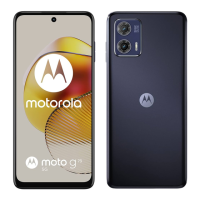
| Colors | Lucent White, Midnight Blue |
| Storage | 256GB |



 To Next Page