17Contacts
Transfer contacts
Merge your contacts from your social networking and
email accounts into one phonebook.
• To add your social networking contacts, see “Add
accounts” on page 12.
• To add your email contacts, see “Gmail™” on page 20.
Tip: If you add a
Corporate Sync account, you can
send messages to your coworkers, even if you don’t
have them stored in your contacts.
• To import contacts from your SIM card (if it didn’t
happen automatically), touch >
Manage SIM
card
> Import SIM card.
• To get more options and help, go to
www.motorola.com/TransferContacts
.
Call, text, or email contacts
Find it: > Contacts
For View contact, Send text, or Delete contact
touch and hold the contact, or touch the contact and
then the email address to send email.
View & use contacts
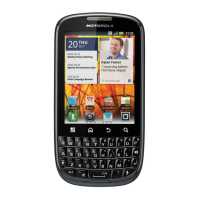
With a MOTOROLA PRO+, you’ll know what
everybody’s up to and when. Every time you pick up a
call, check a message, or look up a friend’s contact info,
sure, you’ll see their name and number, but you’ll see
their social network status and smiling face, too.
Find it: >
Contacts
• To filter the contacts by group (All contacts,
Facebook, and so on) touch Menu > Display
options
.
• To find a contact, touch and type the name.
Touch a contact to open their details. To start a call or
message, just touch their phone number or other info.
• To send a contact’s details in a message or over a
Bluetooth connection, touch the contact. Then,
touch Menu >
Share.
Edit or delete contacts
Find it: > Contacts
To edit or delete contacts, touch and hold the contact,
then touch
Edit contact or Delete contact.
Join contacts
You might have two Contacts for the same person,
maybe a Facebook friend who is also stored on your
SIM card, or one friend with two email addresses. To
combine these two contacts:
Find it: >
Contacts




 To Next Page