9Home screen
Home screen
quick access to the things you need most
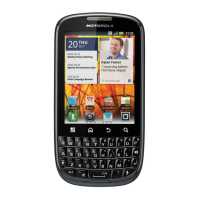
Quick start: Home screen
The home screen gives you all your latest information in
one place. It’s what you see when you turn on the phone
or touch Home from a menu. It’s basically like this:
Note: Your home screen might look a little different.
10 minutes ago
Dylan Foster
Prepping for my
meetings today,
wish me luck!
Christine Fanning
11:35am
Dylan Foster
Charity Bike Ride
Would you be interested
in sponsoring me this
weekend...
Widgets
See your latest updates,
and more.
Flick left or right to see more panels.
Shortcuts
Open the app menu.
Phone Status &
Notifications
Flick down to see details.
Tip: From the home screen, touch Menu > Profiles
to design different home screens for
Work, Home, or
Weekend. Your changes are stored in each profile.
Use & change your home screen
On your home screen, shortcuts are icons that you
touch to open your favorite apps, web bookmarks,
contacts, or music playlists. Widgets show you news,
weather, messages, and other updates.
Flick the home screen left or right to open other panels
of shortcuts and widgets.
• To open something, touch it. Touch Home to
return to the home screen.
• To change a widget’s settings, open it and then
touch Menu >
Settings or touch it and then touch
Widget settings.
Tip: For each
Messages or Social Networking widget,
you can choose the accounts you want to show.
There’s more about social networking widgets in
“Social networking” on page 12.




 To Next Page