Connecting Basic tips Customising
INSTALLATION
Connect the battery in the battery
compartment and then connect the USB
cable to charge until the LED is green. Then
disconnect the cable and open the computers
bluetooth menu and connect to ”Prime ble”.
Your Mousetrapper is now connected, and its
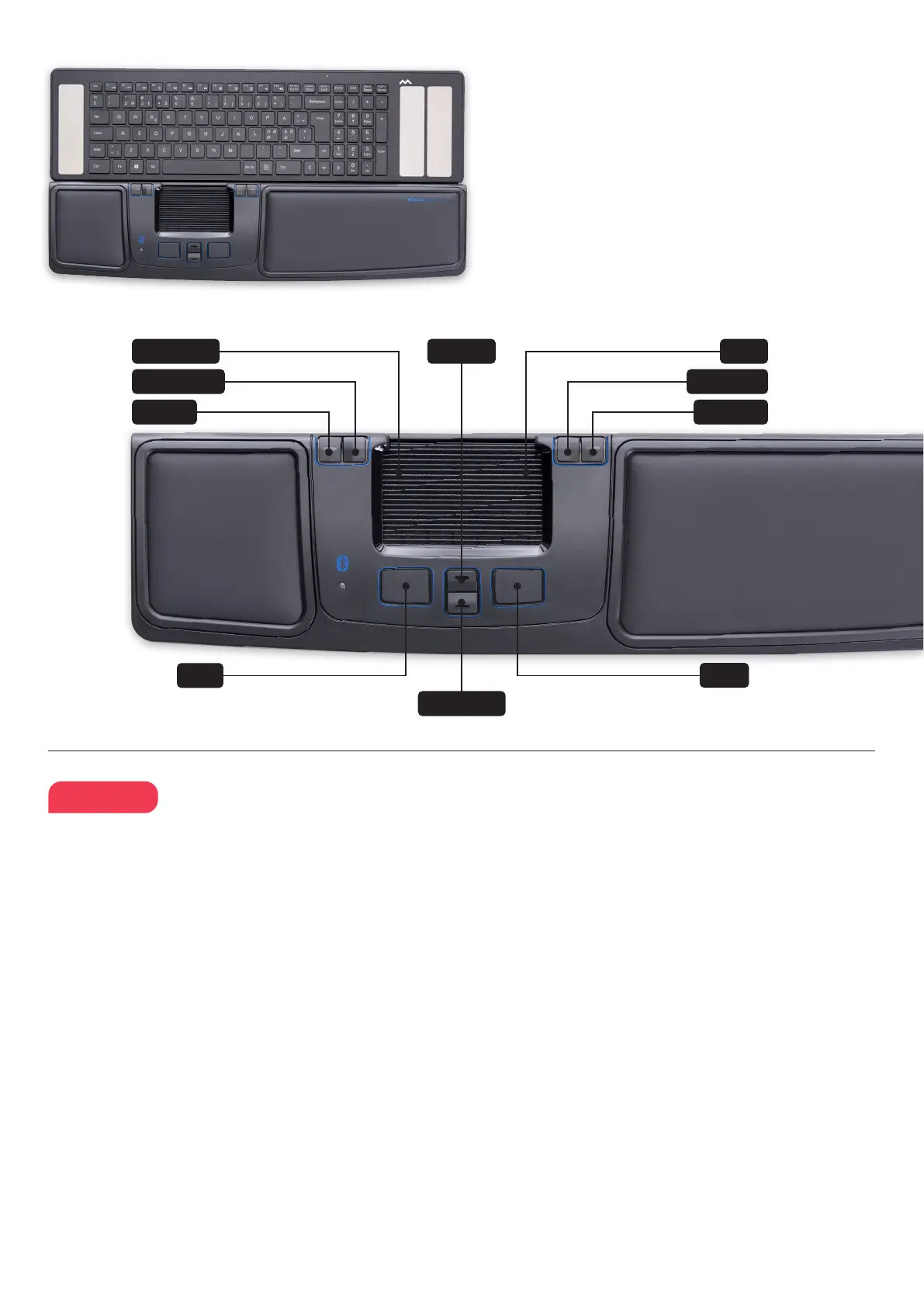
keys can be used as shown in Figure 2.
CHARGING THE BATTERY
The battery in the Mousetrapper needs charging
when the battery indicator ashes red. Connect
the Mousetrapper using the included USB cable
and allow it to charge until the LED indicator
shines green.
CHANGING FROM MAC TO PC
CONFIGURATION
The product is congured for PC on delivery.
To congure it for Mac, simultaneously depress
the lower right button and the lower left
button (Copy and Paste) for 3–4 seconds. The
LED will ash red to conrm the conguration.
Repeat the procedure to change back to PC
conguration.
POSITIONING
Position your Mousetrapper between you and
your keyboard. The space bar on the keyboard
should be directly in front of the control pad,
as shown in gure 1. If you have a low keyboard,
unfold the keyboard support from underneath
your Mousetrapper and place the keyboard on
top of it.
SCROLLING
To scroll using the control pad, place your nger
on the right edge of the control pad. There is no
need to press on the control pad, simply slide
your nger up or down the edge, depending on
which way you want to scroll.
REPLACEMENT OF PADS
The pads can be replaced when they are worn
out. To remove a pad, insert a at tool between
the frame and the Mousetrapper and gently
prise the frame/pad out of the Mousetrapper.
You can order new pads via your dealer or
directly from Mousetrapper.
MT KEYS
To customise the button functions, go to
mousetrapper.com/mtkeys and download the
software. If you have Windows 10, you can
download MT Keys from Microsoft Store.
NOTE: In order to use MT Keys, the cable must
be connected.
When you have downloaded MT Keys, an
image of the product will appear that matches
the image underneath your Mousetrapper.
Position the cursor over the button you want to
customise. Click on it by lightly pressing on the
control pad once. You will now see a pull-down
menu that lets you assign whichever action you
want to that button. You can choose between
functions such as adding an extra left-click,
creating shortcuts and inserting text by pasting
it in.
Scroll up
Copy
Paste
Zoom in Zoom out
Click/Select
Double Click
Right Click
Scroll
Scroll down
2
1
ENGLISH



 To Next Page
 Loading...