8
Mini MX Activation
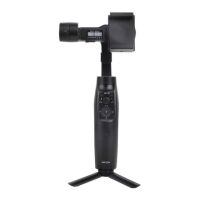
Enter the APP main interface to select the gimbal to be connected, the activation prompt
box will pops up, click Activate. After the activation is completed, the gimbal will work
normally. If activation fails, please try to reactivate, if it fails again, please follow the
prompts to contact customer service.
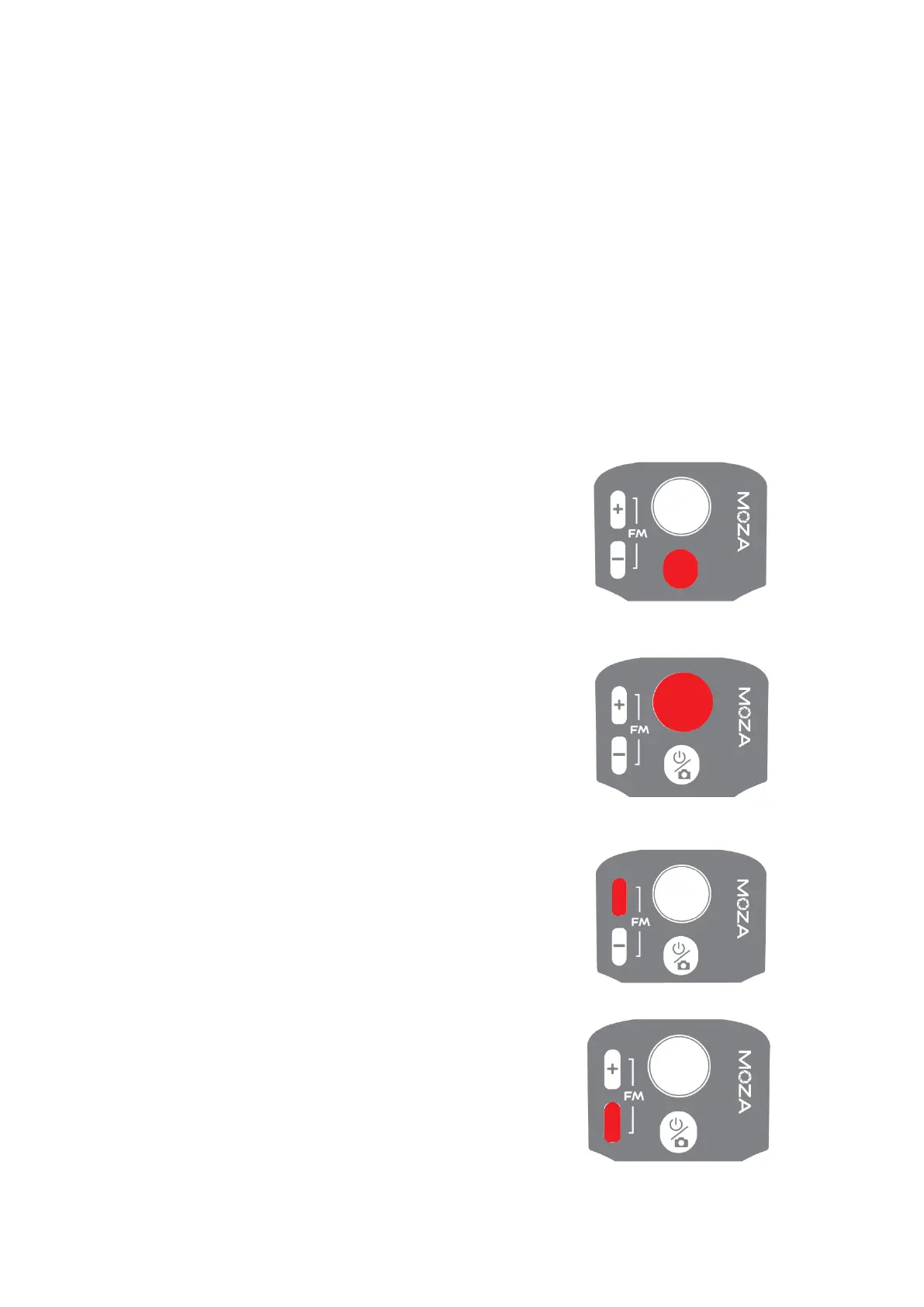
Button function (MOZA Genie App Control)
Fn button
Long press: on/off
Power on and enter standby mode (phone not
clipped/unlocked)
Single press: shutter; record / stop
Wake up (gimbal in standby mode)
Double press: switch to video mode/photo mode
Triple press: Horizontal and vertical mode switching
Joystick
Move upwards: phone camera goes up
Move downwards: phone camera goes down
Move leftwards: phone camera goes left
Move rightwards: phone camera goes right
Inception mode: Move leftwards, roll axis rotates counter
clockwise
Move rightwards, roll axis rotates clockwise
Zoom +
Click and hold: Zoom in
Single press: Pan-tilt follow
Double click: Automatically zoom in to maximum
Zoom -
Press and hold: Zoom out
Single press: FPV Mode
Double click: Automatically zoom out to minimum
Inception Mode: Push the joystick left and right in FPV
mode to control the rotation direction


 To Next Page